
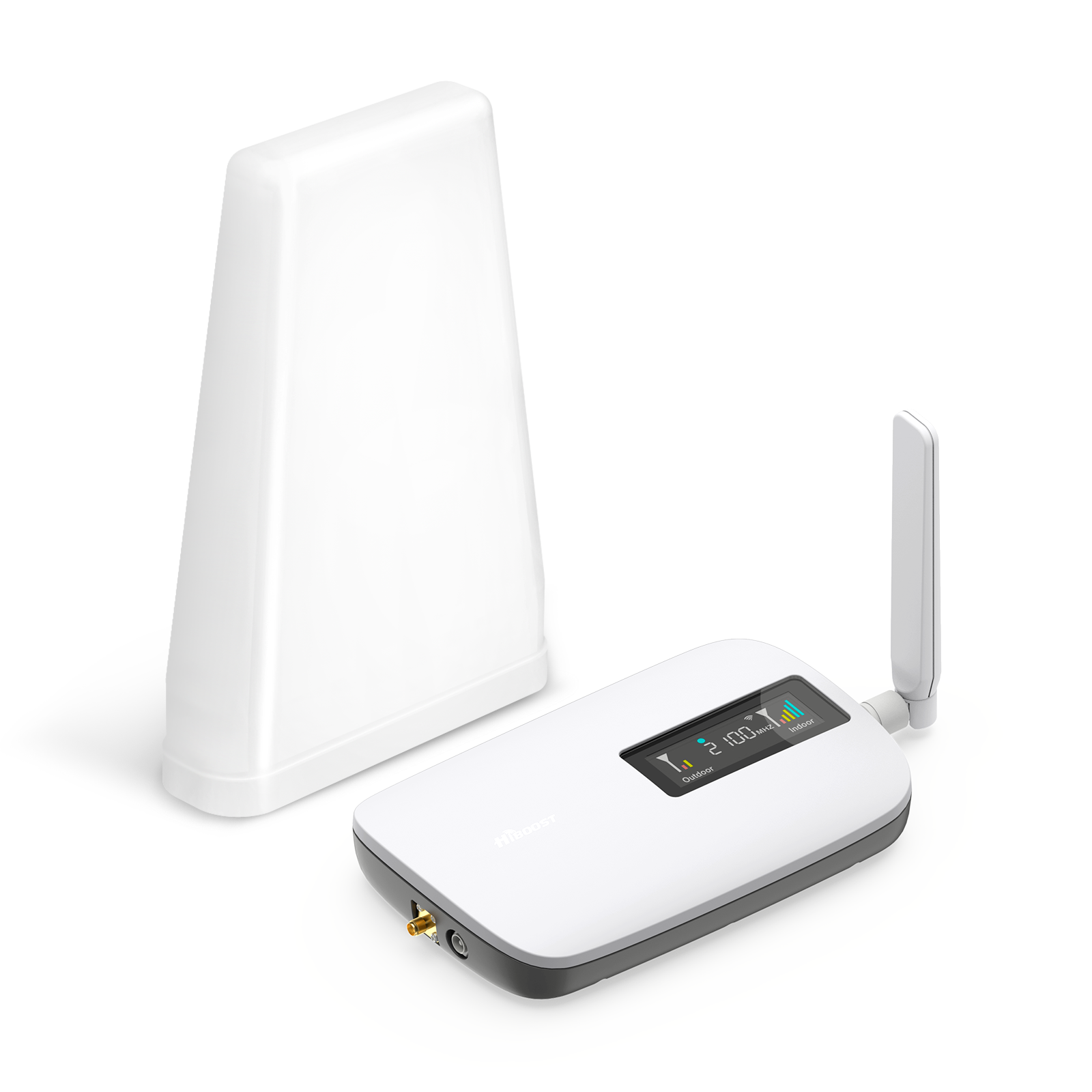
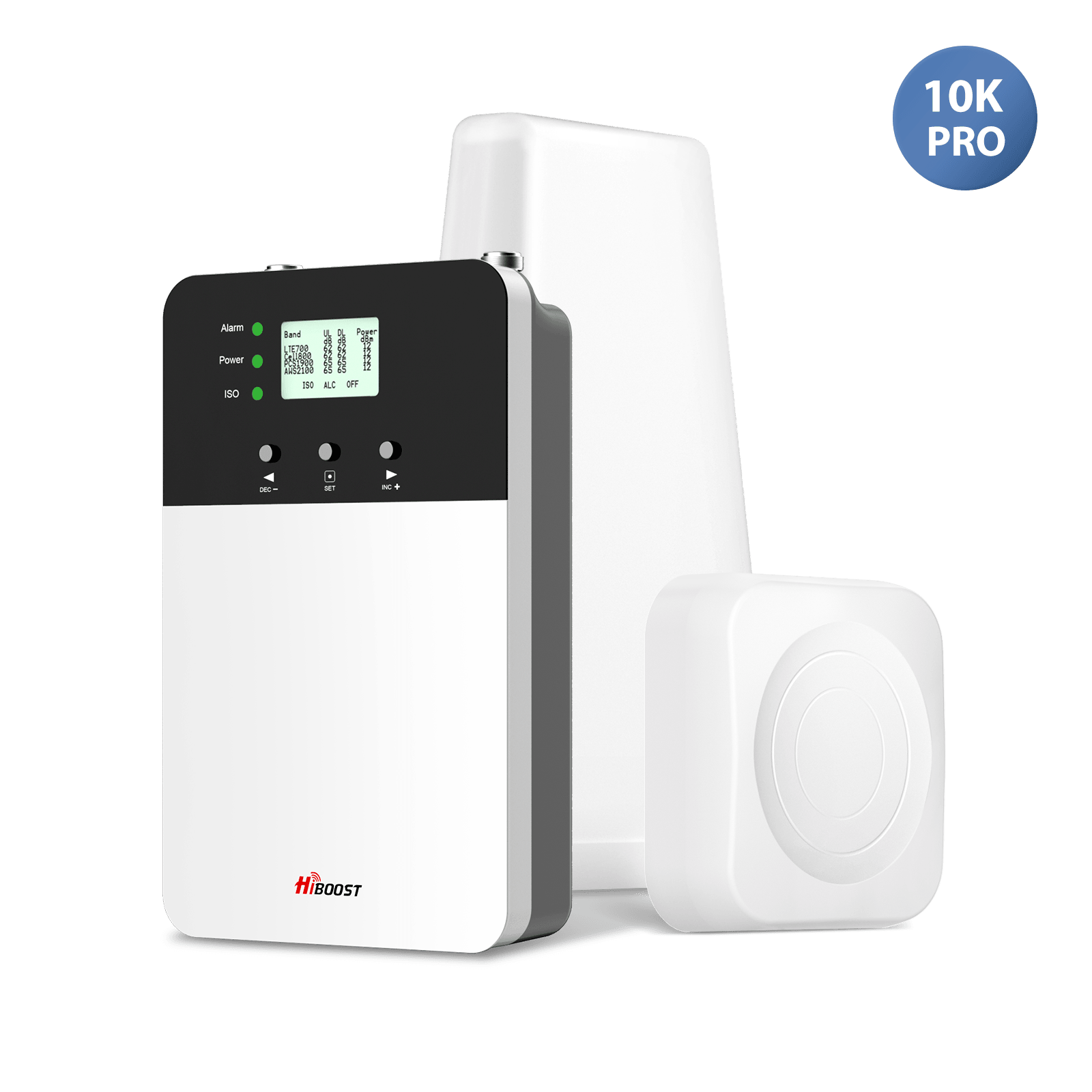
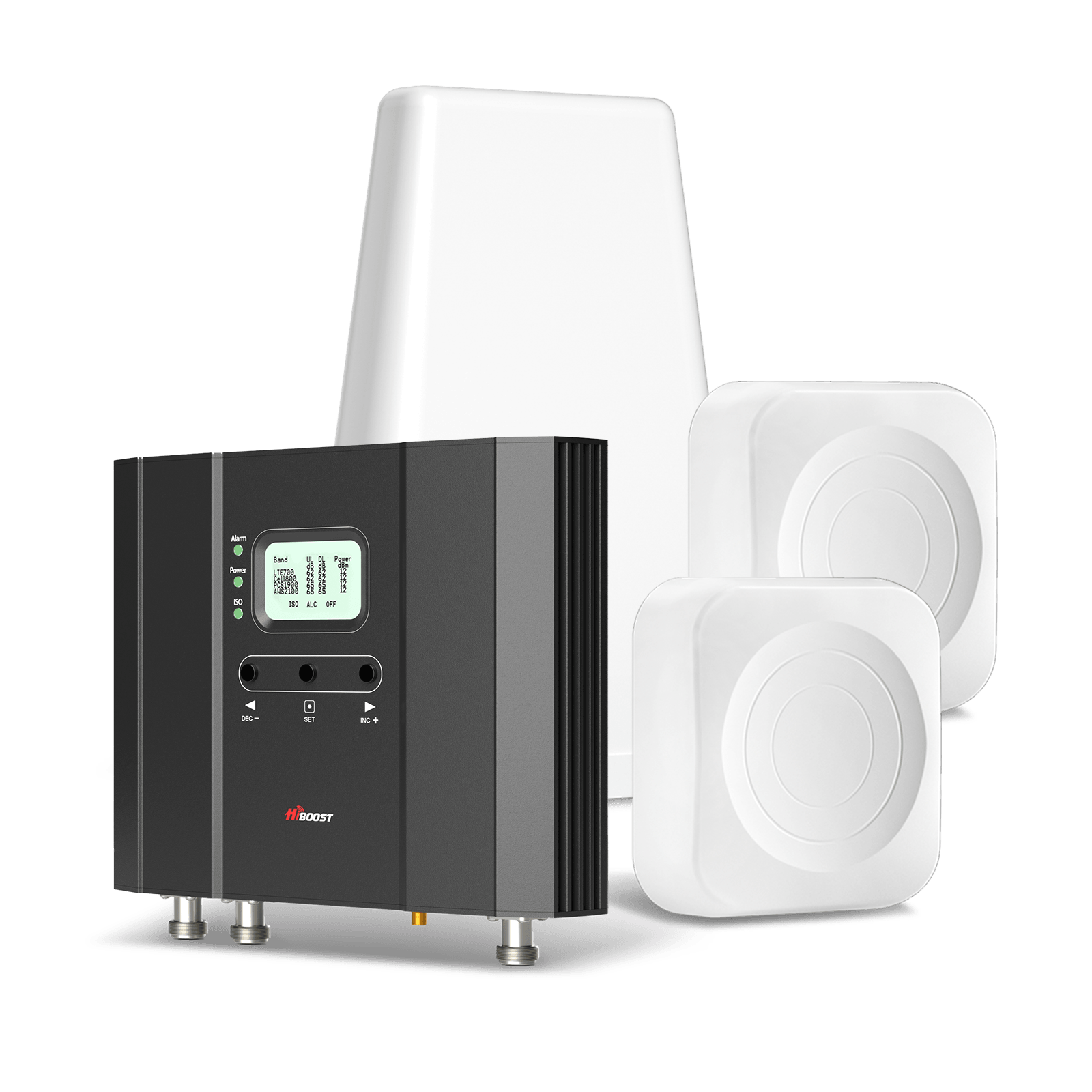
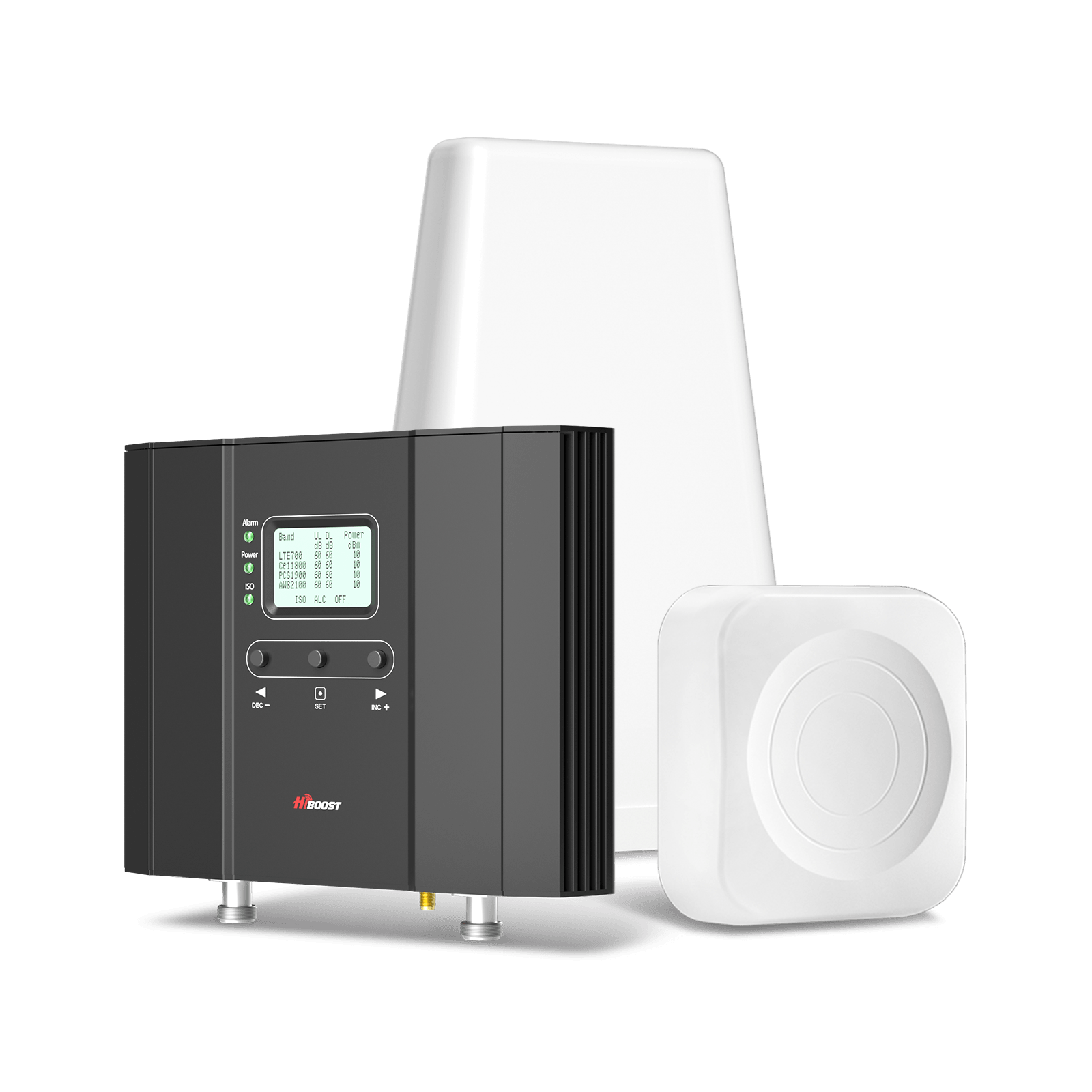
If you’ve installed a signal booster but aren’t sure it’s doing its job, don’t panic, there's a clear way to check. A working booster will measurably improve your phone’s performance: the signal strength should increase, data speeds should go up, you’ll get fewer dropped calls, and your coverage area should expand. The most reliable test is to compare your phone’s readings before and after installation.

For example, you might measure:
- Before: –110 dBm, 5 Mbps download, frequent dropped calls
- After: –85 dBm, 50 Mbps download, stable calls
This dramatic jump proves the booster is working.
A working booster turns a marginal signal into a strong one. You should see a higher dBm, faster download/upload speeds, fewer dropped calls, and more usable coverage. The simplest check is to note your phone’s dBm and speed tests before installing the booster and compare them after. The table below summarizes what to look for:
| Test Method | What Improvement Looks Like |
| Signal strength |
Higher dBm (closer to –50) |
| Speed test | Faster download/upload (e.g. 3→45 Mbps) |
|
Phone calls |
Fewer dropped calls, clearer audio |
|
Coverage area |
More areas (rooms) with reception |
|
Battery life |
Less power used (phone searches less for signal) |
1. Check Your Phone’s Signal Strength Before and After Installation
Signal bars on your phone are not reliable. Each phone model and carrier uses its own “bars” algorithm, so one phone’s 3 bars can be another’s 4 bars even with the same signal. Instead, use the dBm reading. A number closer to zero means a stronger signal. In practice, anything stronger than –90 dBm is solid, –100 dBm is shaky, and –110 dBm or lower is essentially unusable.
To get this reading:
Why You Should Care: You don’t have to remember all radio metrics. Just know that higher dBm = better signal. The detailed number tells the real story behind those fuzzy bars.
Why dBm Is More Accurate Than Signal Bars

Phones display bars in a user-friendly way, but bars vary by brand. For example, one phone might show 3 bars at –90 dBm, another might show 4 bars at 90 dBm. The actual signal is the same; the bars are not.
As Wilson Amplifiers explains, bars “are not going to help you here, so go straight for the real number.” The phone’s Field Test Mode shows your true signal in dBm.
“Signal bars are unreliable. They vary between devices and don’t give you the full picture. Field Test Mode shows your actual signal strength in decibels, which is far more accurate for troubleshooting and antenna aiming.”
In simple terms, a reading of –75 dBm is much better than –95 dBm, even if both show “full bars” on your phone. According to experts:
- –50 to –80 dBm: Excellent to Good signal.
- –90 to –100 dBm: Fair signal (you may notice occasional slowdowns or a dropped call).
- –110 dBm or lower: Essentially no usable signal.
How to Check dBm Signal Strength on iPhone
- Open the Phone app and dial *3001#12345#* then press Call. This enters Field Test Mode.
- Tap the menu and select “LTE”.
- Go to “Serving Cell Meas” and find the RSRP value. This is your signal in dBm.
- Interpret: If RSRP is, say, –85 dBm, that’s solid. If it’s –105 dBm, that’s weak.
Why you should care: You don’t need to memorize every cellular metric. In this mode, just look at RSRP. A closer-to-zero RSRP means a stronger signal, while a more negative number means weaker.
How to Check Signal Strength on Android
Most Android phones let you view dBm without special codes:
- Settings → About phone → Status. There should be a Signal Strength field showing something like “–90 dBm.”
- If not obvious, try dialing *#*#4636#*#*, which opens a testing menu with dBm.
- Or use an app like Network Cell Info Lite or CellMapper to read RSRP, SINR, etc. These apps graph your signal and can keep a log.
Tip: Take two readings in each location once with the booster off, and once with it on. Compare the dBm numbers. For a true “before and after,” make sure you use the same carrier, same device, same spot, and no Wi-Fi/VPN during tests.
2. Compare Internet Speed Before and After Using a Booster
Even with the same dBm, you might not see faster speeds. Why? Because signal strength and data speed aren’t always linked. Even at –80 dBm, if the tower is overloaded, your downloads will lag. Conversely, a relatively weak signal with an empty tower might give you fast data.

Important: A booster can only amplify the radio link, not overcome network congestion. One customer noted: “full bars but slow data.” This happens when many people use the tower or when the network or frequency band limits throughput.
Proper Speed Test Conditions: To fairly compare, run speed tests on the same phone at the same location, same carrier, and around the same time of day. Ensure Wi-Fi and VPNs are off. Use tools like Speedtest by Ookla or Fast.com. Record both download and upload speeds. For example:
- Before Booster: 3 Mbps down, 1 Mbps up.
- After Booster: 45 Mbps down, 20 Mbps up.
If you see a big jump, that’s clear proof the booster improved your usable connection. Even if the numbers are modest, check consistency: smoother streaming and reduced buffering are signs of improvement.
Why Faster Bars Do Not Always Mean Faster Internet
Remember: Bars measure signal, not network load. It’s possible to have 4 bars but slow internet if the tower or band is congested. As one guide explains, “Strength and quality are two different things”; network congestion or carrier limits can throttle speed.
- Network congestion: During peak times, your speed can drop even if the signal is good.
- Band limitations: Some frequencies have different capacities.
- Throttle/policies: Carriers may limit speed once you hit a data threshold.
How to Perform a Proper Speed Test
- Same conditions: Before vs. after, test in the same room/corner.
- Same phone: Use the same device and SIM card to avoid hardware/carrier differences.
- No Wi-Fi/VPN: Turn off Wi-Fi and VPNs to ensure it’s using cellular.
- Tools: Run Speedtest.net or Fast.com. Do 2-3 tests and average.
- Metrics: Record Download, Upload, and Ping.
You’re looking for a clear jump in throughput. For example, going from 5 Mbps to 30–50 Mbps after installation is common if the signal was poor before. If speeds don’t budge, double-check that your outdoor antenna is aimed correctly and not blocked.
What Speed Improvement Should You Expect?
It depends on your starting signal. In practice, we often see 10–20× improvement in poor-signal areas. For instance, a test in a rural home might go from 3 Mbps to 38.5 Mbps. That’s because the booster turned a marginal –100 dBm link into a strong –75 dBm link, doubling the signal power repeatedly.
Real world example: A rural house had only –110 dBm and streaming was impossible. After mounting the booster’s outdoor antenna high on a silo, the indoor signal rose to –82 dBm and downloads jumped from ~2.8 Mbps to ~38.5 Mbps, enabling HD video calls.
3. Test Phone Call Quality Improvement

A good signal booster should also improve call reliability. Here’s what to look for:
- Fewer dropped calls: If you used to drop several calls per day, check if that number drops to zero or near-zero after installing the booster.
- Faster connections: Calls should connect quicker. With a weak signal, dialing can take many rings; with a boosted signal, phones link almost instantly.
- Clearer audio: Listen for fewer choppy, robotic, or static-filled voices. Good RSRP gives clear audio.
- Increased indoor coverage: Areas that were dead zones should now allow calls.
Indeed, cell signal boosters are known to “eliminate dropped calls” and “improve audio quality,” even extending battery life by keeping your phone from working overtime.
Test Calls in Weak-Signal Areas
Pick a few trouble spots in your home or office. Record your call stats:
- Before Booster: Note how many drops or failures you had.
- After Booster: Try calling in those same spots. Ideally, you should make a call and stay connected with no dropout.
For example, one user reported 3 drops per day in her home office before boosting; after installation, she had 0 dropped calls in that room. That qualitative test is just as telling as any dBm number.
4. Check Your Signal Booster’s LED Indicators

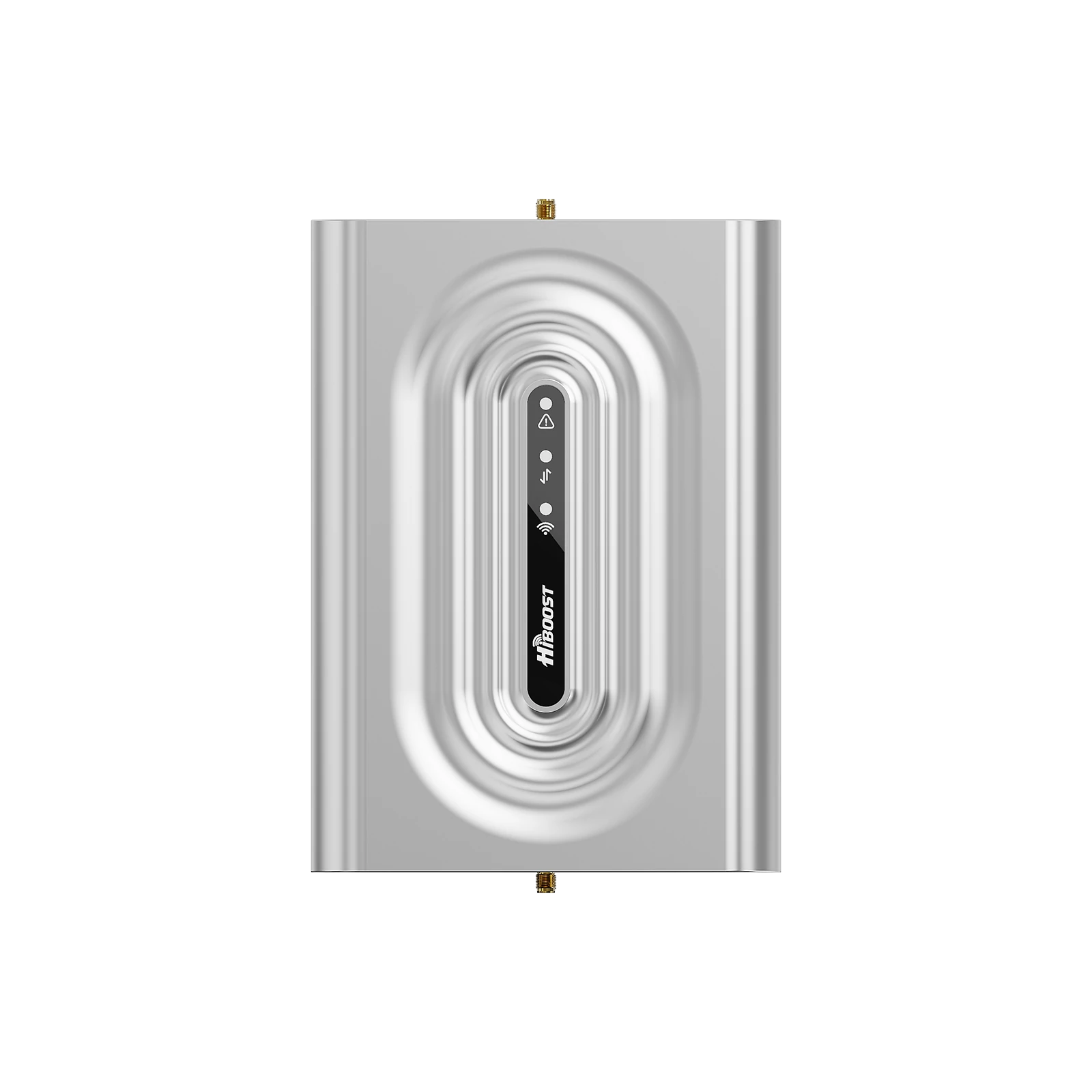
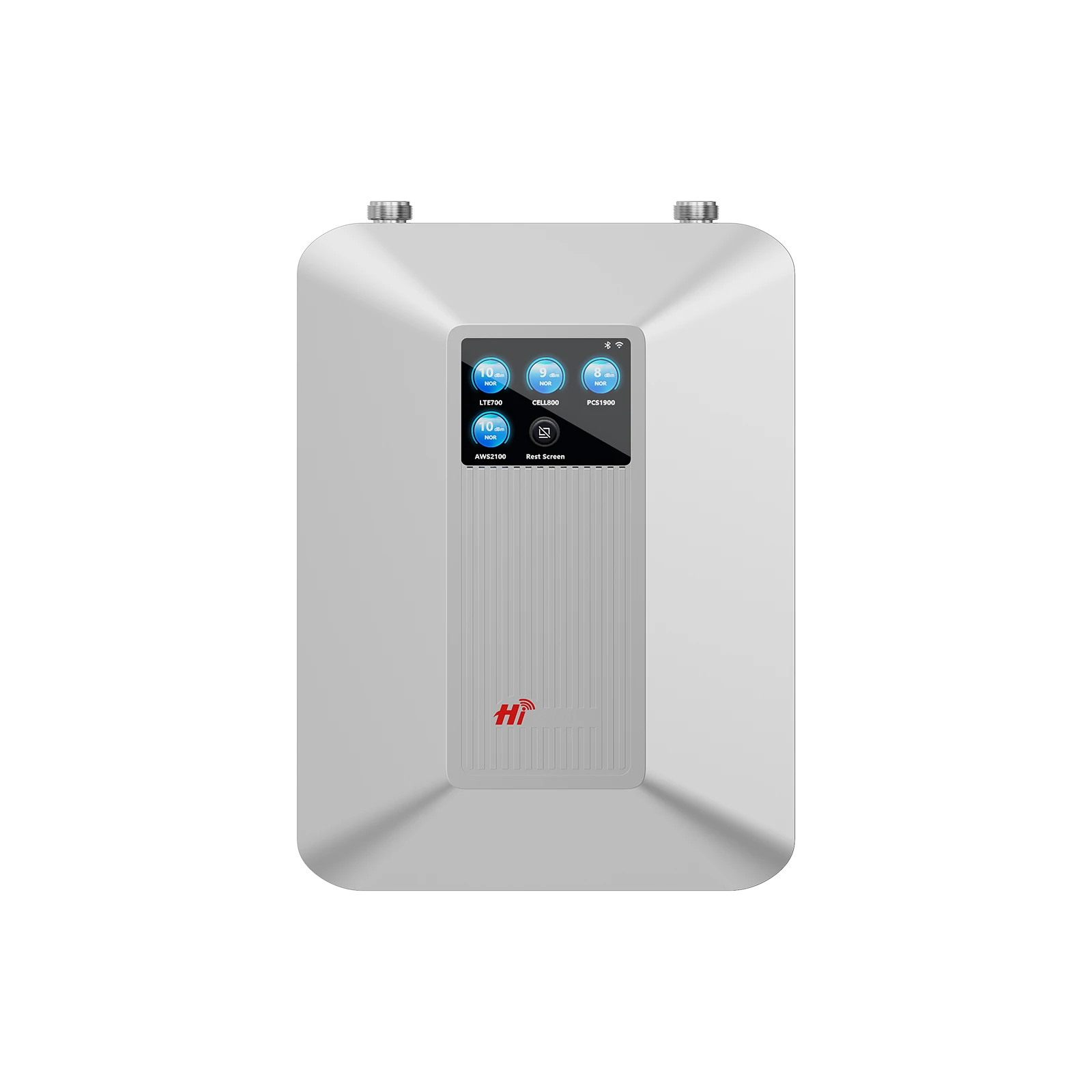
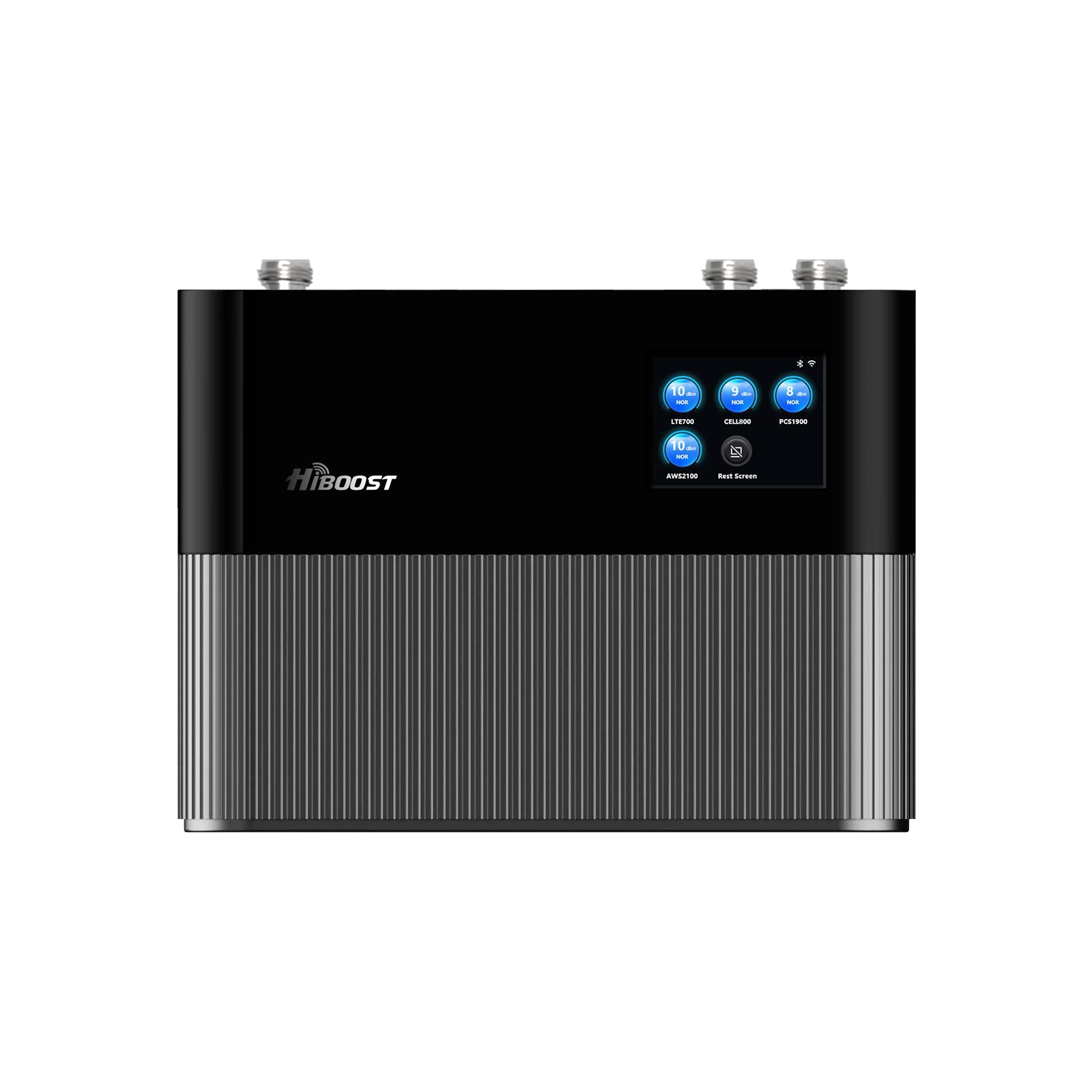
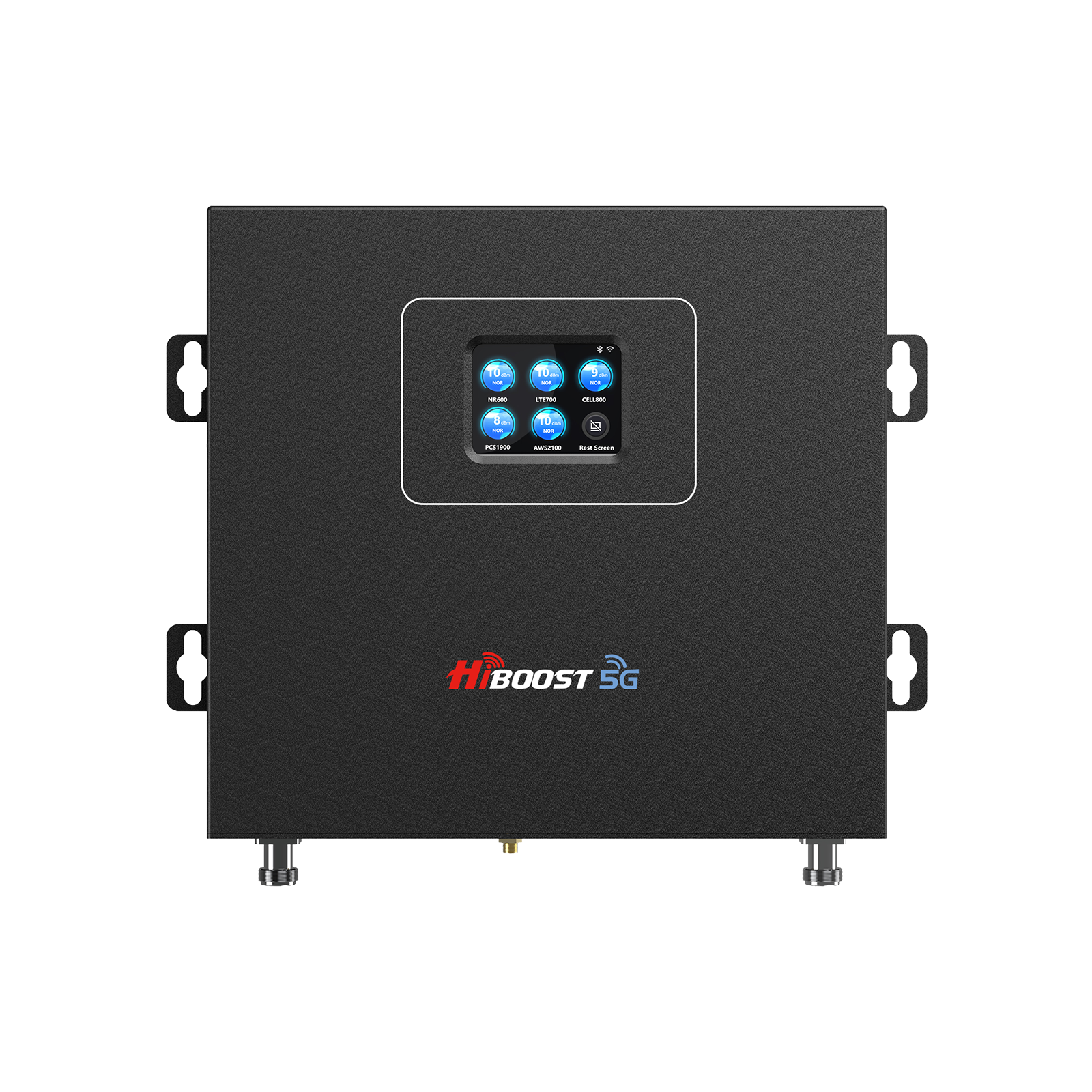
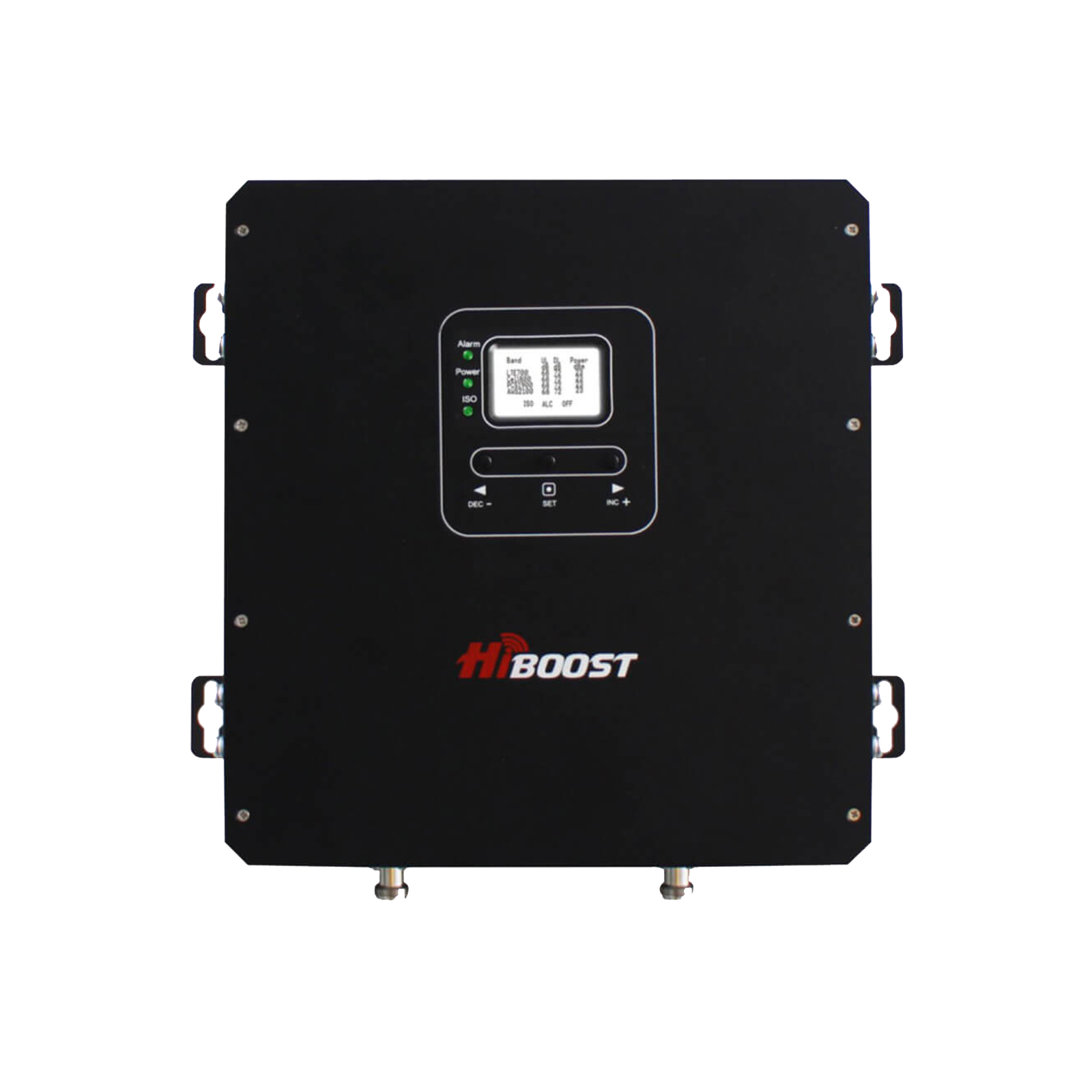
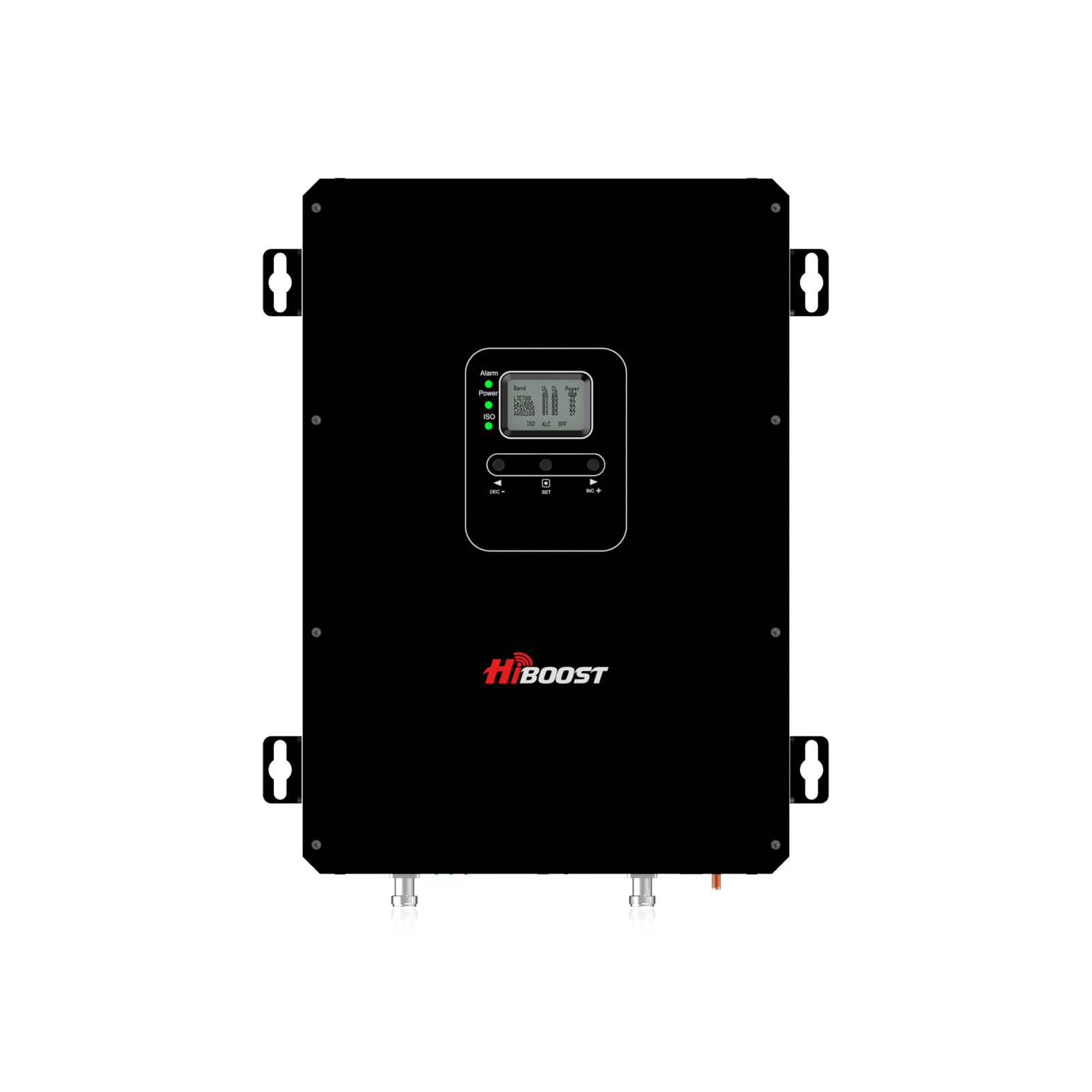
Your booster’s indicator lights can reveal its operating status. While HiBoost models may differ slightly, most boosters use a similar scheme:
-
Solid Green: Normal operation. The booster is powered on and amplified.
-
Flashing Green: Automatic Gain Control is active, adjusting the gain to stabilize the signal. This is generally normal, meaning the booster is moderating itself to avoid interference.
-
Solid Orange/Yellow: Reduced gain or inactive band. Some boosters light amber to show a band is on but idle. This isn’t an alarm by itself.
-
Flashing Orange/Yellow: AGC adjusting.
-
Solid Red: Alarm or shutdown. Often indicates too much signal or that a frequency band has been turned off due to interference.
- Flashing Red: This usually means oscillation or overload. The booster is receiving feedback or a super-strong signal, so it’s shutting down to protect itself.
-
Alternating Red/Yellow Flashing: A feedback loop caused by the antennas being too close. The booster is warning you to separate the antennas.
- No Lights: No power or no signal. Rarely “good.” Could mean the booster is off or there’s simply no cell signal to amplify on that band.
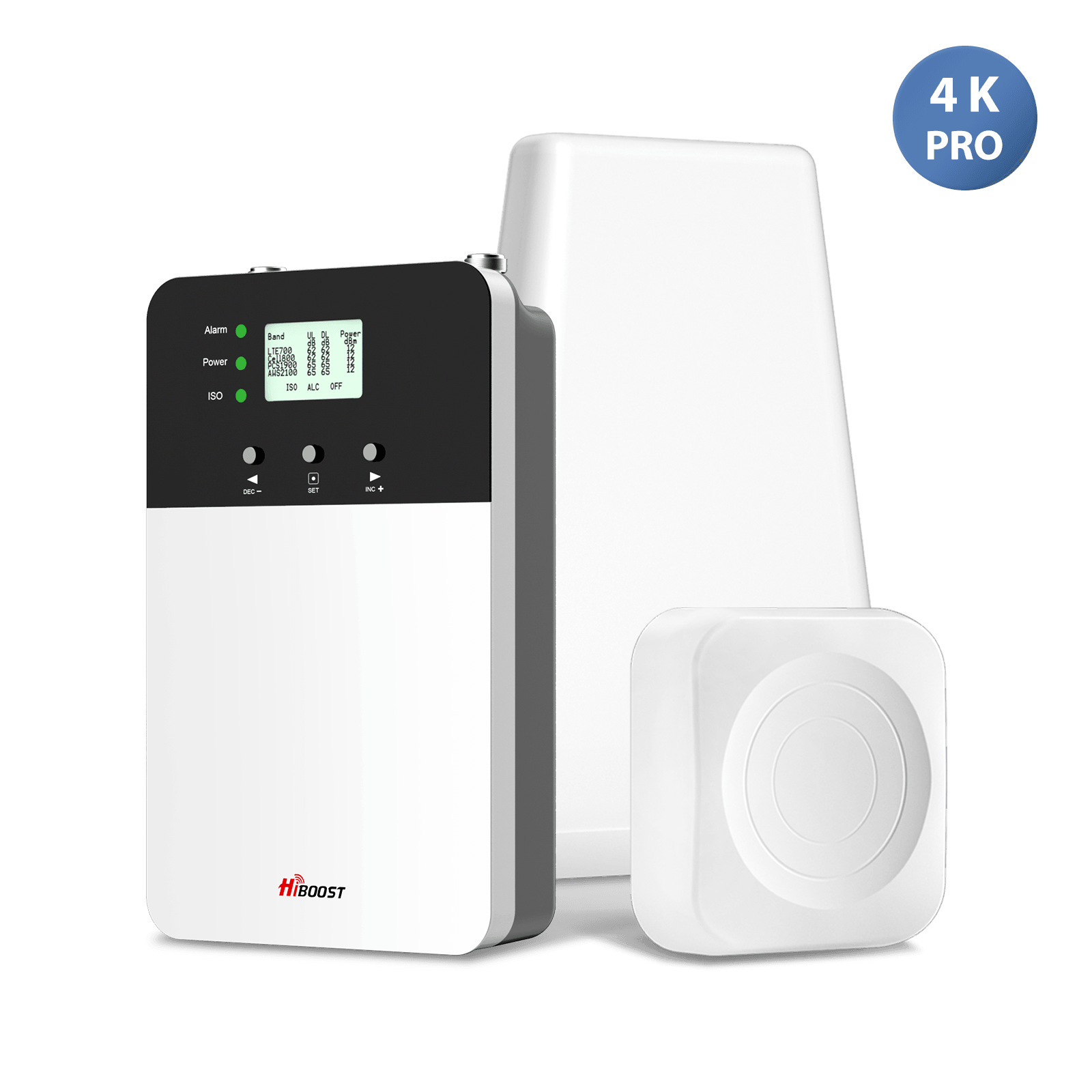
LED STATUS INDICATORS
| LED | STATUA |
INDICATION |
|
Alarm LED |
GREEN |
Below full output power |
| SLOW FLASHING GREEN | Full output power | |
| QUICK FLASHING GREEN |
Output power is too high |
|
|
QUICK FLASHING RED |
Booster will automatically shut off due to excessive DL signal from tower | |
|
Power LED |
GREEN |
Normal |
|
OFF |
DC Power Problem | |
|
ISO LED |
GREEN | Normal |
| SLOW FLASHING GREEN | Slight loopback or self-oscillation |
|
| QUICK FLASHING GREEN | Deep loopback or self-oscillation | |
| QUICK FLASHING RED | Booster is automatically shutting off |
What to do:
Ideally, after installation all LEDs should be solid green or slowly flashing green/yellow. If you see red:
- Check antenna placement. Ensure the outdoor and indoor antennas are far apart and not pointing at each other.
- If flashing yellow/red, power-cycle the unit and reposition antennas.
- If lights stay red, try adjusting the booster’s gain or add a small attenuator on the outside antenna cable to reduce overload.
5. Check Coverage Area Improvement
Map out your home before and after:
- Before: Walk around with your phone. Note which rooms have signals and which don’t. E.g. “Master Bedroom ❌, Garage ❌, Attic ❌.”
- After: Repeat with the booster on. You should mark all previously dead rooms with a ✅ if signal now reaches them.
For example:
|
Room |
Before Booster |
After Booster |
| Bedroom |
❌ (No signal) |
✅ (Good signal) |
| Office | ❌ | ✅ |
| Basement | ❌ | ✅ |
| Garage | ❌ | ✅ |
A dramatic increase in covered areas confirms success. Essentially, the booster “pulls” usable signals into more rooms.
6. Verify Your Phone Is Getting the Improved Signal
A subtle point: Your phone itself doesn’t “connect” to the booster. The booster sits between your tower and your phone, invisible to the handset.
The chain is:
scss
Copy
Tower ⇄ Outside Antenna ⇄ Amplifier Booster ⇄ Inside Antenna ⇄ Your Phone
Your phone simply sees a stronger signal from the cell network. You won’t see “Hiboost” on your phone, only better bars or data results.
The presence of a booster is implicit. You confirm it by how your phone performs, not by any new network name on the phone.
7. Measure Booster Performance Like a Pro
For the most rigorous testing, treat it as a mini-science experiment:
- Outdoor Signal Test: Go outside near the booster’s outdoor antenna and measure the signal.
- Indoor Weak Spot Test: Go to the worst spot inside. Record dBm and speeds.
- With Booster Active: Turn on the booster. Wait a minute, then test again in that same spot.
- Compare Results:
| Metric | Before Booster |
After Booster |
Difference |
|
RSRP (dBm) |
–118 | –82 |
+36 dB |
| SINR | (xx dB) | (yy dB) | (Improved) |
| Download Speed | 2.8 Mbps | 38.5 Mbps |
+35.7 Mbps |
| Upload Speed | 1.1 Mbps | 12.0 Mbps | +10.9 Mbps |
|
Ping |
80 ms | 30 ms | (Lower is better) |
|
Coverage Area |
2 rooms | 6 rooms | +4 rooms |
By comparing side-by-side metrics, you remove guesswork. Even small gains can meaningfully boost throughput. Remember: every +3 dBm doubles the signal power, so a +9 dBm gain is 8× the power!
8. Signs Your Signal Booster Is NOT Working
If you’ve followed all steps and still see no improvement, check for these red flags:
1. No Signal Improvement at All:
-
Possible cause: There wasn’t enough outdoor signal to begin with. A booster can’t create a signal from nothing. If your outside reading was –120 dBm, the booster won’t magically fix that.
-
Fix: Ensure your outdoor antenna is very high and pointed correctly. Sometimes a better location or higher antenna pole is needed.
2. Bars Went Up but Speed Stayed the Same:
- Possible cause: Tower congestion or bandwidth caps. If the tower is busy, boosting won’t speed it up.
- Fix: Test at off-peak times, or contact your carrier about speeds.
3. Booster Keeps Shutting Down (Red LED):
-
Possible cause: Oscillation/feedback. The indoor antenna is too close to the outdoor one or they’re oriented toward each other.
- Fix: Increase distance between antennas. Aim them away from each other until the red light stops.
4. Only One Room Improved:
-
Possible cause: Indoor antenna placement. If it’s in a corner or blocked by furniture/walls, only part of your home gets the signal.
-
Fix: Move the indoor antenna to a central, open location. A ceiling spot often works best for omni antennas. For panel antennas, make sure its “front” faces your usage area.
5. Slow Speeds Despite Strong dBm:
- Possible cause: Your carrier might be limiting you.
- Fix: Check with your provider; consider a higher-tier plan if data is capped.
If problems persist, review the booster’s manual or contact technical support. Often a small tweak is all it takes.
9. Common Installation Mistakes That Can Make a Booster Seem Ineffective
Even small mistakes can nullify a booster’s benefit. Avoid these pitfalls:
-
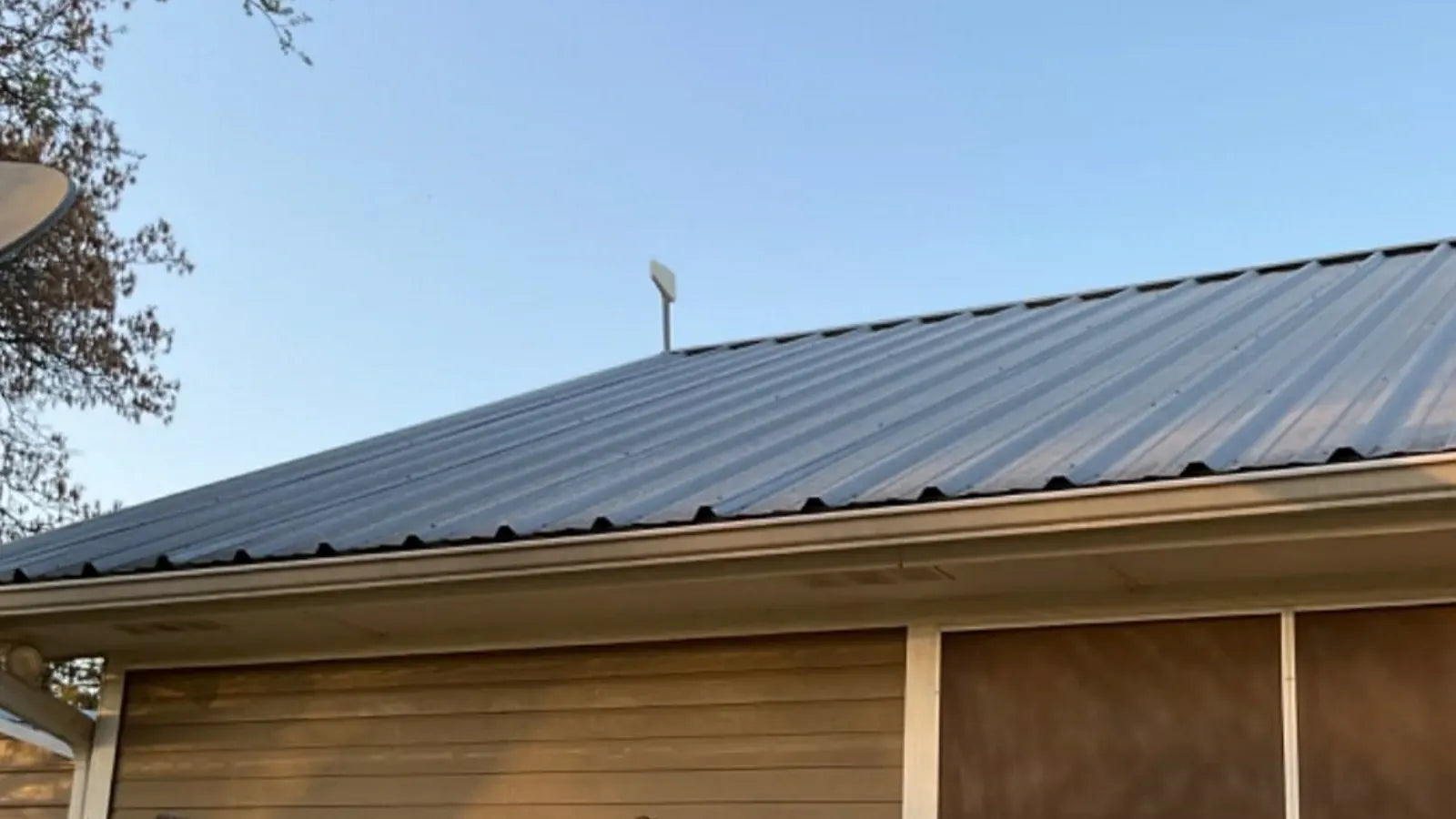
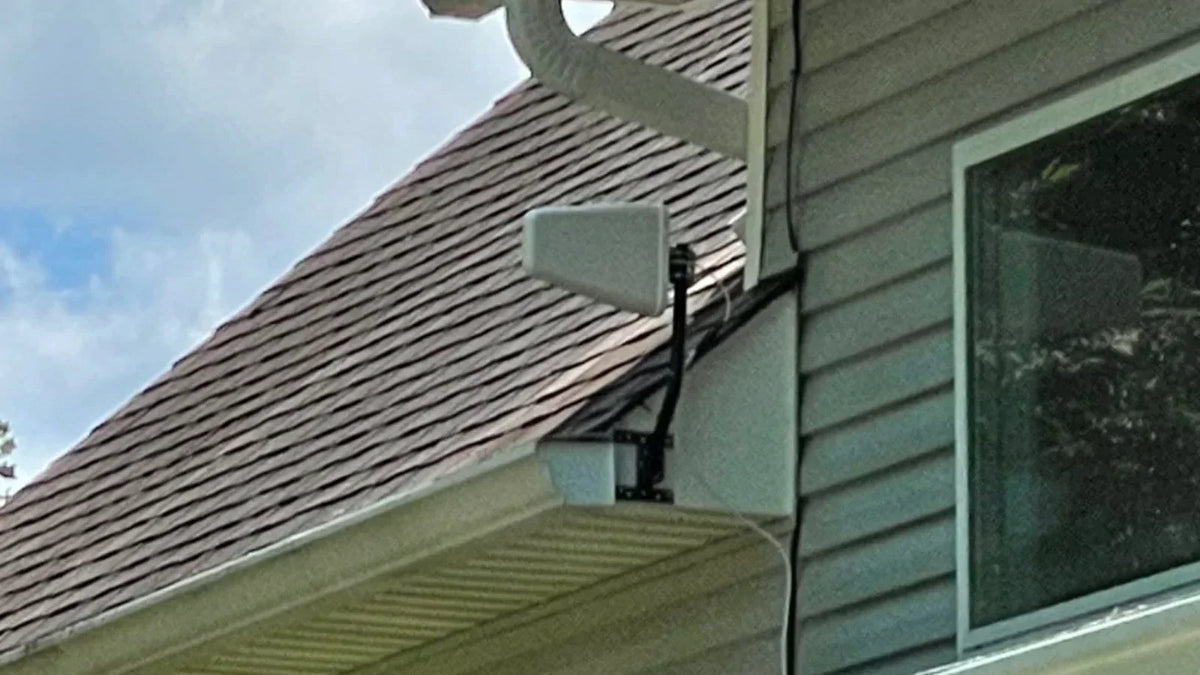
Outdoor Antenna Too Low: Mount it as high as practical. Roof peak or pole mounting is ideal. If it’s tucked under an eave, it may see a lot of reflected or obstructed signals.
- Indoor & Outdoor Antennas Too Close: Ensure at least 20–30 feet of separation, and keep them on different floors if possible. Close placement causes oscillation, which forces the booster to limit itself.
- Wrong Antenna Direction: Directional antennas must point to the nearest tower. Use tools like CellMapper or your carrier’s tower maps. An omni antenna should be placed high and away from obstructions.
- Too Much Cable Length: Long, low-quality cables introduce loss. Keep coax runs short, and use the low-loss cables provided. Every extra 10–20 feet of cable costs a signal.
-
Wrong Frequency Compatibility: Check that your booster supports your phone’s bands. A booster for Bands 2/4/13 won’t help if your carrier uses Band 71 or C-band at your location. Use the phone’s field-test to see which band you’re on and match it to the booster specs.
-
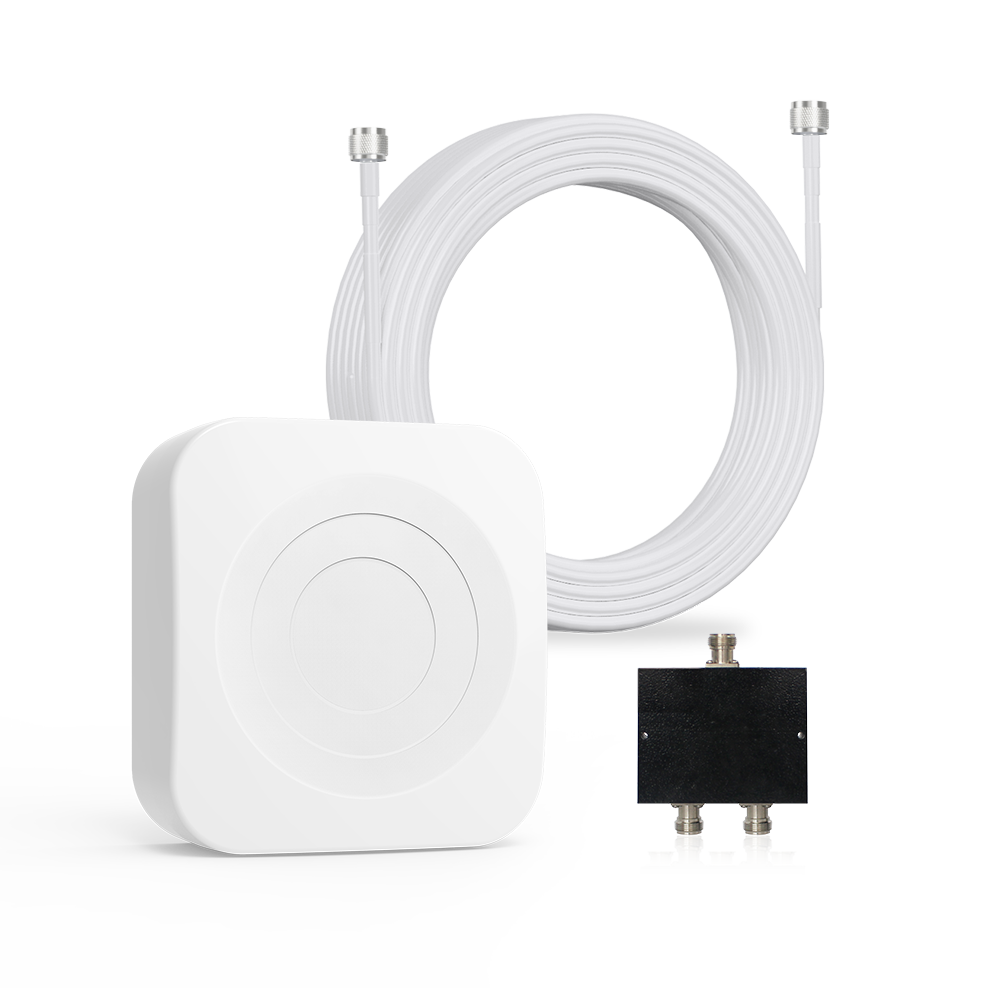
Unnecessary Splitters: If you’re not running multiple indoor antennas, don’t use a splitter; it just halves your signal.
-
Ignoring Power & Grounding: Ensure the booster is plugged into a stable outlet and, if instructed, ground the outdoor antenna to protect against surges.
By correcting these mistakes, you allow the booster to operate at full potential.
10. How Long Does It Take for a Signal Booster to Work?
Practically immediately. Once powered on, the booster is amplifying the signal, so any connected phone should see the effect right away. However, phones often cache network connections.
It’s smart to restart your phone after installation so it connects fresh to the improved signal. Give it 5–15 minutes to roam or re-register with the network, especially if you were far off before.
In our experience, waiting a minute or two ensures your phone locks onto the new signal and shows the improved dBm or bars. In short: you should notice a difference within moments, but allow a few minutes for everything to settle.
11. Can a Signal Booster Improve 5G?
5G is complicated because not all 5G frequencies are alike. Signal boosters can improve 5G only on bands they support. Most current boosters amplify the same bands used by 4G LTE. This means:
- Low-band 5G (e.g. 600/700/850 MHz): These share infrastructure with 4G. Boosters will help these frequencies just as they help 4G.
- Mid-band 5G (C-band, ~3.7 GHz, n77/n78): Boosters may support mid-band if listed. Check your booster’s spec sheet. Some HiBoost units now support C-band.
-
High-band 5G (mmWave, 24–39 GHz): Almost always not supported. mmWave 5G uses entirely different antennas and waves that most boosters cannot amplify. In practice, mmWave is only in select urban spots, so most home boosters focus on sub-6 GHz.
To sum up: If you have “standard” 5G, your booster can help. If you have Verizon “Ultra-Wideband” or T-Mobile “mmWave” in a small zone, the booster probably cannot. The key is band compatibility.
Why does this matter? Because if your phones stick to mid/high-band 5G only when strong, a booster for low-band may not show “5G+” icons, but it will still boost whatever LTE/5G-NR signal your phone falls back to. In fact, boosting an LTE band often lets your phone stay on 5G longer because the underlying signal is stronger.
12. Real Customer Examples: Before and After Results
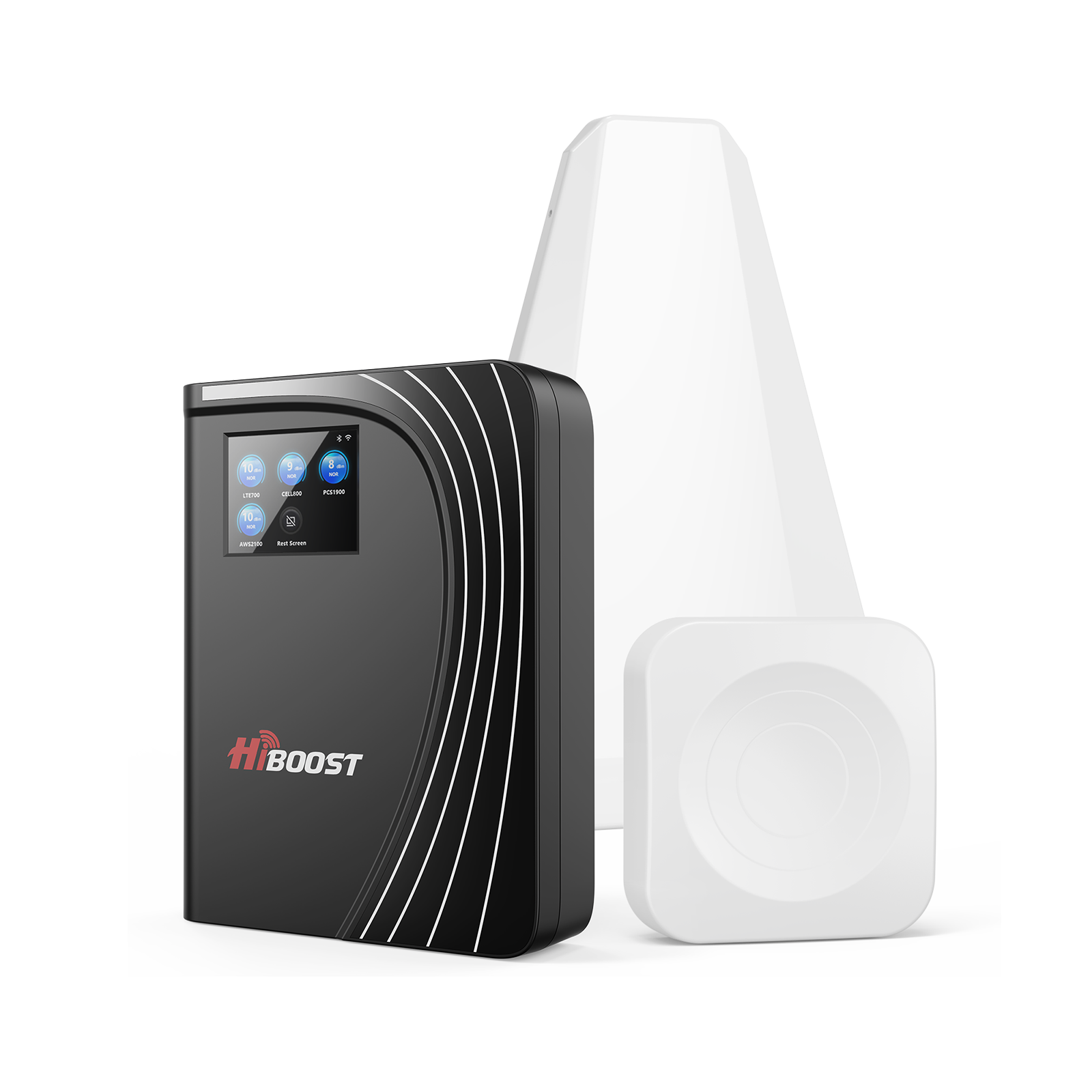
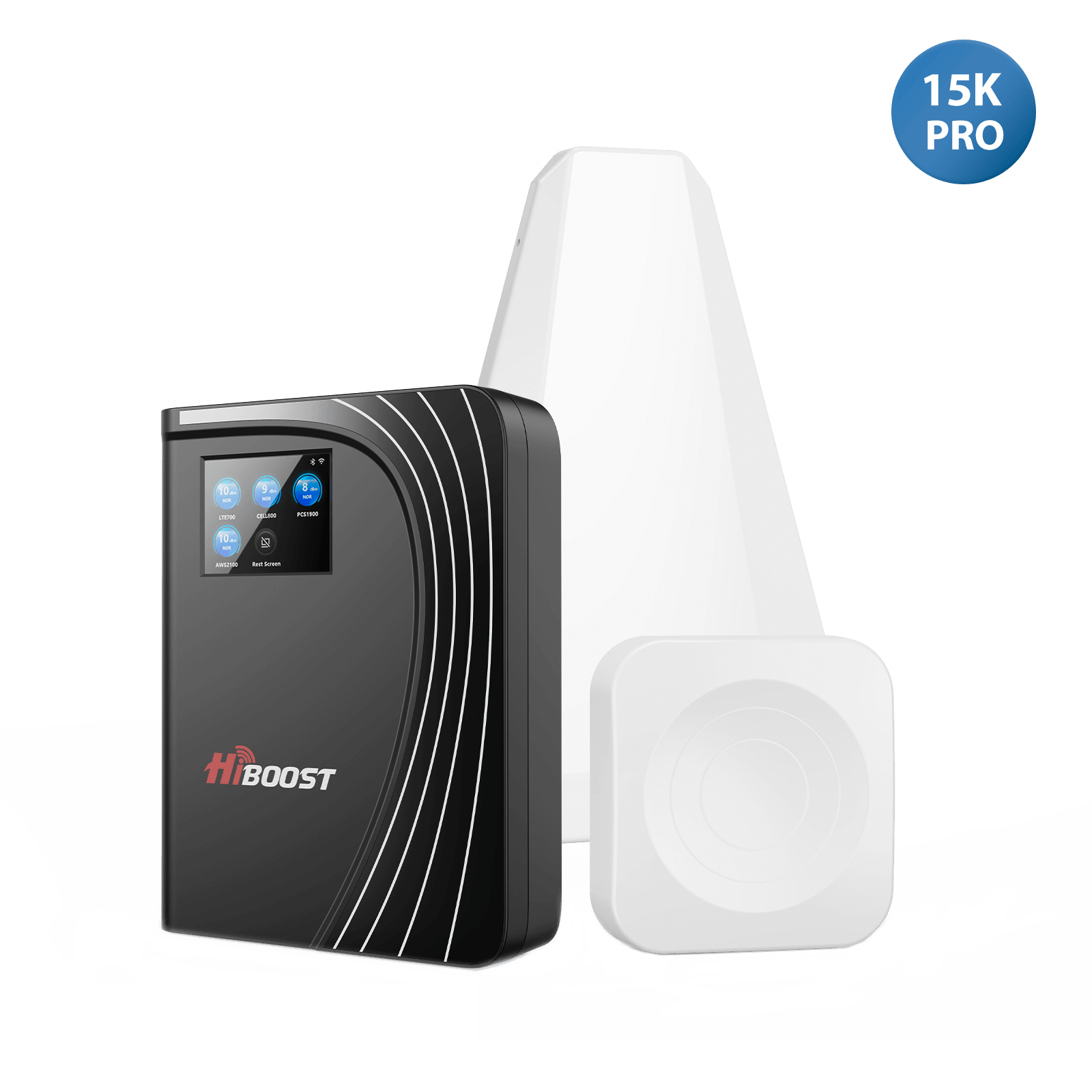
Real feedback confirms the numbers. Verified HiBoost customers often report dramatic signal jumps. For example, one rural homeowner wrote that her Verizon signal went from –112 dBm to –84 dBm indoors after installing a HiBoost 15K Smart Link Deluxe.

Another camper reported stable video calls where before there was no coverage. While specifics vary, the pattern is the same: poor signal transforms into usable signal. HiBoost’s own tests typically show outdoor readings improving by 20–30 dB and speeds going from a few Mbps to tens of Mbps.
HiBoost Customer: “We installed the 10K Smart Link and went from almost no signal to 4 bars in the house. Downloads jumped from 3 Mbps to 45 Mbps and calls stopped dropping.”

(Note: Individual results depend on location, phone, and booster model. But these stories echo what experts say boosters should do.)
Signal Booster Testing Checklist (Downloadable)
Keep this simple table (you can duplicate it) to log before/after:
| Date | Carrier | Location | dBm (Before) | Download (Before) | Upload (Before) | dBm (After) | Download (After) | Upload (After) |
| 2026-XX-XX | AT&T |
Back Bedroom |
–110 dBm | 2.1 Mbps |
0.8 Mbps |
–78 dBm |
30.5 Mbps |
12.4 Mbps |
| … |
… |
… |
… |
… | … | … | … | … |
Filling this out on the spot keeps a clear record of the booster’s impact. It’s also useful if you ever contact support.
Frequently Asked Questions
How do I know my cell phone booster is working?
Measure your phone’s dBm and run a speed test before and after. A working booster will raise the dBm value (e.g. –100→–80) and increase your data speeds. Check for fewer dropped calls as well.
Why didn’t my signal bars increase after installing the booster?
Bars are inconsistent between phones. Even if bars don’t budge, your dBm reading might improve. Always rely on the numeric dBm and speed results, not the bars.
Why is my booster on but the signal is still weak?
Likely the outdoor antenna isn’t getting a good signal. Check that it’s high and aimed correctly. Also ensure the indoor antenna isn’t too close (causing shutdown). If your outside reading is –110 dBm or worse, even a booster can’t help much.
Does a signal booster increase internet speed?
It can increase effective speed by improving signal quality, but only up to what your network provides. In a test, downloads often go from a few Mbps to dozens of Mbps with a strong boost.
Can a booster improve 5G?
Only on supported bands. Most home boosters work on sub-6 GHz 5G. They do not boost mmWave 5G. If you have low/mid-band 5G, a booster can help just like it helps LTE.
How many dBm improvement is good?
Every +3 dBm doubles the signal power. So even a 6–9 dB gain is huge. As a rule of thumb, moving from –100 to –90 dBm makes calls and data much more reliable.
Why does my booster show a red light?
A red light usually signals a problem: either oscillation or signal overload. It means the booster has shut off to protect itself. Increase antenna separation or add attenuation until it goes green.
How far apart should booster antennas be?
At least 20–30 feet apart, preferably on different floors or walls. More is better up to a point – just avoid extremely long cable runs. This prevents feedback loops.
Why does my booster work outside but not inside?
If your outdoor antenna is in a good spot, it will pull signal. But the indoor antenna might not be placed optimally. Try moving it to the ceiling or to the center of where you need coverage. Also ensure the coax is plugged in all the way.
Can a booster make my phone battery last longer?
Yes. With a stronger signal, your phone doesn’t have to transmit at full power to reach the tower, which saves battery. Users often notice better battery life after boosting.
Should I restart my phone after installation?
It’s a good idea. Restarting forces your phone to register on the network with the new boosted signal. It can speed up the connection process.
How do I test my booster without an app?
You can use your phone’s built-in field test mode (as above) and any browser-based speed test. No special app is needed – just tools like Speedtest.net and the phone’s status screens.
Related Guides
How Do Cell Phone Signal Boosters Work?
How to Install a Cell Phone Signal Booster
Best Cell Phone Signal Boosters for Rural Areas
Does a Signal Booster Work With 5G?
By following this checklist and testing methodically, you’ll know exactly what your booster is doing. The key is measure, compare, and confirm and rest easy knowing improved calls and data are on the way.
Car/Suv,RV,Truck,Vehicle


Our Home Signal Booster


Popular Articles

Leave a comment
All comments are moderated before being published.
This site is protected by hCaptcha and the hCaptcha Privacy Policy and Terms of Service apply.