
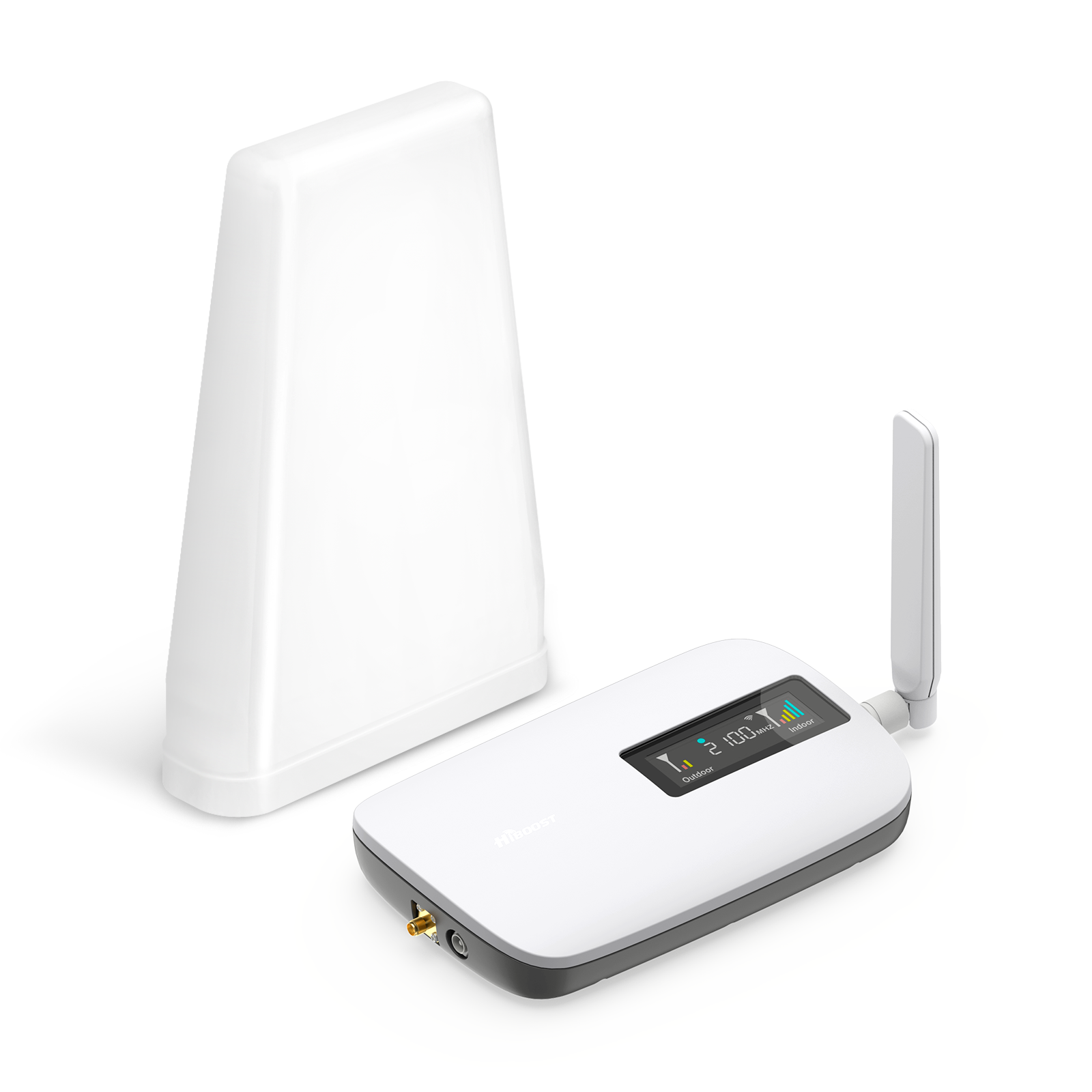
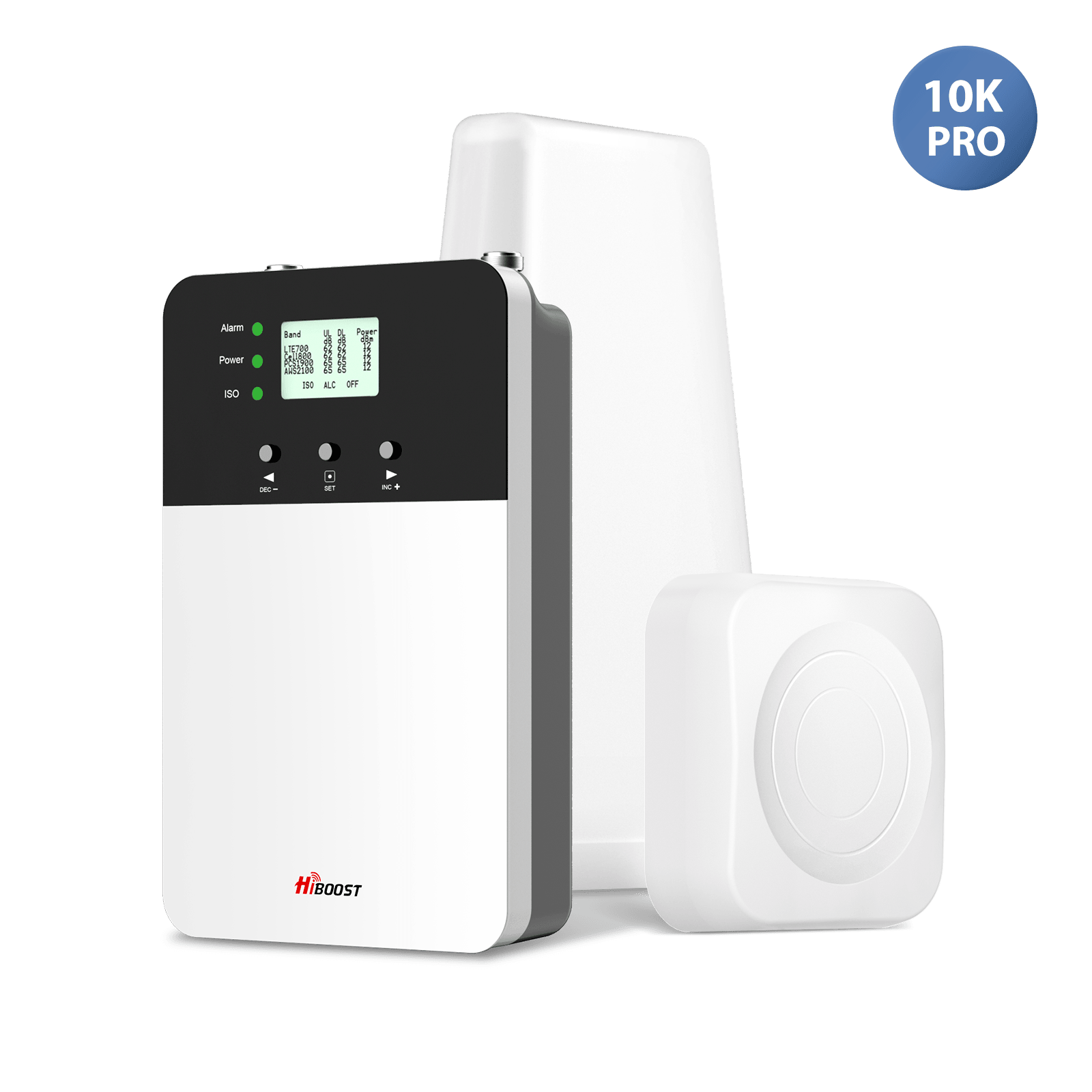
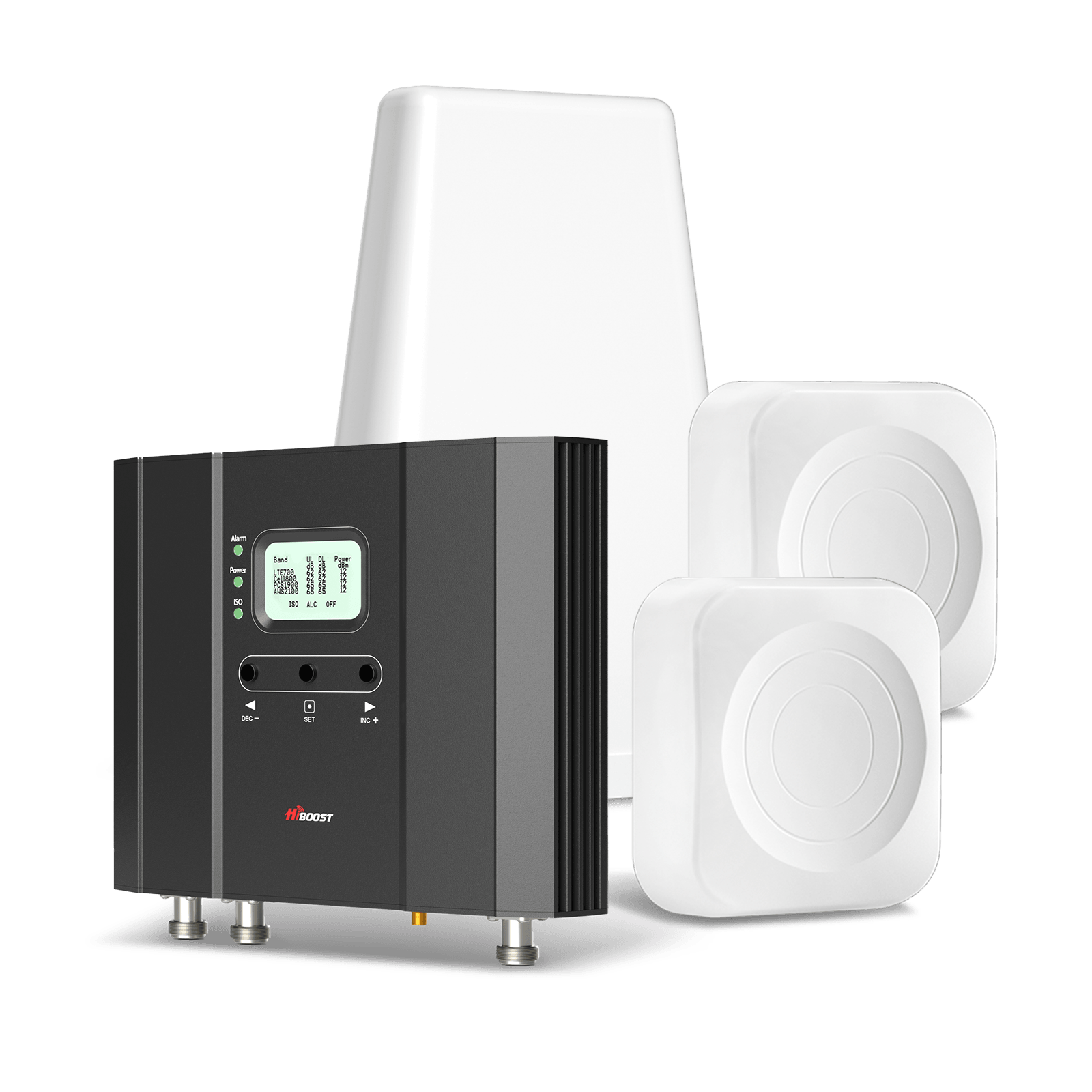
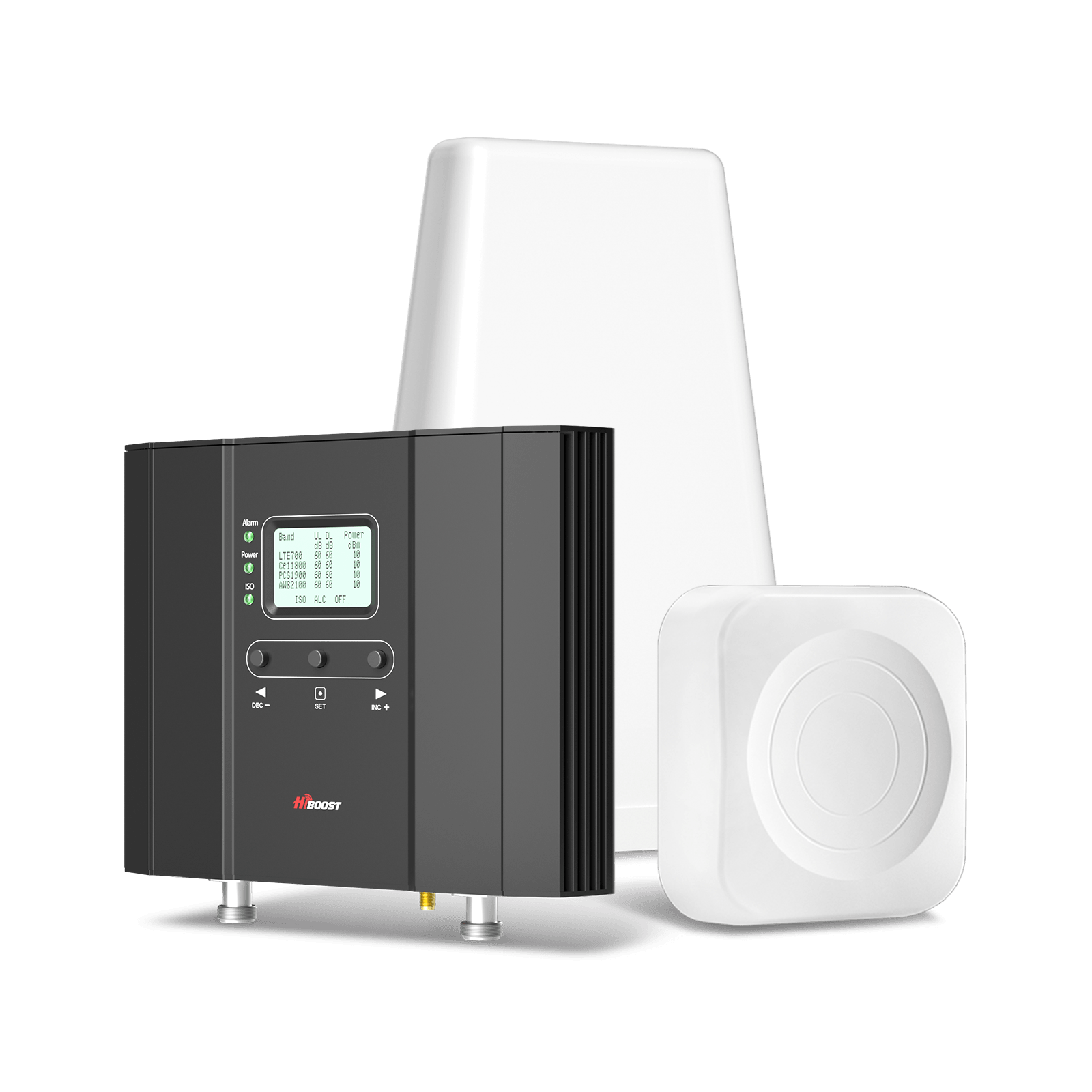
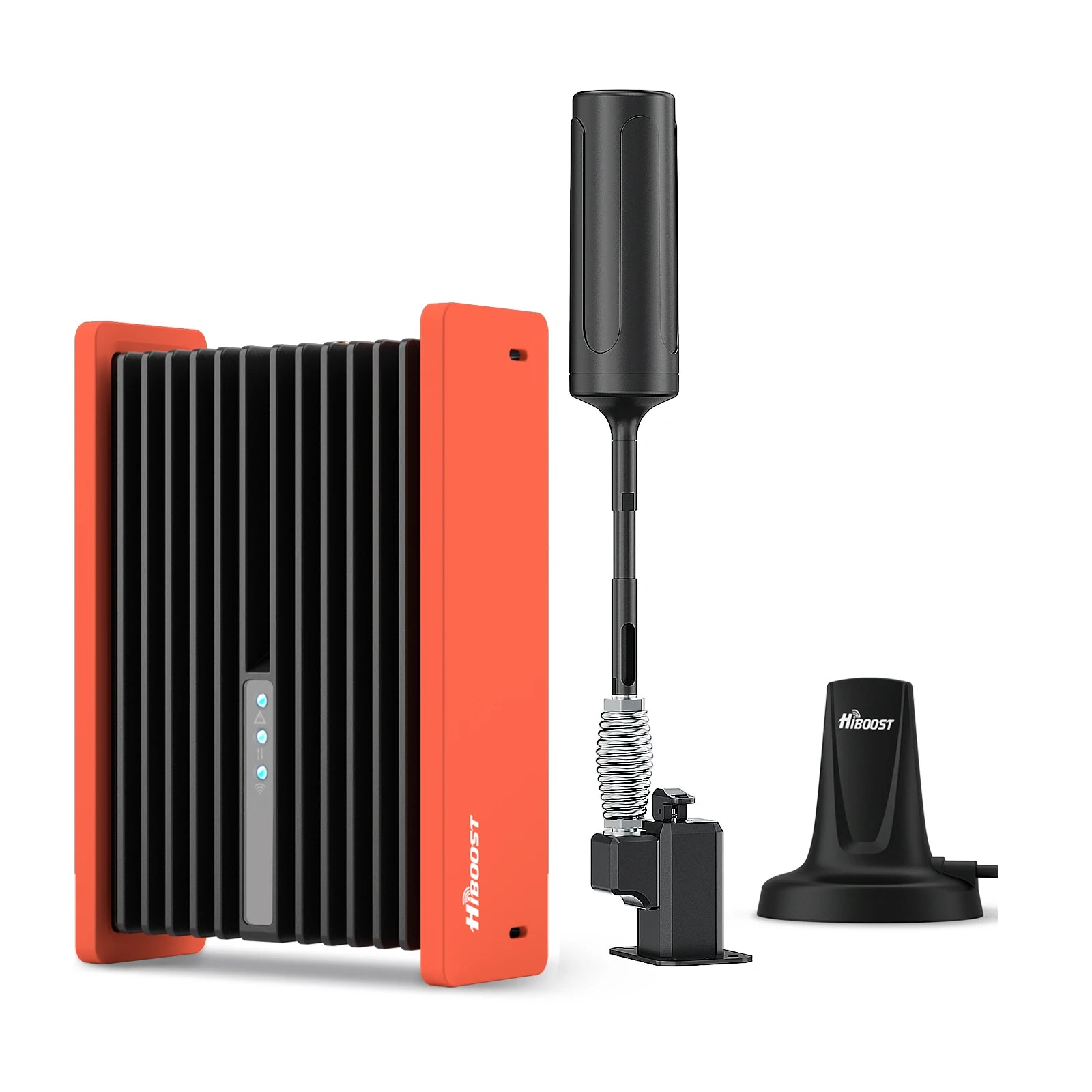
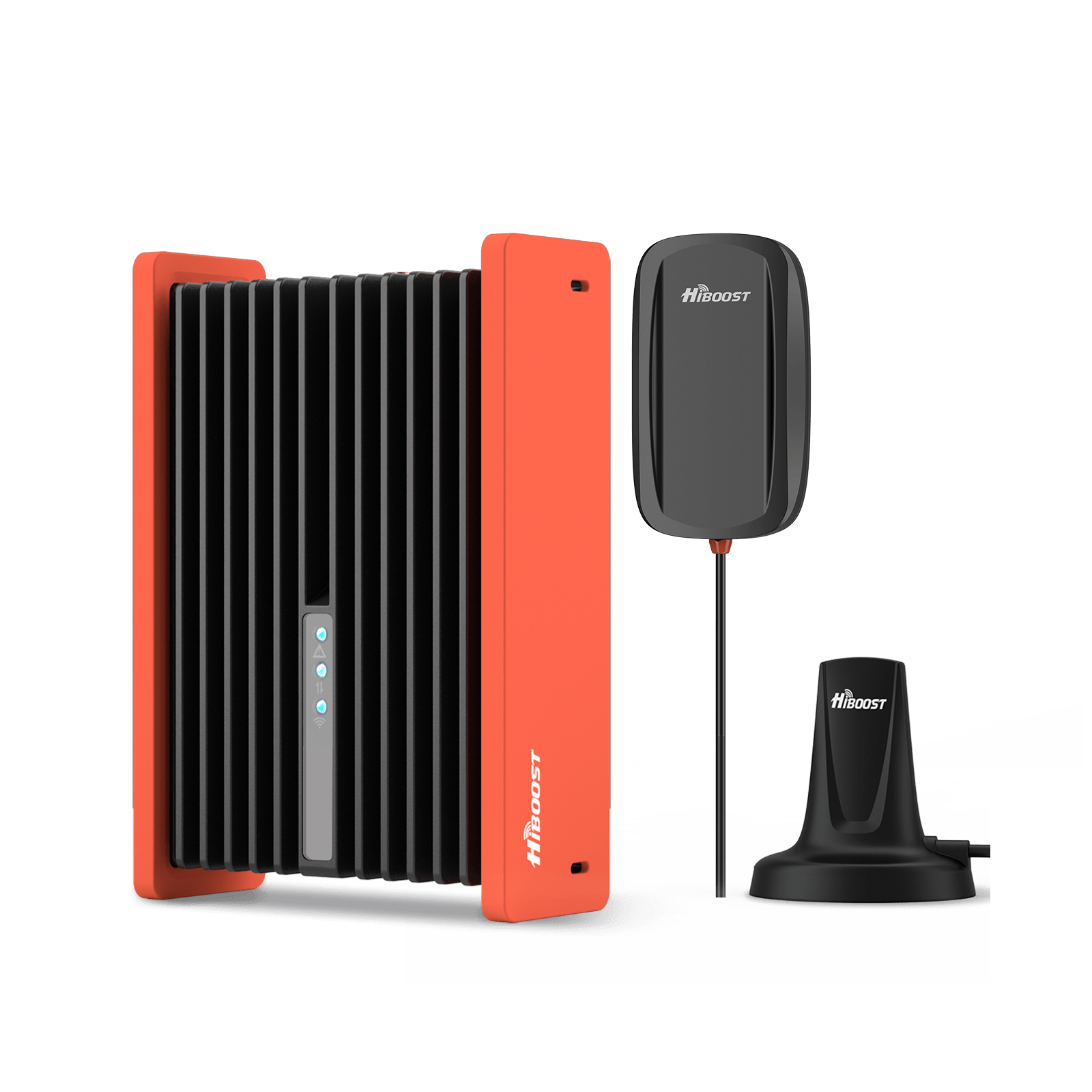
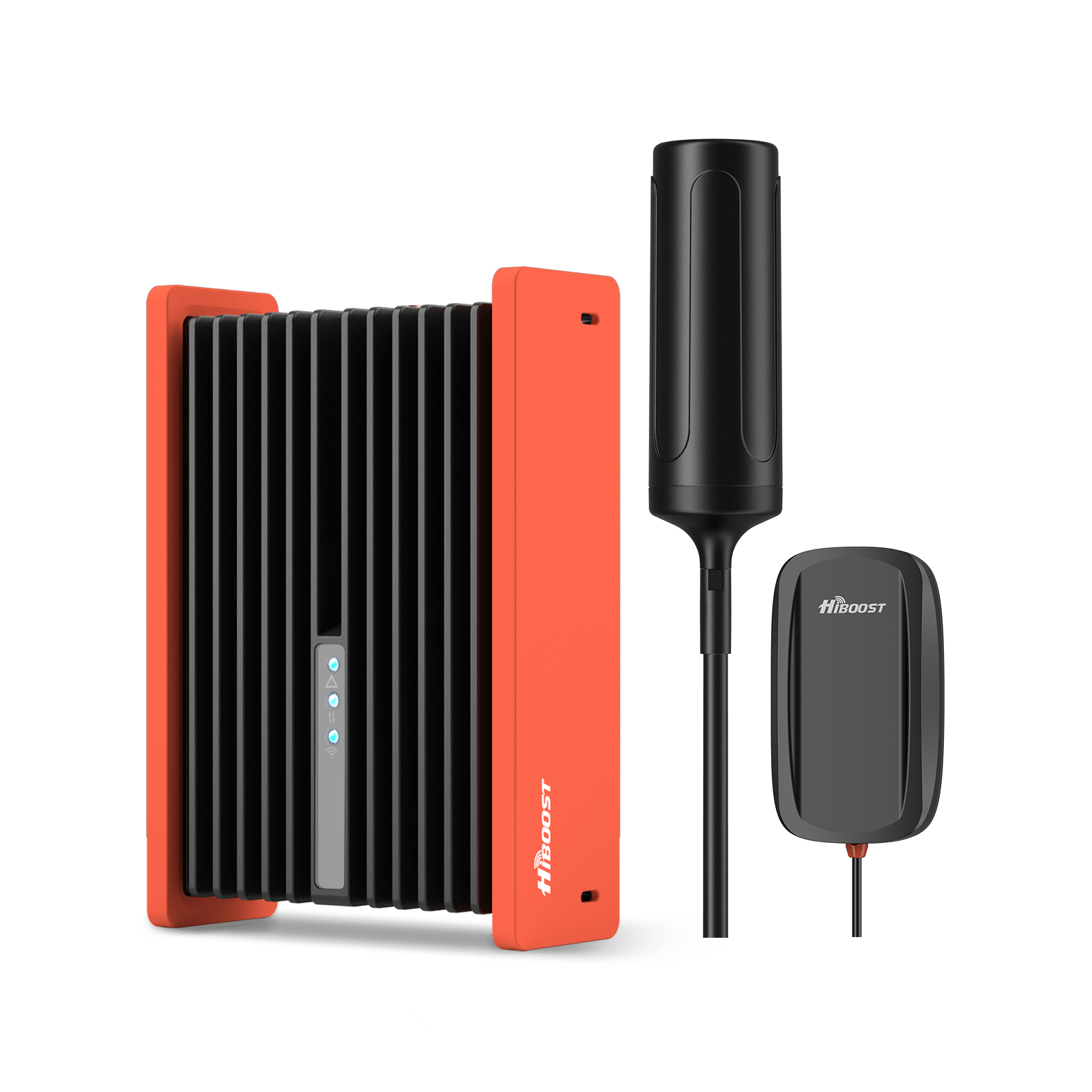
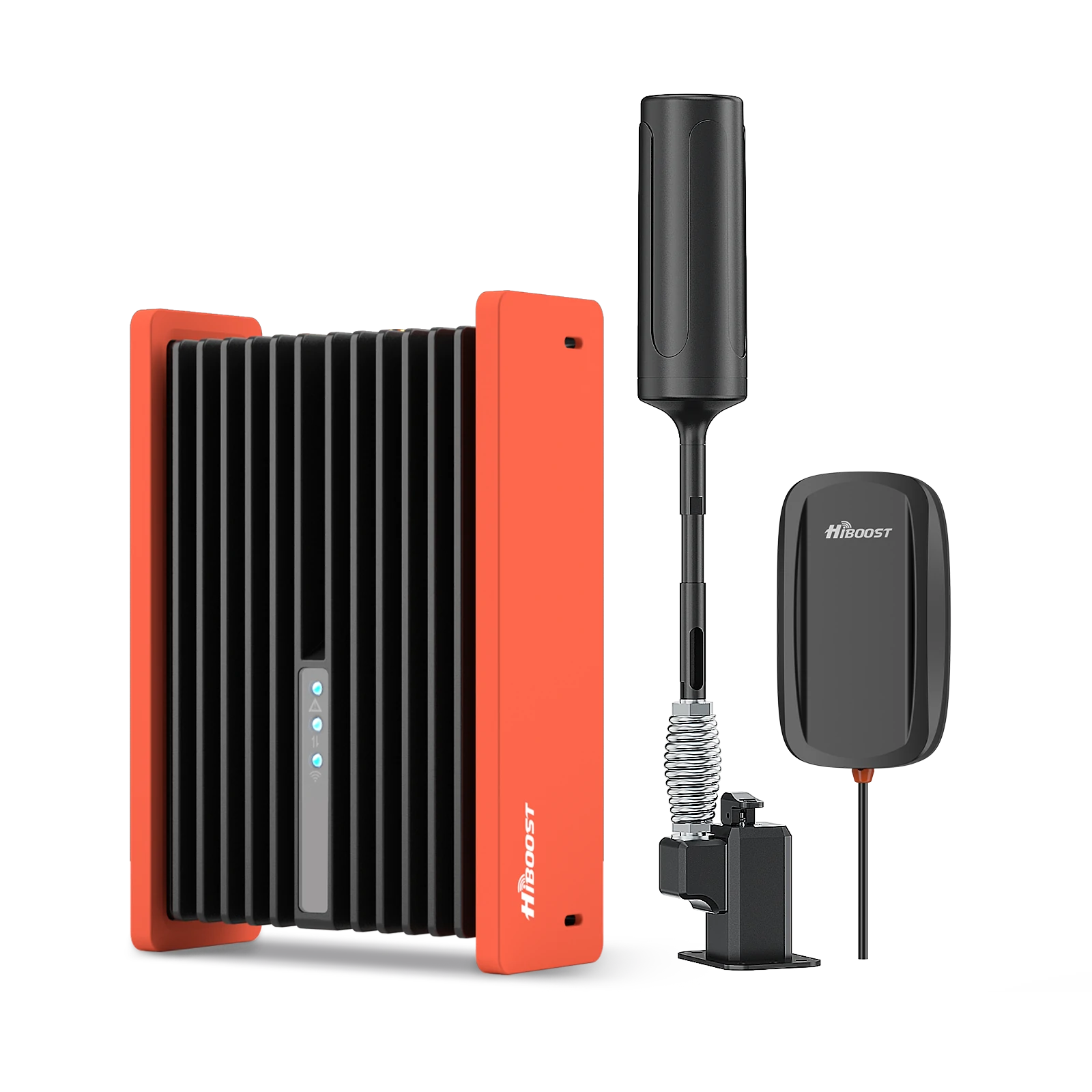
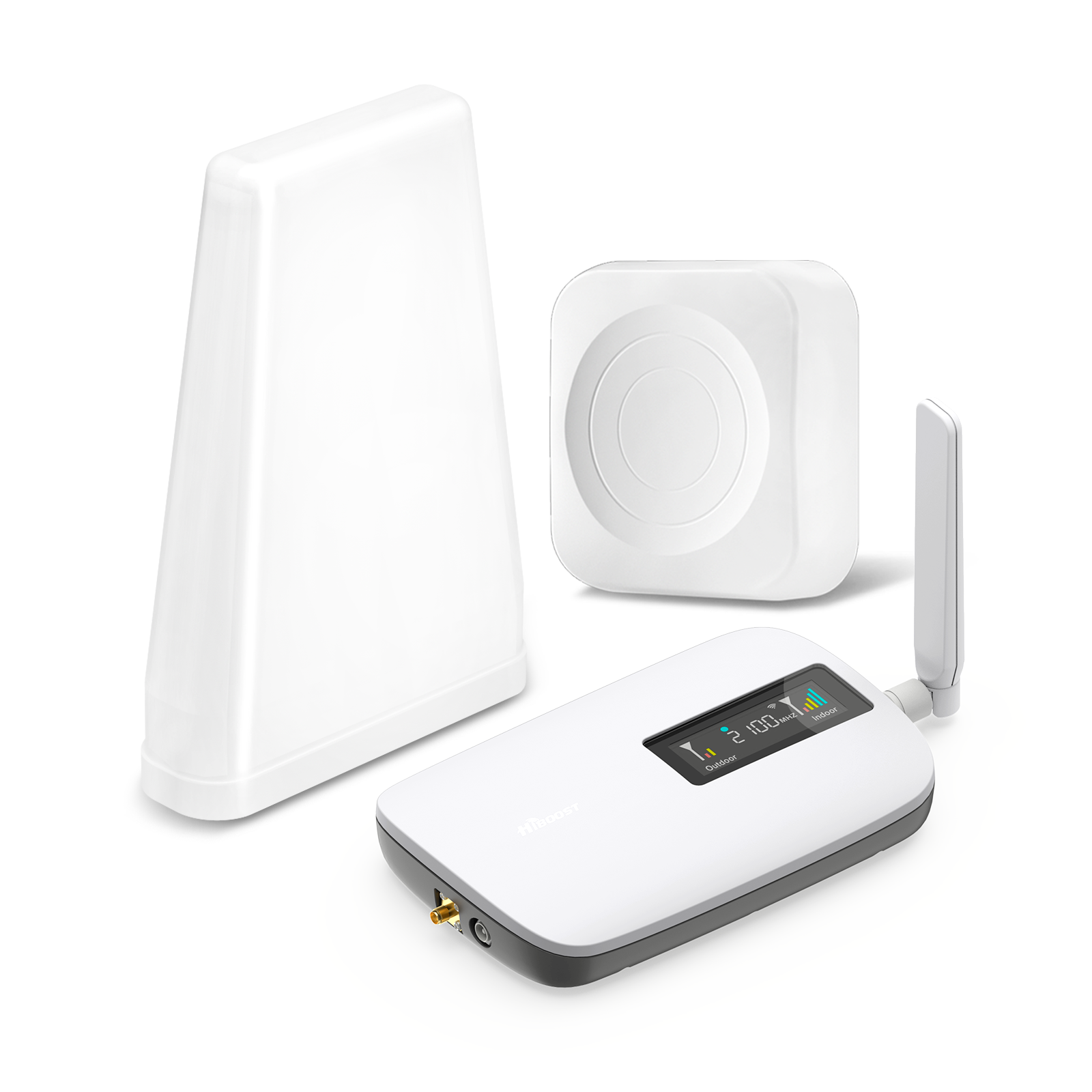
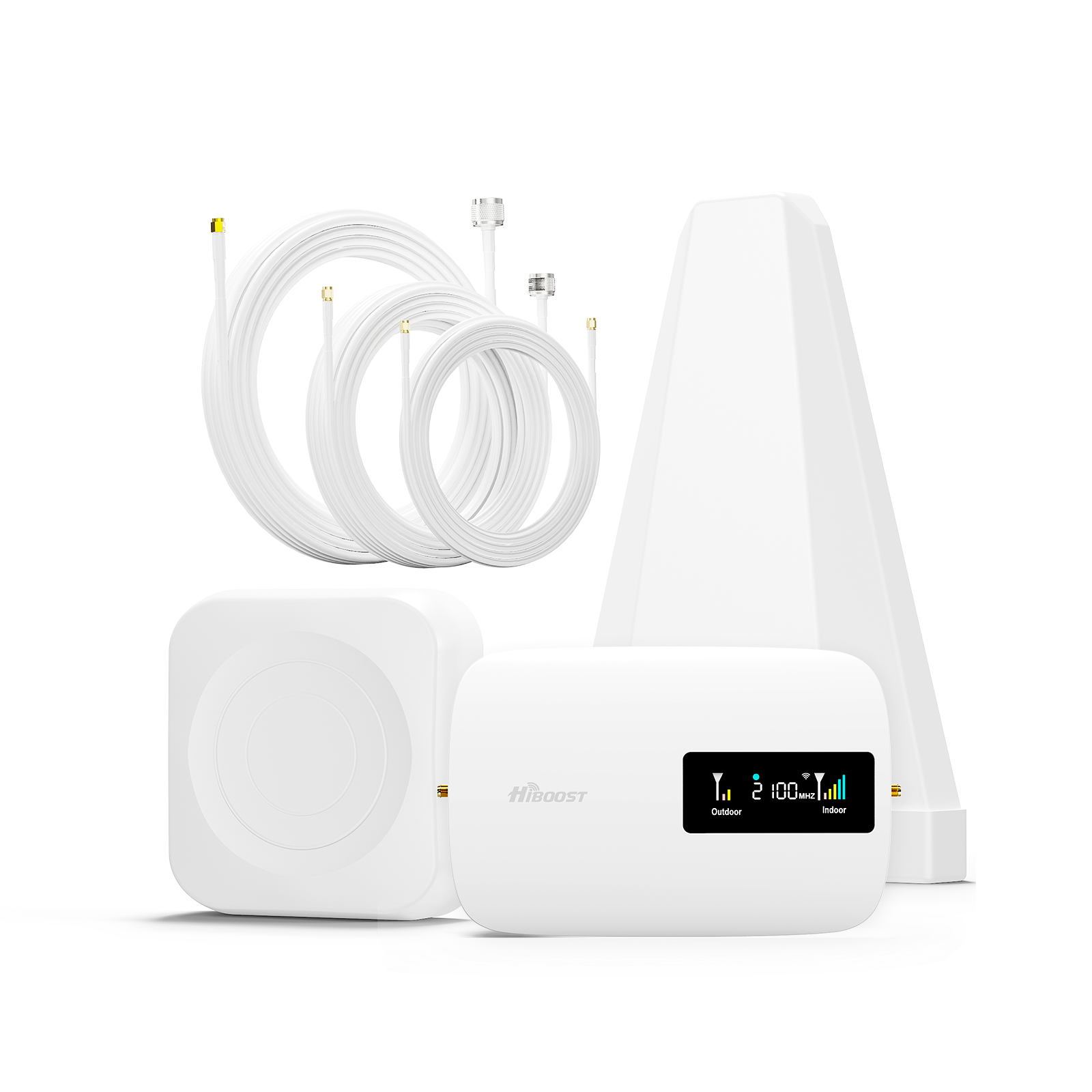
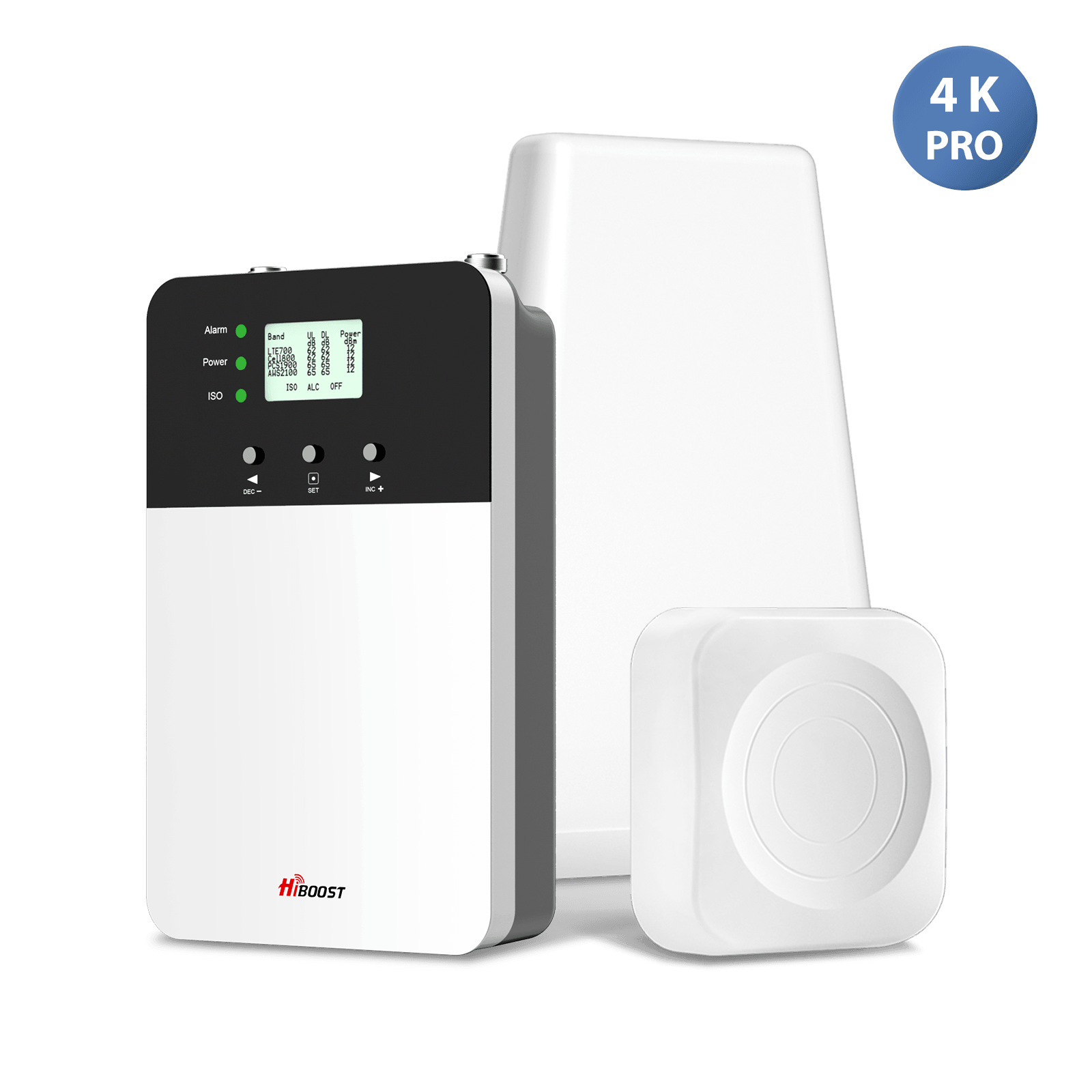
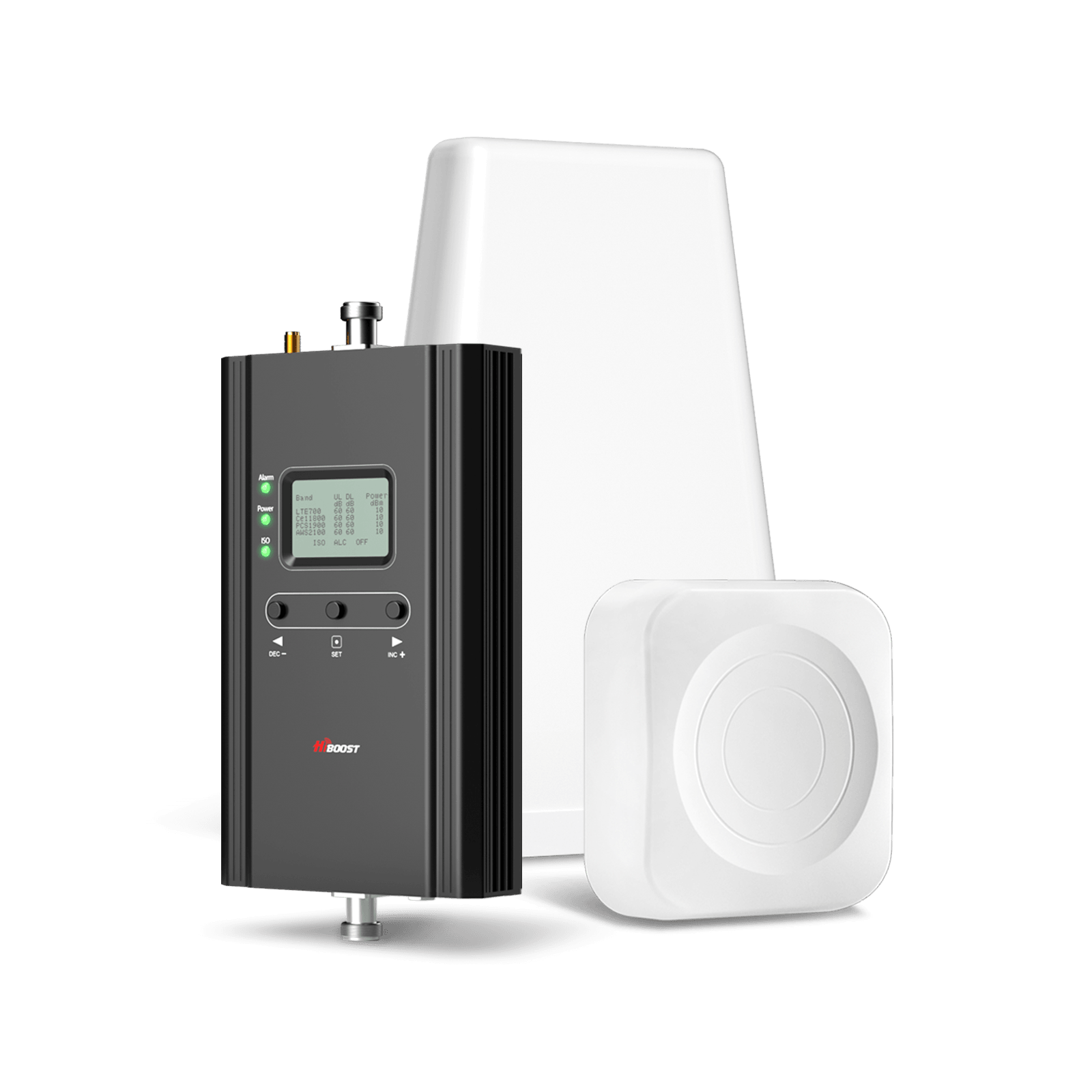
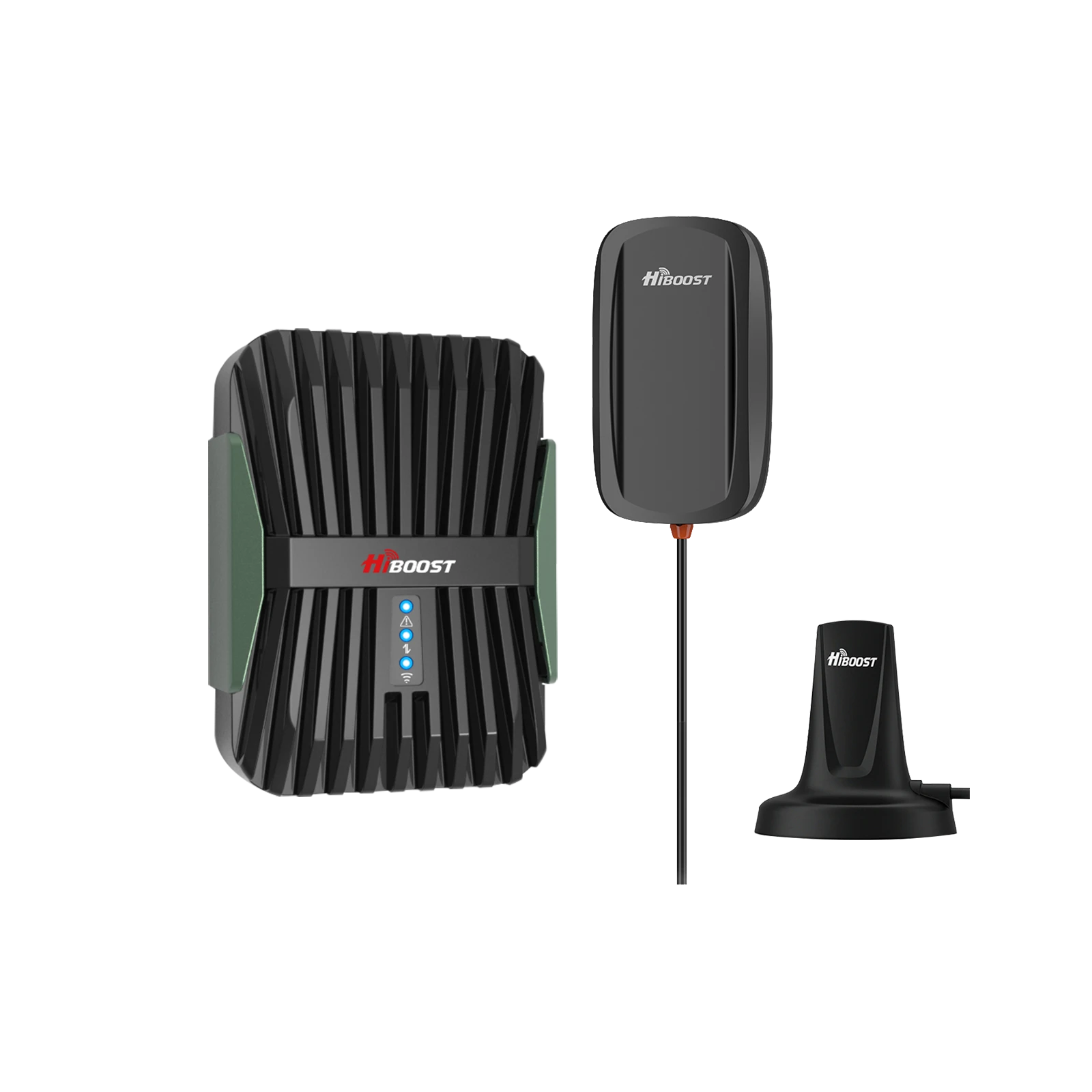
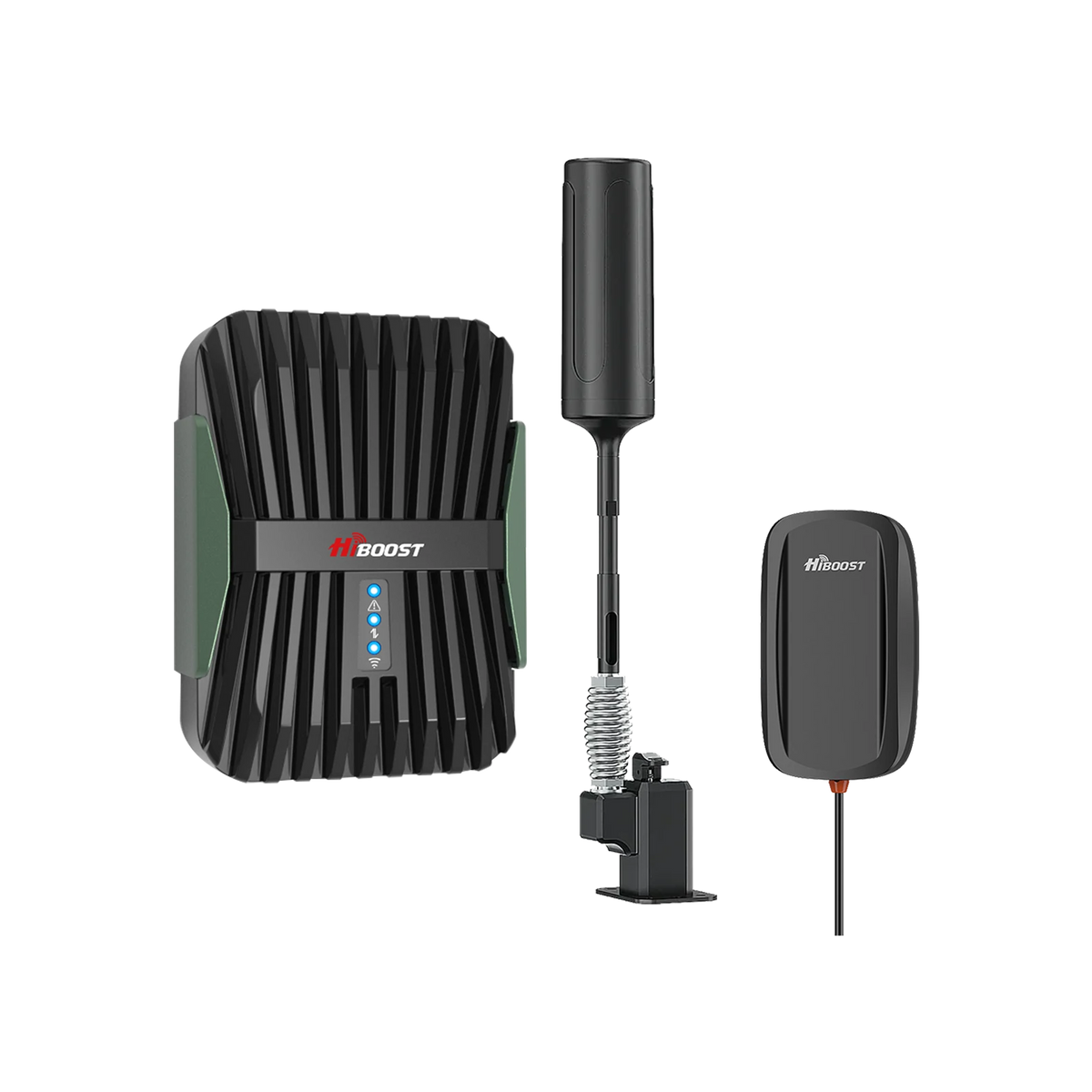
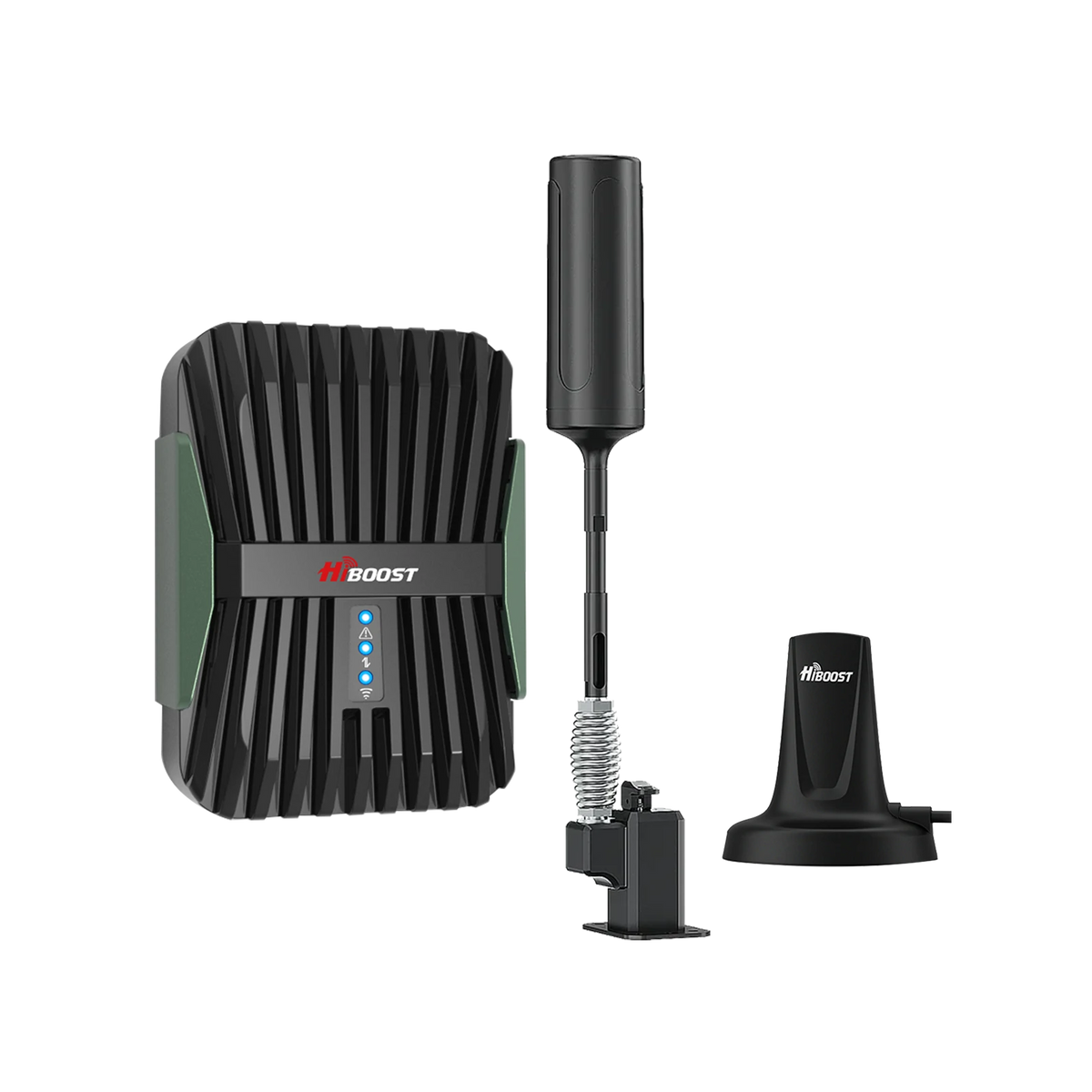
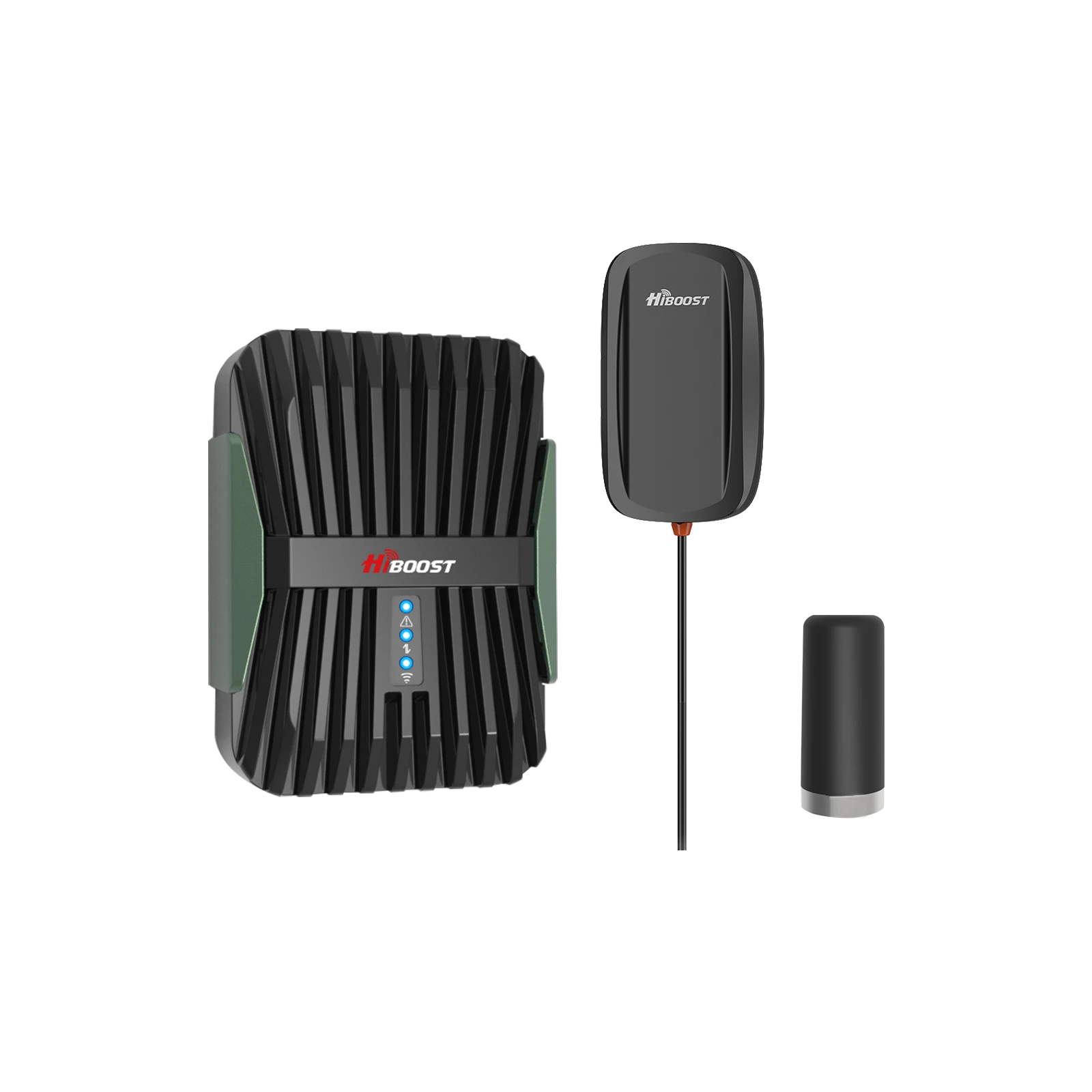
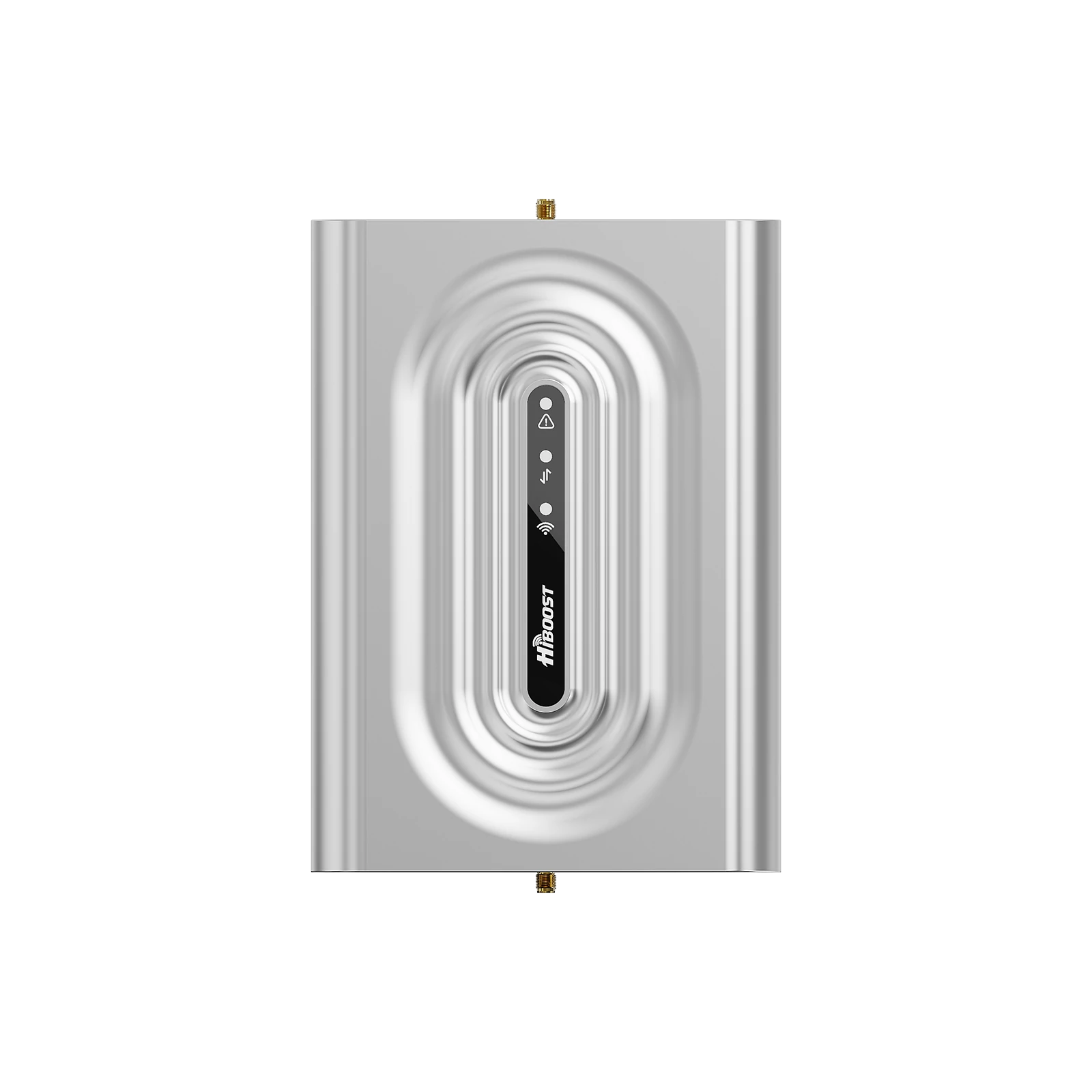
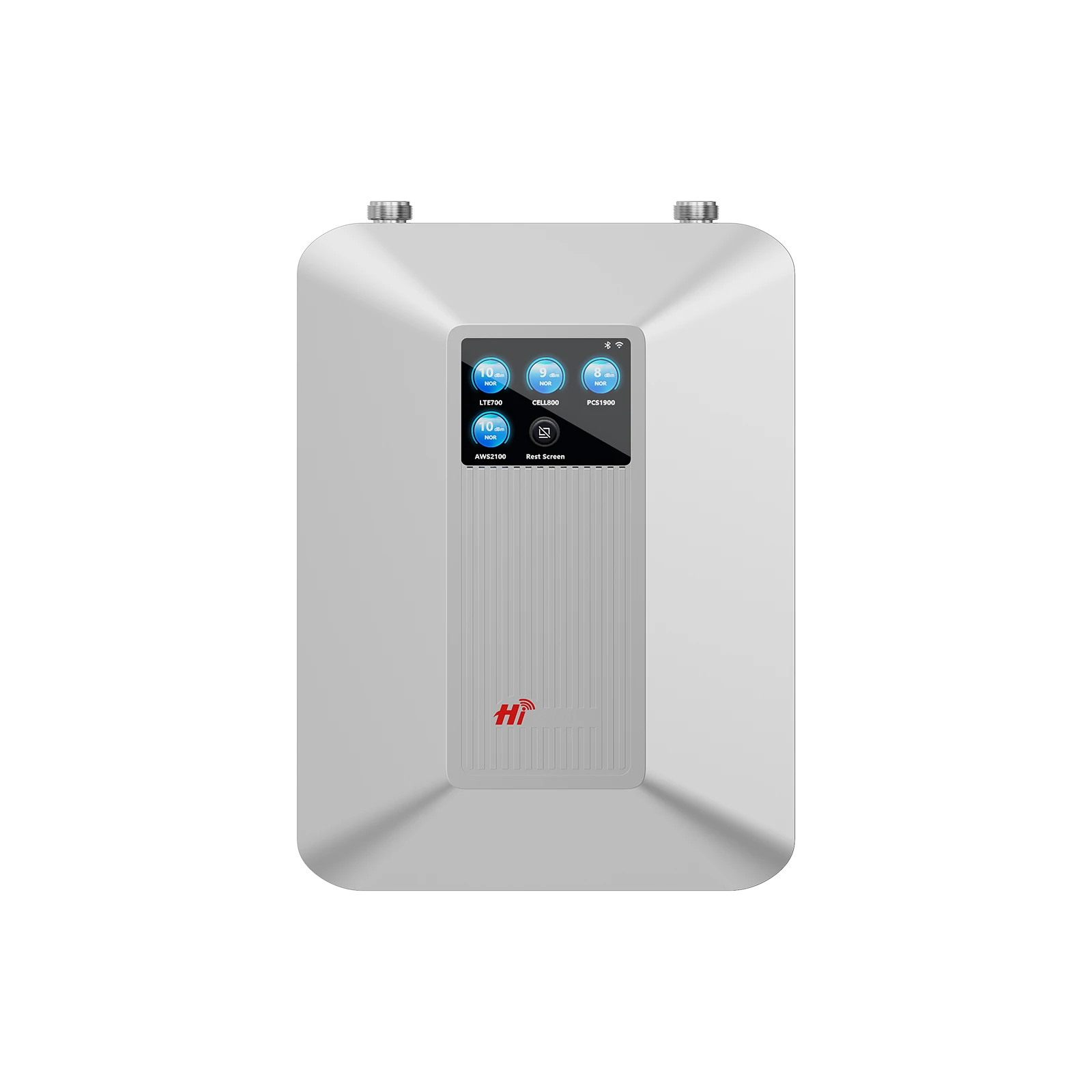
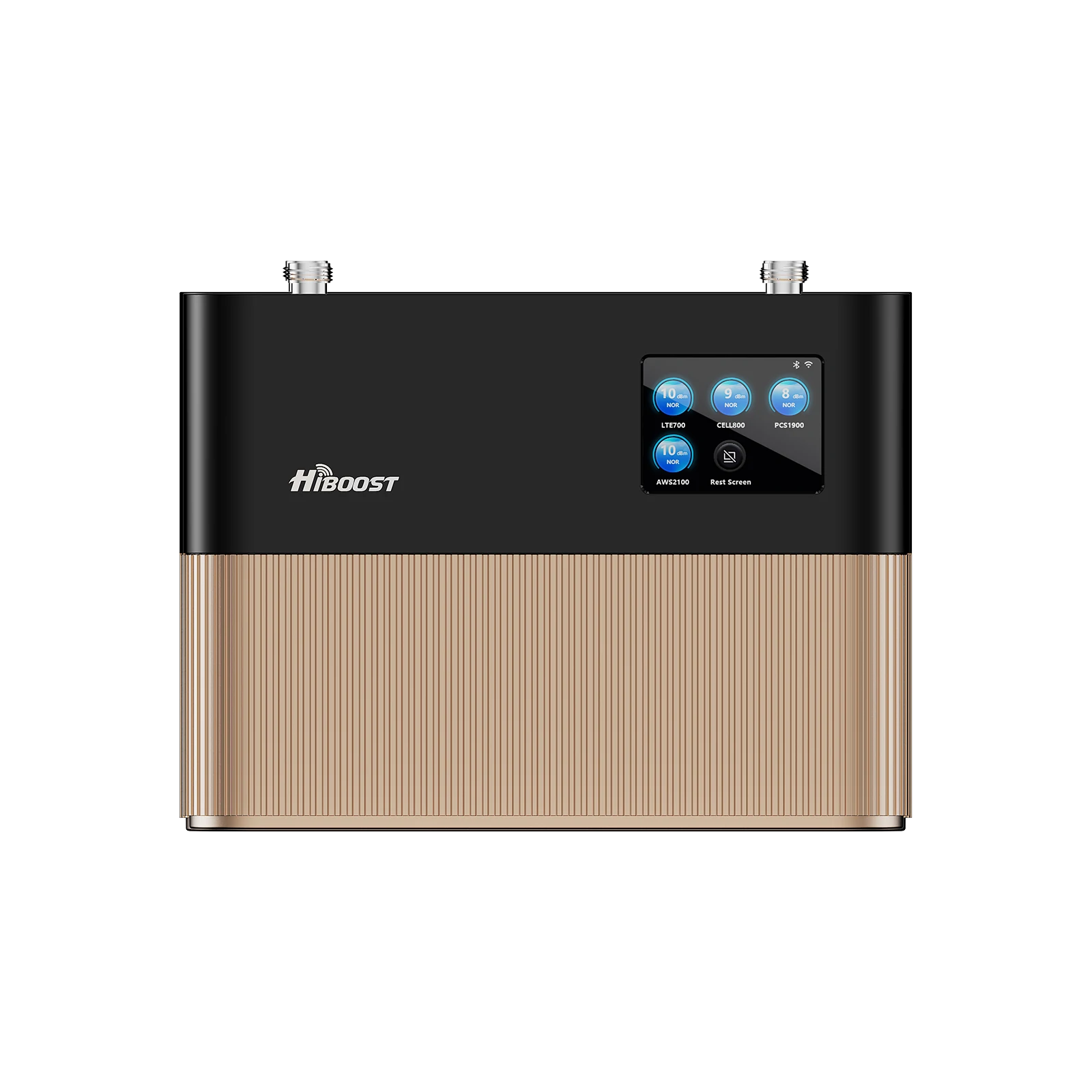
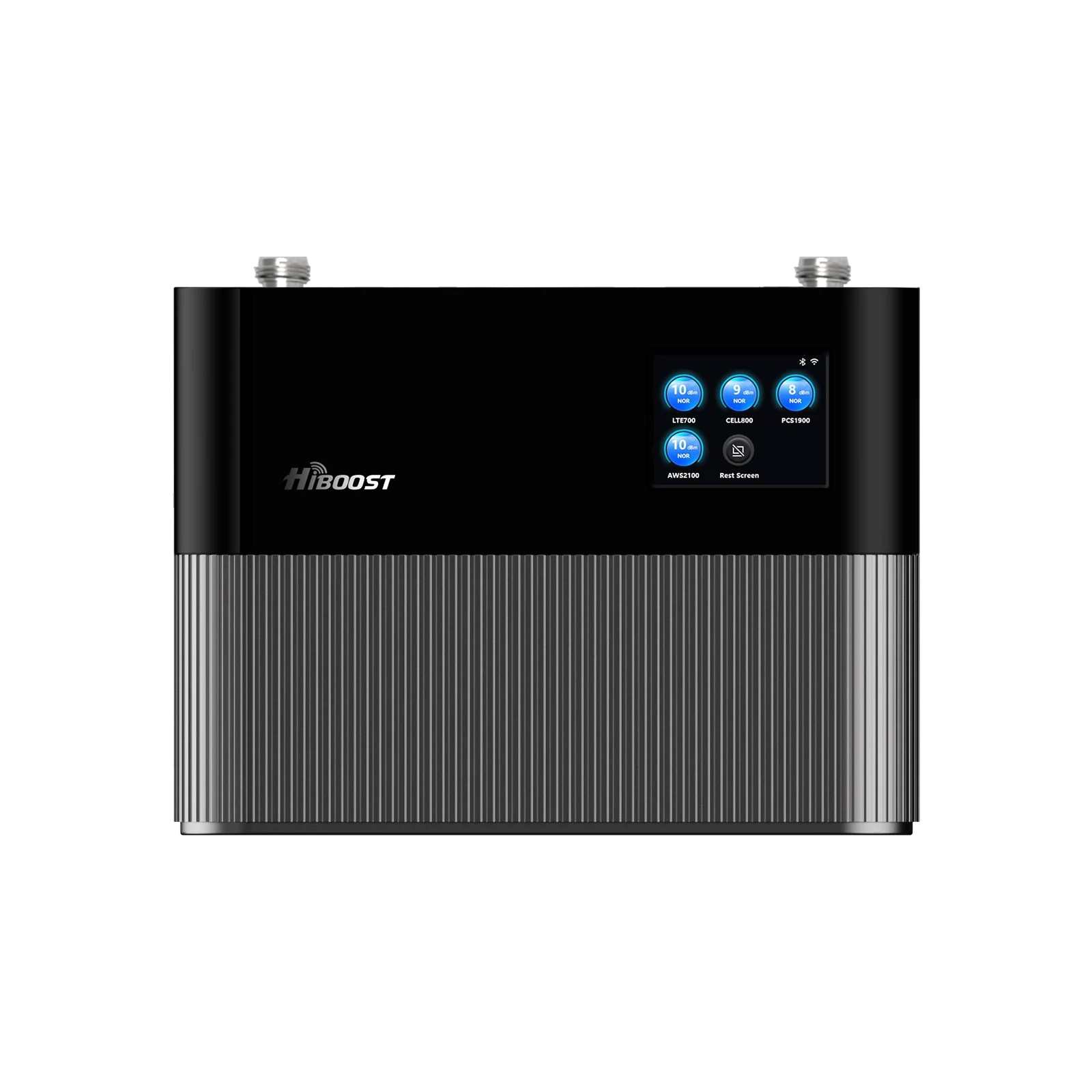
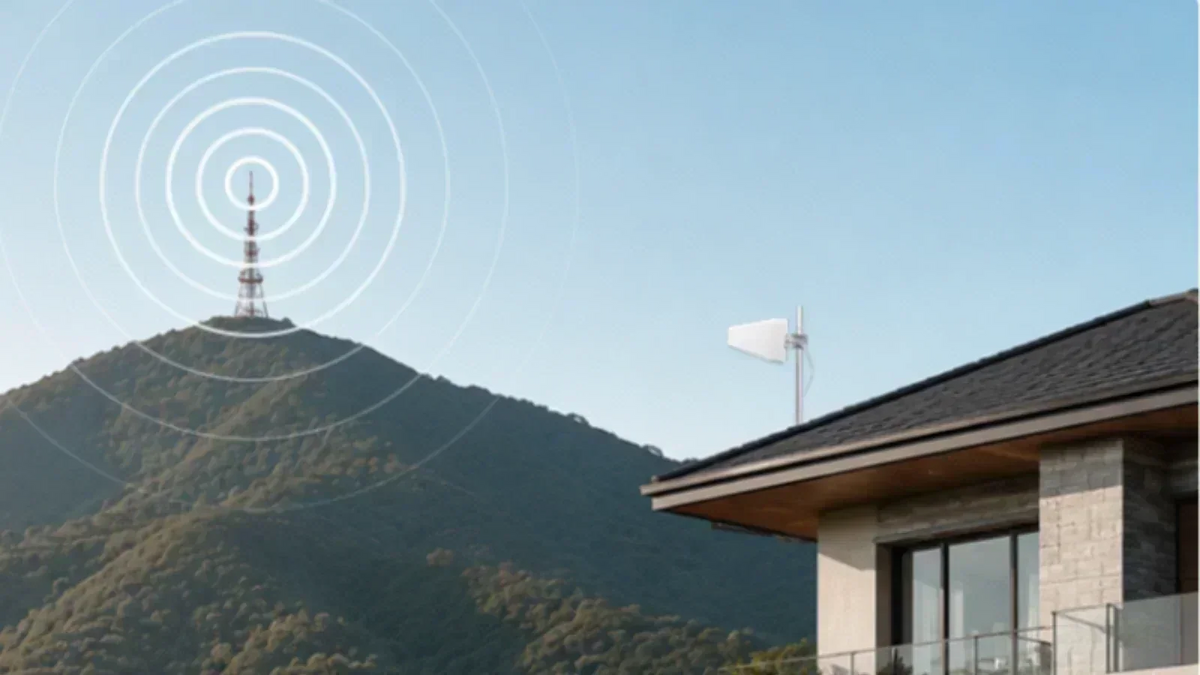
To improve mobile phone signal, first compare reception indoors and outdoors using the same phone. Try a better location, reconnect the phone to the network, and check for outages or device issues. Then choose a solution that fits the cause: Wi-Fi Calling, a compatible signal booster, a device fix, or a different carrier.
The most useful first question is not “How do I get more bars?” It is “What stops working, and where?” A dropped call in a basement, a slow upload at a crowded event, and a phone that suddenly shows No Service can look similar on the screen. They need different responses.
This guide is written for U.S. households, travelers, and small businesses. It covers free troubleshooting steps, the radio measurements worth knowing, indoor and outdoor solutions, LTE and 5G, and the situations where equipment will not solve the underlying problem. You do not need to become a wireless engineer to use it.
Why Mobile Phone Signal Matters More Than Ever
A useful connection needs to support the task in front of you. That could mean answering a customer, receiving a verification code, sharing a location, or sending a work file from an RV. Signal strength contributes to those outcomes, but it is only one part of the connection.
Key takeaways
- Define the task that fails.
- Record where and when it fails.
- Choose a measurable success criterion.
For remote workers, upload reliability may matter more than a large download number. For a household, completing calls in the kitchen and bedrooms may matter more than receiving the newest network icon. For a business, consistent performance across a checkout area can be more valuable than excellent reception near one window.
Write a specific target, such as “complete a normal call from my desk,” and note how often that task currently fails. You can use the same target to evaluate each fix.
How Mobile Phone Signal Works
Your phone communicates with a carrier’s nearby radio equipment, which connects onward through the network. The connection works in both directions: the tower sends information to the phone, and the phone must send information back. Receiving a signal does not guarantee a strong return path or spare capacity on the network.
Key takeaways
- Cellular communication works both ways.
- Bands and network capacity matter.
- Bars are only a simplified display.

Figure 1. Every cellular task depends on a two-way connection and the network beyond the tower.
Cell Towers and Coverage Areas
A visible tower may host equipment for several providers, or it may not carry your carrier at all. Antennas often serve different directions, called sectors. Your phone can connect to equipment that is farther away if the nearer site is unsuitable, obstructed, or configured differently.
Use tower maps to plan where to test. Terrain, buildings, frequency, and antenna patterns affect the path, so measurements at your location should guide the final placement.
Frequency Bands and Carrier Networks
A band is a defined range of radio frequencies. Different bands support different coverage and capacity strategies. Lower-frequency signals often offer useful reach, while higher-frequency deployments can provide substantial capacity when the radio conditions and available spectrum allow it.
Frequency alone does not determine speed. Channel bandwidth, network demand, the phone’s capabilities, and signal quality also matter. Nor does one carrier name establish compatibility with every band that carrier uses. When buying a booster or importing a phone, check the actual supported bands and the local service.
LTE and 5G
LTE and 5G are cellular technologies, not fixed performance grades. A well-performing LTE connection can serve a call or upload better than a weak or overloaded 5G connection. Conversely, a strong 5G connection with sufficient network capacity may provide much higher throughput.
A phone can also use more than one radio resource. Carrier aggregation combines spectrum resources, and MIMO uses multiple antenna paths to support transmission. These features help explain why two devices beside each other can achieve different speeds without either being defective. Ericsson’s carrier aggregation overview and MIMO explanation.

Figure 2. Compare the same task before drawing conclusions from LTE or 5G labels.
Why Signal Bars Can Mislead
Bars are a simplified display, and manufacturers do not present every underlying measurement in the same way. Four bars on one phone should not be treated as a laboratory comparison with four bars on another. The display also does not tell you how busy the cell site is.
Use bars to notice a broad change, then check the actual task. If your phone has strong bars but struggles only during the evening, investigate congestion or plan conditions. If it loses service when you enter one room, compare locations and building obstacles.

Figure 3. Strong reception, a clean radio signal, and available capacity are separate considerations.

Figure 4. Signal bars, technology labels, and amplifier claims need context.
Why Is My Cell Signal Weak?
Weak reception can come from the route between the cell site and your phone, the building around you, or a device problem. Slow service can also come from congestion even when reception is strong. Establish whether the problem follows the location, the time, or the phone before choosing a fix.
Key takeaways
- Compare indoor and outdoor reception.
- Separate congestion from weak reception.
- Check whether the problem follows the phone.
Distance and Terrain
As signals travel, less power reaches a receiving antenna. Hills, valleys, ridges, and the way a site serves the surrounding area complicate the path. A property can be close to a tower and still sit in an unfavorable location.
If reception improves consistently on one side of a house, record that finding. It may point toward a better place for a phone, hotspot, gateway, or outdoor antenna. Avoid assuming that any increase in height will solve the problem; a location with fewer obstructions still needs a usable connection to the right carrier.
Metal Roofs and Concrete Walls
A metal roof, metal siding, reinforced concrete, or foil-backed material can make indoor reception harder. Multiple barriers along the path can matter more than one visible wall. An open warehouse may still be difficult if its exterior shell limits the signal entering the building.
The useful test is comparative. Check outside, near an entrance, and at the interior work area. Keep the phone and network mode consistent. If the outdoor connection is usable while the inside one fails, the building is a strong candidate for further investigation.
Low-E Windows
Some energy-efficient glazing includes coatings that can attenuate radio signals. Therefore, standing beside a closed window does not always provide the improvement people expect. Compare different windows and, where safe and permitted, an open doorway or outdoor location.
William C. Stone’s 1997 NIST construction-material study measured attenuation across 0.5–2 GHz and 3–8 GHz using specimens of different thicknesses. Its materials included glass, wood, brick, and several concrete mixes. That experimental approach explains why a single loss number for “concrete” or “glass” is inadequate.

Figure 5. Building materials can alter the signal path; measure the actual room rather than assuming a fixed loss.
Trees and Weather
Vegetation can obstruct or scatter radio energy, and changing foliage or moisture conditions can affect a difficult path. ITU’s vegetation attenuation recommendation addresses this propagation issue. However, a single rainy-day slowdown does not establish weather as the cause. More people may be indoors using the same network, or a separate outage may have occurred.
Record repeated observations before concluding that rain, snow, or leaves explain the problem. In many everyday situations, moving away from a building obstruction or correcting a device issue is more productive than trying to predict reception from the weather forecast.
Congestion and Network Maintenance
A cell site serves many users. If demand rises, the experience can deteriorate without a corresponding drop in displayed bars. Crowded events, commuting periods, and seasonal destinations are useful places to look for this pattern.
A sudden change may also reflect maintenance or an outage. Check the carrier’s support channels and compare another phone on the same network. Do this before changing equipment that previously worked. A temporary network problem can make otherwise reasonable troubleshooting changes appear ineffective.
SIM, Software, and Hardware Problems
If one phone fails where another compatible phone works, investigate that difference. The SIM or eSIM may need carrier attention, the account may not be provisioned correctly, software may be outdated, or the device may have suffered damage.
A thick or metal-containing accessory can also be worth testing. Remove the case temporarily and repeat the same task from the same spot. Most ordinary cases should not be blamed automatically; the point is to isolate a variable, not to assume an accessory is responsible.
How to Measure Mobile Signal
Measure the connection you intend to improve. For a cellular comparison, turn Wi-Fi off and confirm which SIM supplies data. Record the phone, location, network type, time, and the task result. Add radio measurements when available, but do not let missing diagnostic screens prevent useful testing.
Key takeaways
- Use the same phone and location.
- Record time and network mode.
- Pair radio readings with task outcomes.
iPhone Field Test Mode
On supported iPhones, open the Phone keypad, enter *3001#12345#*, and tap Call. Field Test Mode may show serving-cell information and radio readings. Its menus and available data vary across hardware, software, and network conditions; a screenshot from another iPhone may not match your screen.
Look for current readings associated with the relevant connection, and allow them to update after moving. Some entries can be stale or describe a different radio component. If you cannot identify the reading confidently, save the screenshot for support and rely on repeatable call and data tests in the meantime.
Android Signal Information
Android settings differ by manufacturer. Check the phone’s SIM status or network status information, then consider a compatible diagnostic app if the built-in view is limited. Apps such as Network Cell Info can expose information available through the device, but they do not change the phone’s radio hardware.
Permissions and operating-system restrictions affect what an app can display. Treat an unavailable field as unavailable rather than estimating it from bars. For comparisons, use the same phone and app version whenever possible.
Speed Tests and Coverage Maps
A speed test measures the path to its selected server at that moment. It is valuable, but it is not a pure measurement of the radio signal. The server, network load, background traffic, and test conditions all affect the result.
Use the same test service and server when practical, and repeat a small number of times. Coverage tools such as Opensignal and CellMapper can add context about reported service or cell locations. Crowdsourced information is useful for planning, but it does not guarantee current coverage at a specific room or campsite.

Figure 6. A consistent measurement process makes small changes easier to evaluate.
For a walkthrough of the readings, see HiBoost’s guide to measuring cell phone signal strength.
Signal Strength Explained
RSRP measures reference signal power, while SINR describes the desired signal relative to interference and noise. RSSI measures broader received power, and RSRQ adds a quality relationship involving reference power and total received power. Use the right metric for the technology instead of treating all negative numbers as the same measurement.
Key takeaways
- Read each metric in context.
- Do not compare unlike measurements.
- Treat reference ranges as guidance.
| Metric |
Unit or scale |
What it helps answer |
| RSRP | dBm | How much reference signal power reaches the receiver? |
| RSSI |
dBm |
How much overall received power is present in the measured bandwidth? |
| SINR | dB | How strong is the wanted signal relative to interference and noise? |
| RSRQ | dB | What does the relationship between reference and received power suggest about quality? |
| CQI | Technology-dependent index | What channel quality does the device report for transmission decisions? |
Devices and networks use different reporting details, and 5G measurements may refer to specific reference signals. For formal definitions, consult ETSI’s LTE specification and 5G measurement specification.
Practical LTE Reference Ranges
For an initial LTE assessment, the following ranges provide rough context. They are not pass/fail rules, installation guarantees, or a universal scoring system for 5G. A connection with modest power can still be useful when interference is low and demand is manageable.
|
LTE metric |
Stronger or cleaner | Intermediate | More challenging |
| RSRP | −80 dBm or higher | Below −80 to −100 dBm | Below −100 dBm |
| SINR | 20 dB or higher | Above 0 to below 20 dB | 0 dB or lower |
|
RSRQ |
−10 dB or higher |
Below −10 to −20 dB |
Below −20 dB |
These simplified reference ranges are adapted from Teltonika’s mobile signal recommendations. Actual service depends on more than any one threshold.

Figure 7. Simplified LTE context based on the cited reference ranges; actual usability varies.
RSRP vs RSSI vs SINR
RSRP is about the strength of a reference signal. RSSI includes more received energy across the measured bandwidth. SINR addresses how distinguishable the wanted signal is from interference and noise. A stronger RSSI therefore does not necessarily mean a cleaner or faster connection.
If one window improves power but makes calls less reliable, check whether the band or serving cell changed. Record both readings and call outcomes to explain the difference.

Figure 8. These measurements describe different properties and should not be substituted for one another.
How to Improve Mobile Signal Naturally
Try free, reversible changes before making a purchase. Move the phone, reconnect it, confirm the account and network status, and compare another device where possible. Change one thing at a time so you can tell which step made a difference.
Key takeaways
- Try a better location.
- Reconnect and check updates.
- Change one variable at a time.
Move Outdoors or Upstairs
Compare the problem room with an outdoor location and an accessible upper floor. If the connection improves, you have evidence that the path or surrounding structure matters. Use a safe, ordinary location; climbing onto a roof is unnecessary for an initial phone test.
When working from home, moving a desk a few feet may be practical. A hotspot can sometimes remain at a better receiving location while a laptop connects to it over Wi-Fi. Keep the phone or hotspot within its temperature limits, and avoid direct sun or a hot enclosed window ledge.
Try More Than One Window
A window on the wrong side of the building, coated glass, or nearby metal can limit the benefit. Compare two or three accessible positions and record actual task performance. Do not choose a permanent location from one momentary rise in bars.
If a doorway works but nearby glazing does not, that difference is useful. It can inform an outdoor antenna survey or show why a simple indoor repositioning has reached its limit.
Reconnect and Restart
Airplane Mode briefly disconnects the phone from the network. Turning it off gives the device another opportunity to register. Apple recommends leaving Airplane Mode on for at least 15 seconds as one troubleshooting step for No Service or Searching. A restart can also help with a temporary device issue. Apple’s service troubleshooting.
If the improvement disappears repeatedly, document when it happens. Reconnecting several times a day is a symptom to investigate, not a durable solution to a building’s coverage problem.
Update Software and Carrier Settings
Install supported phone updates and check for carrier settings updates using the manufacturer’s instructions. Confirm that the line is active and the expected SIM or eSIM is enabled. A recent plan change or device transfer is particularly relevant if the problem began at the same time.
Do not delete an eSIM casually as a troubleshooting experiment. Restoring service may require the carrier’s activation process. Likewise, read the consequences before resetting network settings, since stored network preferences and connections may be affected.
Enable Wi-Fi Calling
If home broadband and Wi-Fi are reliable, Wi-Fi Calling may solve an indoor voice problem quickly. The phone and carrier must support it, and the emergency address should be entered or confirmed during setup. On iPhone, the setting is available under the relevant cellular line. Apple’s Wi-Fi Calling instructions.
Test from the room where calls usually fail. Confirm the phone indicates Wi-Fi Calling, then make an ordinary call. If the Wi-Fi network itself is weak there, improve that connection as a separate task. Wi-Fi Calling does not make the outdoor cellular signal stronger.
Compare LTE and Automatic 5G Selection
Where your device permits it, compare the usual automatic network mode with LTE for a short diagnostic test. Record the result and restore the preferred setting afterward unless the comparison shows a useful reason to change it.
On supported iPhones, 5G Auto can switch to LTE when 5G does not provide a noticeable benefit. Available options vary with the device and carrier. Apple’s 5G settings guide. Do not assume LTE is always better in rural areas or that forcing 5G always improves speed.

Figure 9. Start with simple changes and preserve the ability to compare each result.
How to Improve Mobile Signal Indoors
Indoor fixes depend on whether usable cellular service exists outside and whether reliable broadband is available inside. Start with the room where the problem matters most. Then choose between improving phone placement, using Wi-Fi Calling, or bringing a compatible outdoor cellular signal indoors with a properly installed booster.
Key takeaways
- Test the priority room.
- Check outdoor service and broadband.
- Choose a solution that fits the building.
Apartments
Apartments can combine concrete walls, coated windows, neighboring structures, and limited permission for exterior equipment. Test several rooms and sides of the unit before assuming one antenna position will work. A high floor is not automatically better; it can present a different mix of serving and interfering signals.
For a renter with reliable internet, Wi-Fi Calling is often the easiest option to evaluate. If considering a booster, confirm permission for the outdoor antenna and cable route before buying. A system requiring an exterior mount is a poor fit if the building does not allow one.

Figure 10. Mounting permission and broadband availability affect apartment options.
Detached Houses
Map the places where reception fails and note whether doors or windows change the result. Identify the rooms that need service every day rather than assuming the whole property needs equal coverage. This can make the installation more focused and the acceptance test easier.
A home booster needs a usable supported signal outside, an appropriate cable path, and sufficient antenna isolation. A Wi-Fi Calling solution needs dependable internet and Wi-Fi where the phone is used. Both can be useful in one household, but test each separately so you know which connection is carrying a call.
Offices and Retail Spaces
Begin with the workflow. Reception at a reception desk, stockroom, or checkout counter can matter more than reception throughout unused areas. Record whether the affected devices use the same carrier and whether the business has a reliable broadband connection.
Avoid assuming a personal phone test proves that every business device will work. A payment terminal, alarm communicator, or managed handheld may have its own supported network and requirements. For a large or operationally important installation, have the relevant provider or installer verify the actual devices.
Warehouses and Metal Buildings
Large racks, machinery, partitions, and metal walls complicate indoor distribution. An open floor plan can change once inventory fills the shelves. Test under normal working conditions, with doors in their usual positions and equipment arranged as it normally is.
A single indoor antenna may not serve every aisle. A site survey can identify whether a planned multi-antenna system is appropriate. Do not add splitters and extra antennas casually; they change signal distribution and losses, and the components must be appropriate for the system.
Basements and Garages
A basement office can be isolated by the surrounding ground, foundation, and floor above it. First compare the basement with the main floor and outdoors. If broadband is available, a better Wi-Fi connection plus Wi-Fi Calling may be sufficient for calls.
For a booster, place the indoor antenna according to the room’s actual location and the model’s isolation requirements. Mounting the amplifier centrally upstairs does not guarantee usable reception below a concrete floor. Attached and detached garages also need to be treated differently; distance and intervening walls can change the design.

Figure 11. A basement needs its own performance check.
Farms and Cabins
Rural buildings often combine difficult outdoor service with indoor obstructions. Survey the donor signal before selecting a system. The best antenna position for the house may not be the best position for a barn or workshop on another part of the property.
A cabin that receives no usable supported cellular signal needs another route to connectivity. Consider an alternative carrier, available fixed broadband, or a satellite internet option that fits the location. A more expensive amplifier does not remove the need for a usable signal to receive.

Figure 12. Match the indoor solution to the connection available outside or through broadband.

Figure 13. Treat separate buildings as separate coverage requirements.
Match your setting to the equipment options in HiBoost’s guide to choosing a signal booster for a home, apartment, or RV.
How to Improve Mobile Signal Outdoors
Outdoor reception depends on terrain, the carrier, the local network, and your position. Move to a safe, less obstructed location and test before settling into a campsite or starting work. A vehicle signal booster can improve a supported weak connection, but it cannot provide universal coverage across remote routes.
Key takeaways
- Test at the destination.
- Use equipment intended for the vehicle.
- Prepare for places without coverage.
Camping and RV Travel
Check reception at the actual site, not just the campground office. If you can choose between sites, compare a few permissible locations using the same phone. Trees, slopes, other vehicles, and the campground’s network demand can create meaningful differences over short distances.
For remote work, test the upload and meeting application you will use. A campground that streams a video at noon may perform differently when more campers arrive. Keep a second work location in mind when a deadline depends on connectivity.
A vehicle booster should be selected for the vehicle and its intended use. Put the interior antenna where the phone or hotspot can remain during normal use, and check the model’s instructions for operation while parked or moving. Do not assume a building booster is suitable for use on the road.

Figure 14. Test at the RV workstation during the hours you intend to use it.
Trucks and Remote Roads
A truck cab presents its own mounting, power, and cable-routing constraints. Install equipment securely and maintain the required clearances. The phone should work from its intended hands-free position, not a location the driver must keep adjusting.
Map recurring trouble spots only while parked or with a passenger managing the observations. Some gaps will be beyond the reach of any supported terrestrial signal. Download navigation information in advance so a coverage gap does not become a navigation problem.
Boats
Nearshore cellular reception can vary with coastline, distance, antenna position, and the available network. A marine environment also raises equipment suitability and installation questions. Do not assume a car kit can be exposed to saltwater or installed on a boat without appropriate guidance.
Cellular connectivity should not be treated as a substitute for the communications equipment appropriate to the voyage. For data or ordinary calls near shore, assess the actual service and equipment requirements before choosing an antenna or amplifier.
Hiking and National Parks
Plan for places without cellular service. Download maps, share a route and expected return time, and learn the communications options available on your device before departing. A booster that remains in a vehicle is not a solution for a hiker miles away.
Avoid climbing into a dangerous position to gain reception. The National Park Service notes that phones and satellite devices can be useful but should not be the sole basis of an emergency plan. See its North Cascades safety guidance.

Figure 15. Test at the destination and prepare for areas where no usable cellular service exists.
How to Improve LTE Signal
For LTE, compare location, signal quality, and actual performance before changing equipment. A compatible booster may help a weak radio path, while congestion or a device limitation may need a different response. Check the bands used locally and avoid treating every LTE connection as technically identical.
Key takeaways
- Check local LTE bands.
- Compare busy and quiet periods.
- Evaluate the actual task.
Band Selection and Congestion
Phones normally select network resources automatically. A diagnostic app showing a band does not mean it can safely force the phone onto another one. Advanced band-locking options on some routers are specialized tools and can remove useful coverage or carrier aggregation combinations.
For an ordinary phone, begin with position, updates, and the carrier’s supported settings. If a router offers supported band controls, record the original configuration and compare carefully. A band that wins one test may be worse at another time or after a network change.
Carrier Aggregation
A device may combine multiple carriers of spectrum to increase the resources available to it. The supported combinations depend on both the network and the device. This helps explain why replacing an old phone can sometimes improve performance even when the signal bars barely change.
It also explains why a booster is not automatically a speed upgrade. Improving supported signal strength does not create every aggregation combination or preserve every direct antenna path. Assess actual throughput and reliability with the equipment in place instead of predicting them from gain alone.
When an LTE Booster Makes Sense
A useful candidate has three features: usable outdoor signal on supported frequencies, worse reception in the target area, and a practical antenna installation. If these conditions are present, ask for a recommendation based on the location and coverage goal.
HiBoost’s home booster range includes systems with different advertised coverage and gain. Those figures help compare products, but the required coverage, donor signal, antenna arrangement, and building layout should control the final choice. Keep the return conditions in view while testing.
HiBoost’s explanation of how cell phone signal boosters work provides more detail on the equipment.
How to Improve 5G Signal
Improving 5G starts with identifying the actual connection and testing a better location. The 5G label spans different frequencies and network architectures. A device setting, an external gateway antenna, or another carrier may fit the problem better than a booster that supports only a subset of the available spectrum.
Key takeaways
- Identify the 5G band.
- Distinguish standalone and non-standalone service.
- Confirm equipment support before buying.
Low-Band, Mid-Band, C-Band, and Millimeter Wave
Low-band deployments generally emphasize coverage reach. Mid-band deployments can add substantial capacity. C-band falls within the broader mid-band discussion, while millimeter-wave deployments use much higher frequencies and are especially sensitive to the immediate radio environment.
Load still matters within these categories: a lightly loaded low-band connection may handle basic tasks well, while a busy mid-band connection can disappoint. Identify the specific band before choosing compatible equipment.

Figure 16. Qualitative spectrum categories do not establish a specific speed or range.
Standalone and Non-Standalone 5G
Non-standalone 5G uses an LTE anchor alongside 5G radio resources. Standalone 5G uses a 5G core and does not depend on the same LTE anchor arrangement. The difference matters when someone claims that improving LTE automatically improves all 5G service. Cisco’s architecture explanation.
You do not need to force one architecture to troubleshoot a weak connection. Identify the task, compare safe locations, and use supported device settings. Carrier configuration and device capabilities determine which modes are available.

Figure 17. Standalone and non-standalone 5G use different network arrangements.
Can Consumer Boosters Improve 5G?
Some supported 5G operation can fall within a booster’s authorized frequency ranges, but a generic 5G label does not establish support for all bands. Check the exact product documentation and certification. Many familiar multiband home systems do not cover important 600 MHz, 2.5 GHz, C-band, or millimeter-wave deployments.
For T-Mobile specifically, the HiBoost home products discussed in the companion guide do not list n71 or n41. For other carriers, perform the same band-by-band check rather than assuming a carrier logo answers the question. U.S. consumer booster operation is governed by 47 CFR 20.21.

Figure 18. A 5G label is the beginning of a compatibility check, not the conclusion.
Carrier-Specific Guides
The basic method stays the same across U.S. carriers: check account status, compare locations, identify compatible equipment, and test the task. Carrier-specific options differ, especially for broadband-connected coverage devices. Confirm the current requirements rather than relying on an old product name or forum recommendation.
Key takeaways
-
Check account and outage status.
- Verify carrier-specific options.
- Test alternative coverage locally.
Verizon
Start with Verizon’s outage and device troubleshooting resources, then test Wi-Fi Calling if suitable broadband is available. For persistent indoor coverage trouble, compare a compatible outdoor-signal booster with the carrier’s supported indoor alternatives.
Verizon’s LTE Network Extender uses broadband and operates as a small local cellular access point. It is not the same kind of device as a repeater that needs an outdoor donor signal. Account, device, internet, and setup requirements apply. Verizon LTE Network Extender FAQs.
T-Mobile
Pay close attention to the frequencies available at the site, particularly when low-band coverage is the main connection. Check the exact booster’s frequency ranges before interpreting a T-Mobile compatibility claim. A system can support some T-Mobile service while omitting the band you need most.
Also distinguish third-party boosters from older carrier-supplied coverage devices. T-Mobile’s coverage-device support page says those devices are discontinued. Confirm current options instead of expecting an older CellSpot offer to remain available.
AT&T
Check the account, outages, phone software, and whether the issue affects calls, data, or both. AT&T provides wireless call troubleshooting for device and service checks.
Product naming needs special care: AT&T’s “Cell Booster” uses an internet connection to provide local cellular service. It is not an outdoor-signal amplifier simply because its name contains “booster.” Review the AT&T Cell Booster requirements and eligibility before choosing it.

Figure 19. Evaluate an alternative carrier at home, work, and ordinary travel locations.
MVNO Customers
An MVNO sells service using another operator’s radio network. Identify the underlying network for your specific plan, then check the phone’s compatibility and your provider’s supported features. Do not assume Wi-Fi Calling, roaming, or support procedures are identical across brands sharing a network.
Ask the provider about booster registration and account issues when necessary. A signal amplifier cannot change plan-level prioritization or restore an exhausted high-speed data allowance. If service slows only under load, review those possibilities along with the radio measurements.
How to Fix Dead Zones
A dead zone can be a particular corner of a room, a building interior, or an area without usable carrier coverage. Map its boundaries before selecting a fix. The distance between a working location and a failing one helps distinguish a local distribution problem from missing service across the property.
Key takeaways
- Map working and failing locations.
- Keep measurement positions consistent.
- Separate indoor gaps from missing outdoor service.
Make a Room-by-Room Map
Draw a simple floor plan and mark a few normal phone positions. Use categories such as “call completed,” “audio broke up,” and “call failed.” Repeat the route with the same phone and settings, and note the time of day.
Add signal readings if available, but keep the map tied to real use. A guest bedroom with weak bars but reliable calls may be less urgent than a home office where uploads fail. This prevents the project from expanding around numbers that do not affect anyone’s work or daily life.
Use a Heat Map Carefully
Color can make the pattern easy to see, but label what the colors represent. A map of call outcomes is not a map of RSRP, and one test per room is not a comprehensive RF survey. Include the phone and test date so later comparisons remain meaningful.
After a change, repeat the same route. If a booster improves only the room nearest the indoor antenna, investigate the coverage pattern and walls. If Wi-Fi Calling works everywhere except one corner, investigate the Wi-Fi network rather than the cellular tower.

Figure 20. Illustrative mapping example only. Record your own outcomes at repeatable locations.
Use the room map alongside HiBoost’s guide to troubleshooting remaining indoor dead zones.
How to Fix Dropped Calls
First establish whether calls drop in one place, while moving, or across many locations. Then compare another compatible phone and check the carrier’s service status. A booster can address a weak supported radio link, but it cannot guarantee uninterrupted handovers, repair a device fault, or resolve every voice-service problem.
Key takeaways
- Record whether failures occur while moving.
- Compare another phone.
- Investigate voice service as well as reception.
Stationary Calls
If calls fail at a desk but work outside, compare Wi-Fi Calling and a better indoor position. Check whether the problem affects both incoming and outgoing calls. Have the other person describe what they hear, since a one-way audio issue may be missed if you only listen for silence on your end.
Record how many calls were attempted and how many failed. “Two dropped calls out of ten attempts” is more informative than “bad reception all day,” although a small sample still does not establish a long-term failure rate.
Calls While Moving
A phone can change serving cells or technologies as you travel. Coverage gaps and transitions can interrupt service. Note recurring locations when it is safe to do so, then share the pattern with the carrier.
Voice over LTE and Voice over New Radio are ways of carrying calls through LTE and 5G systems. Their availability depends on the network, device, and provisioning. Do not disable supported voice features blindly in an effort to improve reception; follow the carrier’s guidance for the phone.

Figure 21. The pattern of call failures determines the next useful comparison.
How to Fix Slow Mobile Data
Separate radio weakness from network or application limits. Test another application, compare a different time, and check uploads as well as downloads. If every application is slow with weak reception, position or equipment may help. If one service is slow or the problem follows peak hours, investigate that pattern first.
Key takeaways
- Compare applications and times.
- Check uploads and latency.
- Do not infer speed from bars alone.
Congestion, Backhaul, and Plan Limits
The cell site needs capacity both over the air and onward through its network connection, often called backhaul. A local booster cannot expand those shared resources. It also cannot remove a plan’s speed cap, hotspot allowance, or prioritization policy.
Compare the phone’s own data performance with tethered laptop performance if only the hotspot feels slow. Review the plan and the laptop’s background traffic. A large cloud backup can consume the available upload and make the whole connection feel unresponsive.
Fredric Kronestedt, Henrik Asplund, and their co-authors distinguish coverage-driven indoor deployments from capacity-driven ones in Ericsson’s November 2018 technical review. A building with high entry loss illustrates the first problem; a crowded station or stadium illustrates the second. The authors also describe how greater network loading reduces per-user throughput in their analysis. For troubleshooting, this supports comparing quiet and busy periods before attributing every slowdown to weak reception.
Latency and Consistency
Latency is the time a response takes, while throughput is the amount of data transferred over time. Video meetings and interactive applications can feel poor even when a download test looks adequate. Packet loss and variation in delay can also affect the experience.
If meetings fail while browsing works, tell support which application fails and when. That pattern can narrow the investigation beyond what download results alone reveal.

Figure 22. Stronger signal is useful when the radio path is the problem; other bottlenecks need different fixes.
What to Do When You Have No Signal in an Emergency
In a real emergency, try calling 911 even if your own carrier shows no service; a compatible reachable network may carry the call. No phone can place a normal cellular call without a usable network path. Give your location clearly, and use a supported emergency satellite feature if available when cellular and Wi-Fi service cannot connect.
Key takeaways
- Try 911 in a real emergency.
- State your location clearly.
- Prepare supported backup options in advance.
The National 911 Program explains that phones without active service may still place emergency calls, but callback and location limitations apply. Do not call 911 to test coverage. 911.gov frequently asked questions.
On supported devices and in supported regions, satellite emergency features offer another communication path. Learn the setup and demo before travel, and follow the on-screen instructions in an emergency. Trees, structures, terrain, and device eligibility can affect availability. Apple Emergency SOS via satellite guidance.
If moving to a clearer location is safe, it may help; do not enter dangerous terrain just to seek a signal. Preserve battery, keep relevant location information accessible, and prepare offline navigation before a trip. Text-to-911 availability varies; do not assume ordinary texting works when calls fail.

Figure 23. Prepare in advance; emergency features depend on coverage and device support.
Best Ways to Improve Signal
Choose the solution that supplies the missing part of the connection. Wi-Fi Calling needs internet, a repeater needs usable supported cellular service, and a carrier change needs better local coverage from the alternative network. Equipment costs matter, but so do installation, ongoing service, and whether the solution fits the actual task.
Key takeaways
- Identify the missing connection.
- Compare installation and recurring costs.
- Test the chosen solution against your needs.
| Option | Best starting situation | Main limitation |
| Reposition the phone or hotspot | Another safe location works better | May not serve every room |
| Wi-Fi Calling | Reliable internet and compatible phone | Depends on Wi-Fi and broadband |
| Cellular signal booster | Usable outdoor signal, poor indoor reception | Supports only specified frequencies and coverage area |
| Carrier femtocell or extender | Eligible service and suitable broadband | Carrier and setup requirements apply |
| New phone | Existing phone lacks relevant capabilities or is faulty | Does not create missing network coverage |
| Different carrier | Another network works better at important locations | Must test local service and review plan terms |
| Satellite internet | Terrestrial connectivity is unavailable or unsuitable | Equipment, sky view, power, and service requirements |
Satellite internet services, including options such as Starlink, provide a separate internet connection; they do not increase the phone’s terrestrial cellular signal. Check current service availability and operating requirements for the location and intended use. If voice is the goal, also verify how the phone will place calls over the resulting connection.
For a house that already has reliable broadband, test the low-cost option first. For a workshop with no broadband but usable supported cellular service outside, a booster may deserve closer evaluation. For a remote cabin with neither, investigate a different access network before shopping for amplification.

Figure 24. Different solutions need different source connections.
A Repeatable Signal Testing Plan
The best evidence for a change is a consistent before-and-after comparison at the same locations. Keep the phone, task, and settings stable, repeat the measurements, and record failures as well as successes. Use the following method to evaluate your own connection.
Key takeaways
- Keep the comparison repeatable.
- Log unsuccessful attempts.
- Report the full range of outcomes.
Build a Small Test Matrix
Choose five locations that represent the problem: an outdoor reference point, the main work area, a difficult room, another floor, and a secondary use area. Compare two conditions at each location, such as booster off and on. Repeat in two time windows. That produces 20 location-condition-time combinations before any additional repetitions.
Adapt the comparison to the problem you want to solve. If the question is whether a window coating affects reception, compare the same safe location with the window open and closed instead. If the question is a new carrier, compare service at the places and times that matter, using a compatible device and accounting for device differences.
Record the phone model, software, carrier, plan, network mode, band, time, and location. Add RSRP, SINR, and other available readings without filling missing values from assumptions. Include download, upload, latency, and a normal call outcome. The real task should remain visible in the record.

Figure 25. Five locations, two conditions, and two time windows create 20 test combinations.
Change One Variable at a Time
A good equipment comparison does not move the phone between conditions. Likewise, do not change the antenna position, network mode, and test server simultaneously. You may improve the connection, but you will not know which change mattered.
For a booster, an off-on-off sequence can help reveal time-related variation. Let the phone settle after each change, and note if it switches bands or technology. If the connection differs between conditions, report that honestly instead of presenting unlike radio measurements as a clean gain figure.
In Rohde & Schwarz’s March 2022 site-testing article, Peter Busch describes using RSRP and SINR measurements alongside functional uplink, downlink, and throughput tests. He also identifies checks for the LTE anchor in non-standalone 5G. These are professional network procedures rather than a household equipment checklist, but they reinforce the value of pairing radio diagnostics with user-visible outcomes. Your comparison should therefore retain both kinds of evidence whenever the phone makes them available.
Summarize Without Cherry-Picking
Report the middle result from repeated speed tests, alongside the range when useful. Keep failed tests in the record. If four uploads fail and the fifth succeeds quickly, the successful upload is not a fair description of reliability.
Call outcomes need a denominator. Record attempted, connected, completed, and dropped calls rather than claiming “no dropped calls” after one short conversation. Protect personal information in screenshots and do not include another person’s phone number in a public test report.
If the change meets the actual objective during normal use, you may not need more testing. If results remain inconsistent, preserve the notes for carrier or installer support. A concise record of what changed is more useful than another afternoon of unstructured adjustments.
Customer-Supplied Mobile Signal Test Results
Customer-supplied readings show how download and upload performance can differ between booster states. In the labeled 4G comparison below, both readings are higher with the booster on.
Key takeaways
- The labeled comparison shows 29.7 versus 50.3 Mbps download.
- Upload readings are 2.02 versus 4.60 Mbps.
- Compare labeled booster states and record both download and upload.
The Labeled Booster-Off and Booster-On Comparison
The supplied comparison explicitly identifies one screenshot as “Booster Off” and another as “Booster On.” Both display a 4G connection. The table transcribes the download and upload figures;
percentages are calculated from those displayed values, using the off reading as the denominator.
| Measurement | Booster off | Booster on |
| Download | 29.7 Mbps | 50.3 Mbps |
| Upload | 2.02 Mbps | 4.60 Mbps |
| Number of displayed results | One | One |
The on reading is 20.6 Mbps higher for download, a 69.4% difference, and 2.58 Mbps higher for upload, a 127.7% difference.

Figure 26. Customer-supplied 4G download and upload readings by booster state.
What the Result Means in Practice
The higher upload reading deserves attention alongside the download figure. Someone choosing equipment for remote work should check whether a higher reading translates into a stable meeting or completed file transfer.
Additional Customer Speed Readings
The following customer records show individual download and upload readings across 4G and T-Mobile 5G connections. Each row identifies a separate capture by its displayed time.
| Capture identifier | Download | Upload |
| 4G capture at 1:38 | 35.0 Mbps | 2.77 Mbps |
| Google test at 11:37 | 16.1 Mbps | 0.67 Mbps |
| Google test at 11:40 | 49.8 Mbps | 1.90 Mbps |
| T-Mobile capture at 10:56 | 657 Mbps | 59.0 Mbps |
| T-Mobile capture at 10:57 | 325 Mbps | 13.8 Mbps |
The T-Mobile records show different speeds while displaying the same 5G indicator. When checking your own connection, record the active band alongside download and upload to understand its performance.
A separate customer comparison shows one bar with the booster off and three bars with it on. Pair this kind of reception check with calls and data measurements when evaluating an installation. Source: customer-supplied readings.
Use these observations as examples of what to record, then apply the complete method above to your own installation. A short set of labeled readings becomes much more useful when accompanied by repeated measurements and the calls or uploads that motivated the purchase.
Published Field Tests and Results
Published HiBoost installation reports and reviewer tests connect equipment choices with real-world outcomes. The following examples cover a basement installation and T-Mobile use in a vehicle.
Key takeaways
- Match every result to its carrier and test source.
- Separate numerical measurements from descriptions of task performance.
- Keep unreported values blank rather than estimating them.
A Documented HiBoost Installation and Speed Comparison
HiBoost's October 2021 Thin Line Tattoo report identifies a 10K Plus Pro installation serving a basement. It describes a rooftop donor antenna and component checks using an Anritsu BTS Master MT8220T. Its reported throughput results are summarized below. HiBoost installation report.
| Carrier | Before installation | After installation |
| AT&T | 0.85 Mbps | 89.3 Mbps |
| Verizon | Speed test would not run | 33.8 Mbps |

Figure 27. AT&T throughput at Thin Line Tattoo, as reported in HiBoost's 2021 installation report.
At this installation, AT&T's reported download reading rose from 0.85 to 89.3 Mbps. The Verizon test completed at 33.8 Mbps after installation, following an unsuccessful test attempt beforehand.
T-Mobile Task Testing in a Vehicle
Jason Sickle's Travel 3.0 RV Max test, shared by HiBoost, compares T-Mobile performance with the booster off and on and includes calls, messages, streaming, and hotspot use. Published video transcript.
Testing a real task helps answer a different question from recording a speed alone. For example, when the objective is to join a work meeting, use a meeting outcome as the acceptance criterion. A faster download remains useful supporting information, but does not replace the test of whether the intended task succeeds.
How to Compare Evidence From Different Tests
Compare installations by the problem solved, the equipment used, and the task that improved. Match the closest example to your own building or vehicle, then use local measurements to select a system.
| Evidence available | What it helps establish | What still needs checking locally |
| Labeled off/on readings | Which state produced a shown value | Repeatability under comparable conditions |
| A documented installation | Equipment and an installation context | Your donor signal and intended coverage area |
| Reported calls or uploads | Whether a described task worked | Success across repeated attempts and busy periods |
Use the published results to refine the questions you ask before buying. Then preserve your own baseline and record the same task after installation. That provides a much firmer basis for keeping, adjusting, or returning a system than comparing your phone with the fastest screenshot online.
Five Real-World HiBoost Customer Accounts
These five published HiBoost customer and installation accounts describe the problem, the solution, and the reported outcome, followed by a practical lesson for your own setup.
Key takeaways
- Look for a usable outdoor signal before selecting equipment.
- Separate measured speeds from customer descriptions of reception.
- Use each account to guide a question about your own installation.
Rural Home With a Metal Roof
Problem and solution: AJ DaPozzo described poor service at a wooded Mississippi home with a metal roof and installed a HiBoost 4K Smart Link.

Reported result: Download readings changed from 0.5–0.75 to 9–12 Mbps; uploads from approximately 0.1–0.15 to 1–1.5 Mbps.
What we learned: Modest absolute speeds can still represent a useful improvement. AJ DaPozzo review, September 2, 2024, on HiBoost's website.
Cabin With Difficult Indoor Reception
- Problem and solution: Ken Harris struggled with indoor service at his 450-square-foot, metal-roofed cabin in Marion, North Carolina. HiBoost's case study identifies the installed product as Home 4K Plus Pro and describes using the Signal Supervisor app to help locate and aim the outdoor antenna.
- Reported result: Harris described one bar becoming three on poorer days and two becoming four or sometimes five on better days, along with improved calling and texting.
- What we learned: Antenna placement and changing outdoor conditions deserve attention even in a small home. HiBoost's Ken Harris cabin case study.

RV Customer Using a Work Video Call
- Problem and solution: Joe S. described remote camping and use of a HiBoost Travel 3.0 RV.
- Reported result: The customer's wife completed a group video conference, and reception reportedly changed from one or two bars to five.
- What we learned: A completed work task adds useful context beyond bars. Joe S. review, August 23, 2024, on HiBoost's website.

T-Mobile Customer Checking a Temporary Setup
- Problem and solution: Dennis Duncan described a temporary HiBoost setup aimed toward a visible T-Mobile tower.
- Reported result: Indoor reception reportedly changed from one or two bars to four before permanent mounting was finalized.
- What we learned: Check performance before choosing permanent mounting points. Dennis Duncan's published customer account.
Business Installation With T-Mobile Coverage Needs
- Problem and solution: HiBoost's 2019 Redwood Credit Union case describes poor indoor service addressed with Industrial 100K equipment and distributed indoor antennas.
- Reported result: The manufacturer reports a 29.5 dB T-Mobile improvement.
- What we learned: Commercial coverage can require a designed antenna system. HiBoost Redwood case study.
Applying These Accounts to Your Own Purchase
Start with the problem closest to yours, then identify what information is still needed. A customer who solved weak indoor reception had a different problem from someone whose phone already has strong reception but slows down every evening. A successful RV call also cannot tell you how far an indoor antenna will reach across several floors of a house.
Before choosing a kit, write down the rooms and tasks that must improve. Compare outdoor service, active bands, and installation options. After setup, repeat the same measurements. This turns another customer's experience into a useful starting point while keeping your buying decision tied to your own evidence.
If you have usable service outside and weak reception indoors, ask HiBoost to match a system to your measurements. Include the carrier, available band information, priority rooms, and results of an ordinary call or upload. Request the exact model's supported frequencies and installation requirements before ordering.
What to Ask an Installer or Carrier Support Team
Bring a short description of the task, a floor plan or location list, and the measurements you already have. Ask the specialist to connect the proposed solution to that evidence. A clear explanation of expected coverage and limitations is more useful than an unsupported promise of maximum speed.
Key takeaways
- Bring measurements and a layout.
- Ask why the proposed system fits.
- Agree on acceptance tests.
For an installer, ask which outdoor frequencies are usable, where the antennas will go, how isolation will be checked, and what rooms are included in the coverage objective. Ask how cable losses and any extra antennas are accounted for. The final test should take place where people actually use their phones.
For carrier support, include when the issue began, whether it affects multiple devices, whether calls or data are involved, and which locations repeat the problem. Mention recent SIM changes, software updates, or account changes. These details help separate provisioning and outage questions from local reception.
Before accepting a proposal, ask which recommendations are based on measurements at your site and which still need verification.

Figure 28. Bring evidence and a specific coverage objective to an installer.
Bring the exact model’s instructions from HiBoost’s signal booster manuals and data sheets to the installation discussion.
A Short Glossary of Cellular Terms
These terms describe different parts of a cellular connection, from radio measurements to the equipment serving a location. Use them to label observations accurately and ask clearer support questions. No single value or network label proves that calls and data will work reliably; always connect the terminology to a repeatable practical test.
Key takeaways
- Use metric names precisely.
- Record band and cell information when available.
- Keep technology and performance separate.
Band: A defined range of radio frequencies used by a network and supported by a device.
Cell edge: A location near the practical limits of a cell’s useful service. It is not necessarily a neat circle around a tower.
Sector: A directional coverage area served by radio equipment at a cell site.
PCI: Physical Cell Identity, a radio identifier that can be reused and therefore is not a globally unique tower address.
Cell ID: An identifier associated with a network cell, useful alongside other information when comparing connections.
Uplink and downlink: The paths from the device toward the network and from the network toward the device, respectively.
Donor signal: The existing outside cellular signal received by a booster’s outdoor antenna.
Antenna isolation: The separation of radio paths needed to keep the indoor antenna’s transmission from feeding back into the outdoor antenna.
Latency: The time taken for communication to travel through the relevant connection and return in a round-trip test.
Backhaul: The connection carrying traffic from the radio site onward through the network.
How to Keep an Improvement Working
Once a change works, save the configuration and a short baseline record. That gives you something concrete to compare if reception deteriorates later. A permanent installation should be evaluated after meaningful changes to the building, equipment, or service, rather than adjusted every time one speed test fluctuates.
Key takeaways
- Save the working configuration.
- Record significant changes.
- Maintain a practical backup.
Save a Useful Installation Record
Take photos of the antenna positions, amplifier connections, and accessible cable route. Keep the exact model number, manual, carrier registration information, and purchase documents together. Record which rooms were tested and what tasks worked after installation. You do not need to publish this information; it is a practical reference for your household or support team.
For a hotspot or gateway, note the position, orientation, power arrangement, and normal settings. If someone moves it while cleaning, the record makes restoring the original arrangement straightforward. A small placement change can otherwise become a confusing new troubleshooting project.
Notice What Changed Before Replacing Equipment
A new metal cabinet, remodeled wall, different window, or rearranged workstation can alter an indoor radio path. Outdoor hardware can also move, and accessible connections can be disturbed. If reception changes immediately after one of these events, inspect the relevant part of the setup before assuming the carrier or amplifier has failed.
Keep inspections appropriate to your access and skills. Check visible cables and status indicators from a safe position, and use an installer for roof-mounted equipment or work that requires specialized access. Follow the manual before disconnecting or replacing components. A damaged cable should be replaced with a suitable approved part, not repaired with an improvised connector that creates another unknown.
Recheck Compatibility When Service Changes
A new phone or plan can change which network features are available. Carriers can also alter local deployments over time. If a previously useful system becomes less effective, compare the current band information with the saved baseline and the booster’s supported ranges.
Ask the carrier or installer whether the changed service still falls within the system’s operating range before deciding the equipment needs replacement.
Keep a Practical Backup for Important Tasks
For a home office, the backup might be a tested hotspot on another network or an alternative work location. For an RV traveler, it might be a nearby place with dependable internet and downloaded files available offline. Choose the backup for the disruption you actually need to handle.
Check whether the backup shares the same point of failure. Two service brands using the same underlying mobile network may not provide independent coverage. Wi-Fi Calling over a home internet service can be useful, but it still depends on that internet connection and local power. A booster and phone also need functioning equipment and usable carrier service.
Periodically use the backup for an ordinary call or work task so you know it remains available when the main connection fails.
Frequently Asked Questions
The right fix depends on whether the problem comes from your surroundings, your phone, or the network. These answers help you work through common symptoms, from basement dead zones to slow data with strong bars. Start with a free comparison you can repeat, then use the result to decide what to try next.
Key takeaways
- Start with the simplest useful comparison.
- Check equipment compatibility.
- Confirm improvement in normal use.
1. Why Is My Phone Signal Weak at Home?
The building may reduce reception, the property may sit in weak coverage, or the phone may have a problem. Compare the same phone inside and outside, then compare another compatible device. Those two checks help distinguish the location from the handset before you buy equipment.
2. How Can I Improve Mobile Signal for Free?
Try a safer, less obstructed location, compare another floor, reconnect with Airplane Mode, and restart the phone. Check software and carrier status. If reliable broadband is available, test supported Wi-Fi Calling. Keep notes and change one variable at a time.
3. Does Aluminum Foil Improve Cell Signal?
Foil is not a dependable consumer fix. Metal can alter or block a radio path, and an improvised reflector does not provide controlled amplification or verified coverage. Use repeatable location tests and equipment designed for the purpose instead of treating a viral demonstration as a reliable installation method.
4. Can My Phone Case Reduce Reception?
An accessory can affect reception, especially if it includes substantial metal, but it should not be blamed without a comparison. Remove it temporarily and repeat the same task in the same position. If the result does not change consistently, continue investigating other causes.
5. How Do I Measure RSRP on an iPhone?
On supported models, enter *3001#12345#* in the Phone keypad and tap Call to open Field Test Mode. The available menus vary. Confirm that a reading is current and relevant to the active connection; missing or unclear fields should not be estimated from bars.
6. What Is a Good SINR Value?
Higher SINR generally indicates a cleaner signal. For LTE, around 20 dB or above is a useful favorable reference, while values near or below zero suggest a more difficult environment. These are guidelines, not promises of a particular speed or universal thresholds for every technology.
7. Does Weather Affect Mobile Reception?
Weather and environmental changes can affect radio paths, but they are not the only explanation for slow service. Compare repeated observations, carrier status, time of day, and location before deciding that rain or snow is responsible. One poor test during a storm is insufficient evidence.
8. Can a Signal Booster Improve 5G?
Only on supported and authorized frequencies. It may also improve LTE service used by a 5G-capable phone. Check the exact product and local bands; a 5G compatibility label does not mean the system amplifies every low-band, mid-band, or millimeter-wave connection.
9. Why Do I Have Full Bars but Slow Data?
Bars do not show available network capacity, plan restrictions, application problems, or every aspect of signal quality. Compare another application and a quieter time. If the pattern follows network demand while reception stays strong, amplification may not address the main bottleneck.
10. Why Does My Phone Keep Dropping Calls?
Weak reception, interference, coverage transitions, device issues, or service configuration can contribute. Record whether drops happen in one room, during travel, or everywhere. Compare another phone and follow carrier troubleshooting before assuming an antenna or amplifier is the solution.
11. What Causes a Mobile Dead Zone?
A dead zone can result from missing coverage, terrain, a building barrier, or a local indoor obstruction. Map where service starts and stops. A room-sized gap may be fixable through local changes, while a region without usable network service needs a different connection path.
12. Is Wi-Fi Calling Better Than a Booster?
It depends on the available connection. Wi-Fi Calling is useful with reliable broadband and supported phones. A booster can help where usable outdoor cellular service exists and indoor reception is poor. Compare what each depends on and test the task you need.
13. How Far Apart Should Booster Antennas Be?
Follow the exact model’s instructions. Required isolation depends on distance, orientation, antenna patterns, and the structure between antennas. Generic separation numbers cannot guarantee a working installation. Use the equipment’s status indicators and a practical coverage test after positioning the antennas.
14. Will Changing Carriers Improve Reception?
It can if another carrier provides better service at your important locations. Test before committing where a trial or temporary plan is available. Include home, work, and regular routes, and confirm device compatibility. A national coverage map cannot establish reception in your office.
15. Can Trees or Hills Block Signal?
They can change the radio path and make reception difficult. The effect depends on the surroundings and the network. Compare safe positions around the property, and use a site survey for a challenging fixed installation rather than assuming the nearest visible tower is reachable.
16. Is LTE Better Than 5G in Rural Areas?
There is no universal answer. Local deployment, spectrum, loading, device support, and terrain determine the result. Compare supported network modes with the same phone and task. Keep the setting that serves your needs, and revisit it if the carrier changes local coverage.
17. How Should I Test Before Buying a Booster?
Compare indoor and outdoor calls and data, record the band if available, and identify the rooms that matter. Check that the proposed system supports the usable outdoor signal. Then confirm that the antenna positions and cable route are practical before ordering.
18. What Is the Difference Between RSRP and RSSI?
RSRP measures reference signal power. RSSI measures broader received power in the relevant bandwidth, including other energy. They use dBm but describe different things, so equal numerical readings do not mean equal signal conditions. Pair measurements with the actual task result.
19. Can One Booster Support Multiple Phones?
A suitable system can support multiple compatible phones in its useful coverage area. Each phone still needs service, and each carrier needs a usable supported signal. The booster does not create extra tower capacity or guarantee equal results for every network.
20. How Long Does Home Booster Installation Take?
The time depends on antenna access, cable routing, building size, and adjustments needed for isolation and coverage. A simple temporary test is different from a completed roof installation. Ask for an estimate based on the actual site rather than relying on a universal setup time.
21. Does a Booster Need Home Internet?
An outdoor-signal cellular repeater does not use home broadband as its source connection. It needs power and usable supported cellular service. Carrier femtocells or network extenders are different and typically depend on broadband. Confirm the product category when comparing similarly named devices.
22. Will a Booster Work With No Outdoor Signal?
It needs usable signal at its receiving antenna. A phone failing at ground level does not prove no suitable antenna location exists, but that possibility should be assessed before purchase. If no usable supported path exists, amplification cannot create one.
23. Should I Buy the Highest-Gain Booster?
Choose the whole system for the location. Gain is only one specification; input signal, output power, antennas, cable losses, and building layout also affect coverage. A higher advertised number cannot compensate for unsupported frequencies or an impossible installation route.
24. Why Did My Signal Improve but Speed Stay the Same?
The radio path may no longer be the limiting factor. Network loading, plan restrictions, the remote service, or another connection component may control speed. Check whether calls and uploads improved, then investigate the remaining bottleneck instead of expecting throughput to scale with signal power.
25. Can an App Boost My Phone’s Signal?
An app cannot add an external antenna or increase the phone’s radio capability beyond its supported design. Diagnostic tools can reveal useful information, and software troubleshooting can fix some issues. Treat apps promising universal signal amplification with skepticism and look for measurable results.
26. Is a Window Always the Best Place for a Hotspot?
No. Coated glass, the direction of the serving site, nearby metal, and overheating can make a window unsuitable. Compare several safe positions while keeping the device within its operating conditions. Choose reliable performance over a convenient-looking location.
27. Do I Need to Register a Consumer Booster?
U.S. consumer booster rules include provider consent and registration requirements. Follow the carrier’s current process and the exact equipment instructions before operating the system. Keep the identification and installation records available. Registration does not replace a frequency compatibility check.
28. Can a Booster Improve Wi-Fi?
A cellular booster addresses supported cellular frequencies. A Wi-Fi extender or access point addresses a Wi-Fi network. They solve different radio problems. If a phone works on cellular but loses a Wi-Fi call in one room, investigate that room’s Wi-Fi connection.
29. Does a New Phone Always Get Better Reception?
No. A newer device may support more relevant bands or network features, but it cannot guarantee coverage at a difficult location. Compare devices on the same carrier and task where possible. Replace a phone for an identified limitation rather than an assumption based on age.
30. Will Restarting My Phone Fix Weak Coverage?
A restart may resolve a temporary device problem. It will not remove a hill, change building materials, or create a missing carrier signal. If restarting repeatedly provides only temporary relief, record the pattern and ask the carrier or manufacturer to investigate.
31. Why Is My Neighbor’s Phone Better Than Mine?
The phones may use different carriers, bands, plans, or hardware. Even small location differences can matter. Compare them side by side and identify the networks before drawing conclusions. A neighbor’s successful call is useful evidence, but it is not a complete compatibility test.
32. Can a Booster Cover a Detached Barn?
Possibly with an appropriately designed installation, but a home system does not automatically cover another building. Measure the barn’s own outdoor signal and define the required interior area. Distance, cable routing, and separate structures can make it a distinct project.
33. Should I Leave 5G Turned On?
For most troubleshooting, begin with the device’s normal supported automatic setting. Compare LTE only if available and relevant to the problem. A short comparison can be informative, but one result does not prove 5G should stay disabled everywhere you use the phone.
34. What Is CQI?
Channel Quality Indicator is information a device reports to help the network choose transmission settings. Its interpretation depends on the technology and reporting context. Most consumers gain more from consistent RSRP, SINR, and task observations than from trying to optimize one CQI value.
35. What Are PCI and Cell ID?
They help identify radio cells, but they are not speed ratings. PCI values can be reused, so one value alone does not uniquely identify a tower everywhere. A change can help explain a different connection during testing when interpreted with other network information.
36. Can I Use a Home Booster in a Moving RV?
Do not assume a fixed building system is suitable for mobile operation. Choose equipment authorized and documented for the intended vehicle use, then follow its mounting and power instructions. Parked and moving requirements should be confirmed for the exact model.
37. Will Satellite Internet Increase My Cellular Bars?
No. It supplies a separate internet path. Your phone may use that connection over Wi-Fi, and supported Wi-Fi Calling may be available, but the terrestrial cellular signal has not been amplified. Check the service, equipment, and device requirements for your intended use.
38. Can I Call 911 With No Service?
Try in a real emergency; another compatible reachable network may support the call. A cellular connection still requires usable coverage. Supported satellite emergency features may provide another route. Give your location clearly, and never call 911 merely to test reception.
39. How Many Speed Tests Should I Run?
Run enough repeated checks to see whether the result is consistent, while respecting your data allowance. Three comparable tests can be a useful small sample, but they do not prove long-term reliability. Include the actual application and busy periods in your evaluation.
40. What Information Should I Send to HiBoost?
Send the carrier, phone model, usable outdoor band if known, building or vehicle type, priority rooms, and available measurements. Include a simple layout and possible antenna positions. Those details support a recommendation that matches the site rather than just its square footage.
Choose a Fix You Can Verify
Begin with a precise problem, compare locations, and test the easiest reversible changes. If the phone works outside but not inside, evaluate Wi-Fi Calling or a compatible booster. If strong reception still produces slow data, investigate capacity, the plan, and the application. If no usable service exists, consider another access network.
Key takeaways
- Choose a fix for the identified cause.
- Verify it at the important locations.
- Keep the results for future troubleshooting.
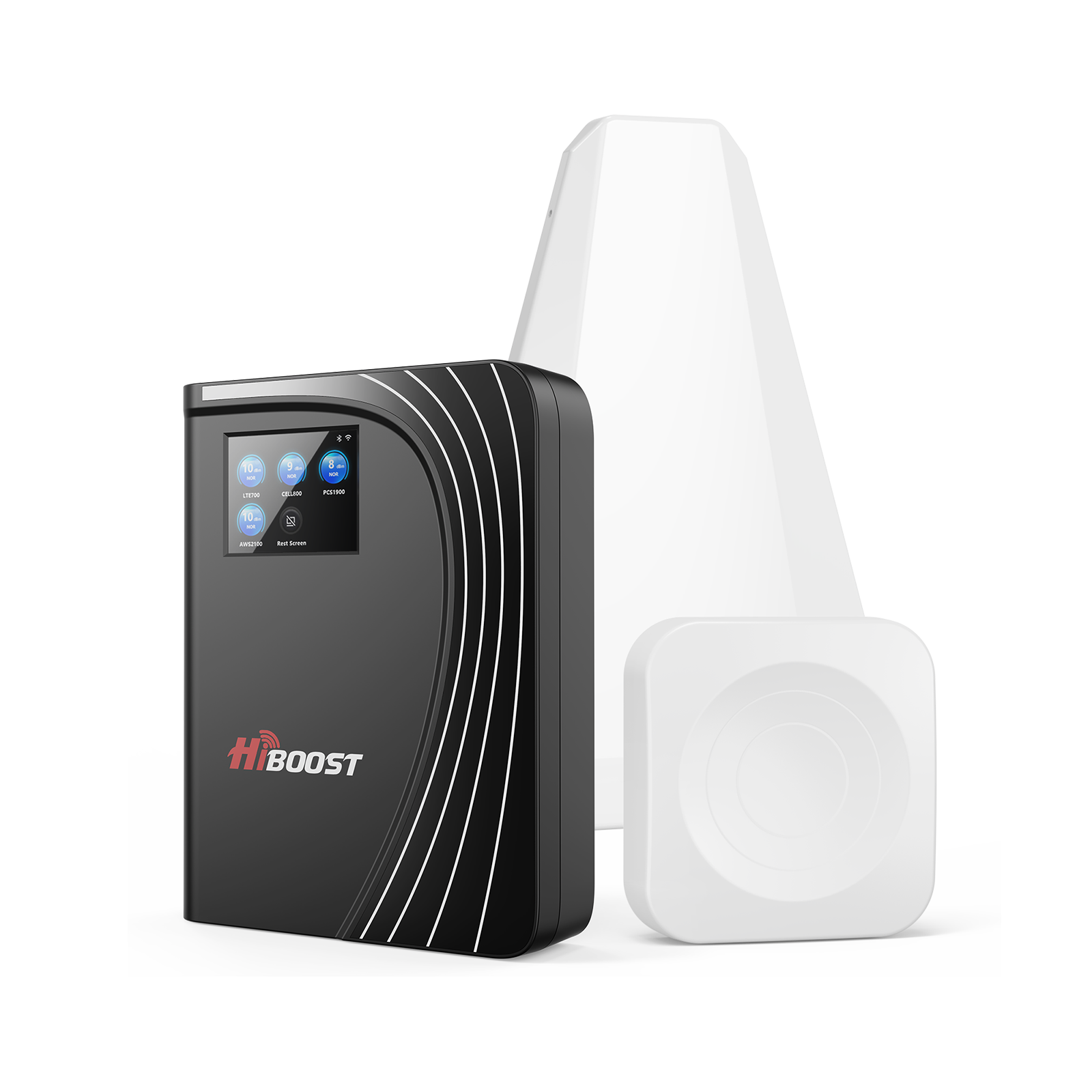
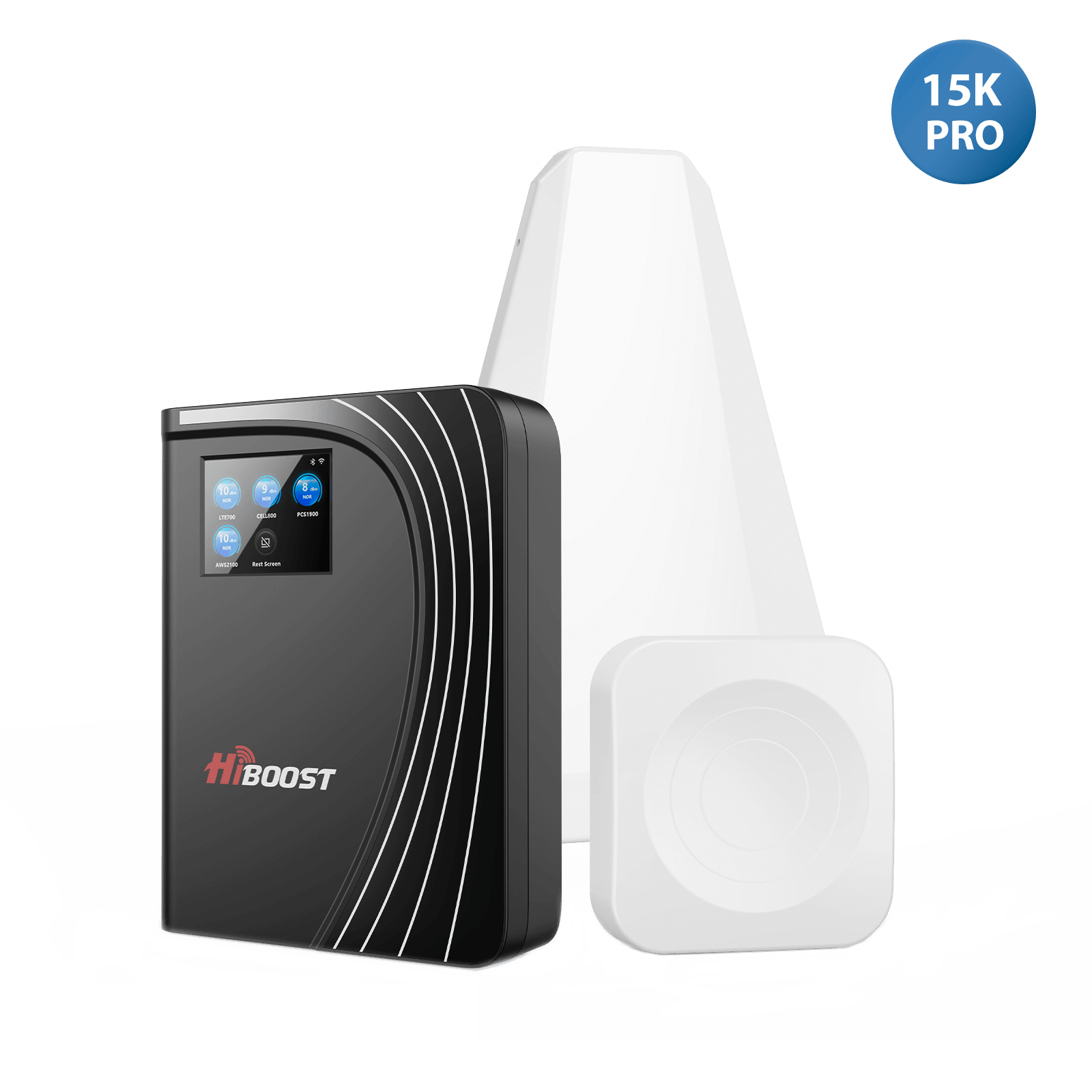
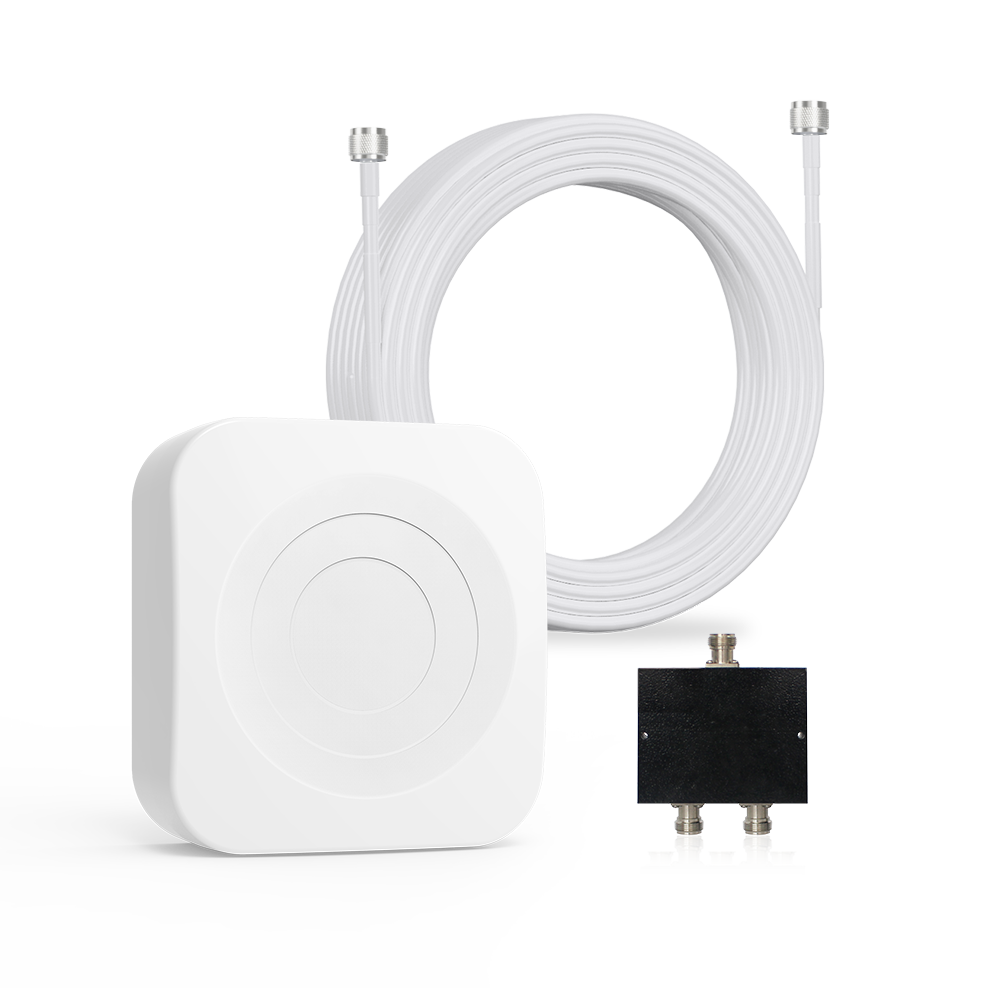
When a booster fits the evidence, review HiBoost’s home systems or its vehicle options with your measurements in hand. The right next step should follow from what works at your location and the task you need to complete.
Related Guides: Improve Your Cell Phone Signal
Explore these guides for more detailed troubleshooting and solutions.
Measure Your Signal: How to Measure Cell Phone Signal Strength
Troubleshoot Weak Reception:Weak Cell Signal Troubleshooting & Solutions
Understand 5G Coverage:The Ultimate 5G Guide
Solve Indoor Signal Problems:Cell Phone Booster for Metal Buildings
Improve Rural Reception:Best Cell Signal Boosters for Rural Homes
Stay Connected on the Road:How to Boost the Cell Phone Signal in Your RV
Choose the Right Solution:How to Choose the Right Cell Signal Booster
Car/Suv,RV,Truck,Vehicle


Our Home Signal Booster



Popular Articles

Leave a comment
All comments are moderated before being published.
This site is protected by hCaptcha and the hCaptcha Privacy Policy and Terms of Service apply.